



How To Make A Social Media Wall?
A social media wall brings posts, photos, videos, and other content from social media platforms into one feed. With Social Walls, you can collect content from your preferred sources, moderate posts, customize your wall, and display it on event screens, TVs, digital signage, and other displays.
Follow these steps to create your own social media wall using Social Walls.
Step 1: Log In to Social Walls
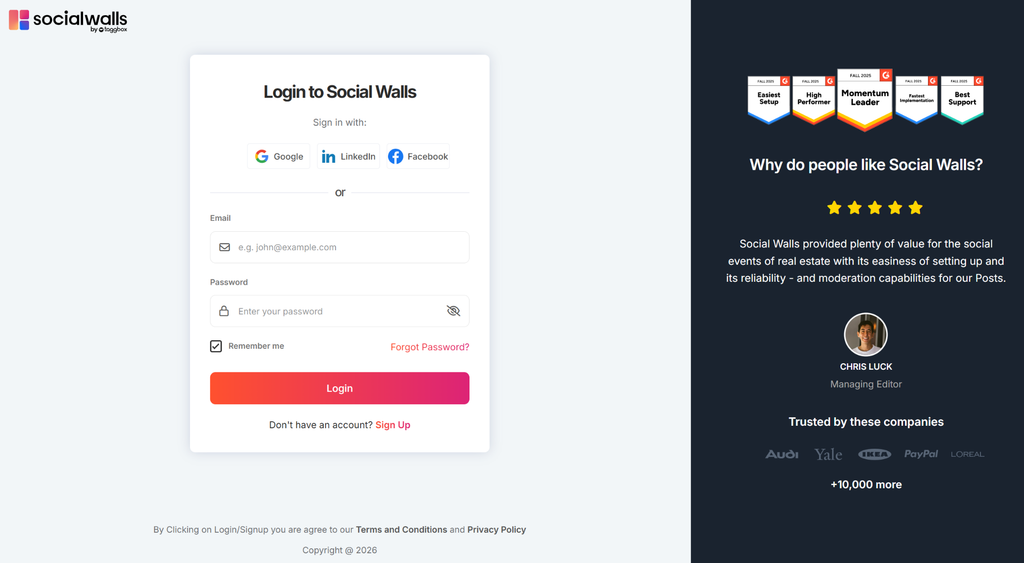
- Visit app.socialwalls.com.
- Log in to your existing Social Walls account or create a new account.
- Once you reach the dashboard, click My Walls and select Create New Wall.
- Enter a name for your social media wall and click Create Wall.
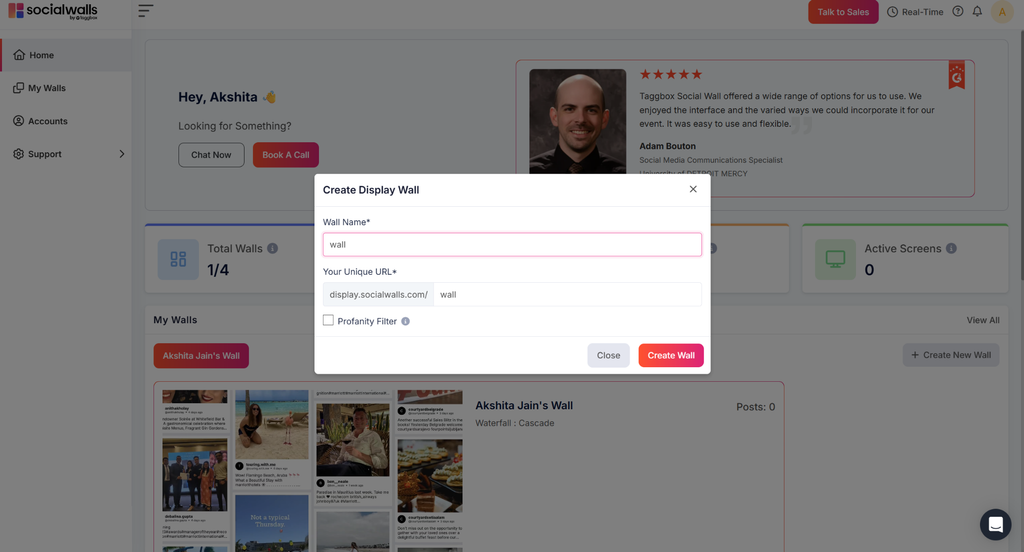
Your new wall is ready for you to add content.
Step 2: Choose a Social Media Source
After creating your wall, select the social media platform from which you want to collect content. Social Walls supports multiple content sources, including Instagram, Facebook, TikTok, LinkedIn, YouTube, X, and more.
- Select your preferred social media platform from the available source options.
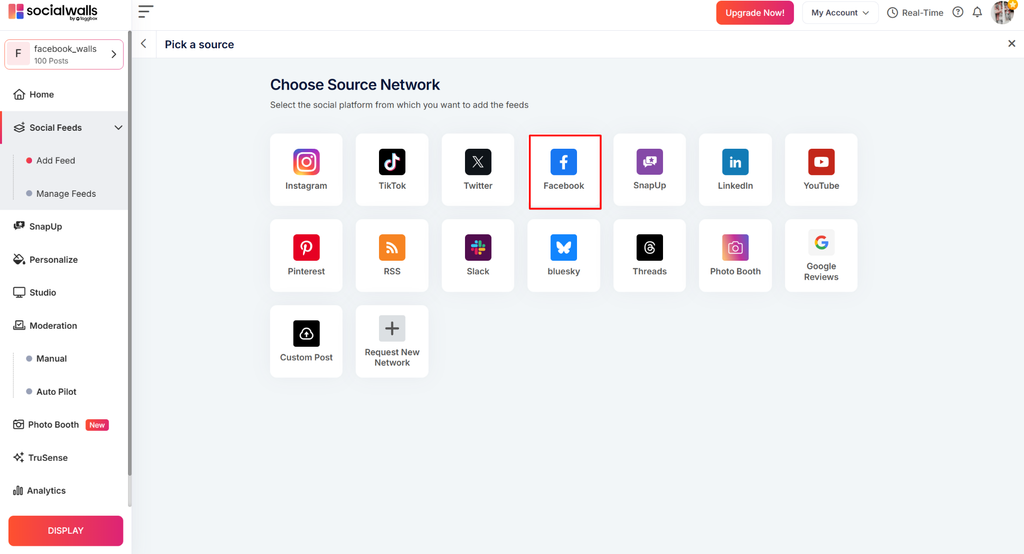
- Choose a feed type based on the content you want to collect. Depending on the platform, you may be able to select a hashtag, handle, account, mention, or post URL.
- Enter the required details for your selected source.
- Click Create Feed to add the source to your social media wall.
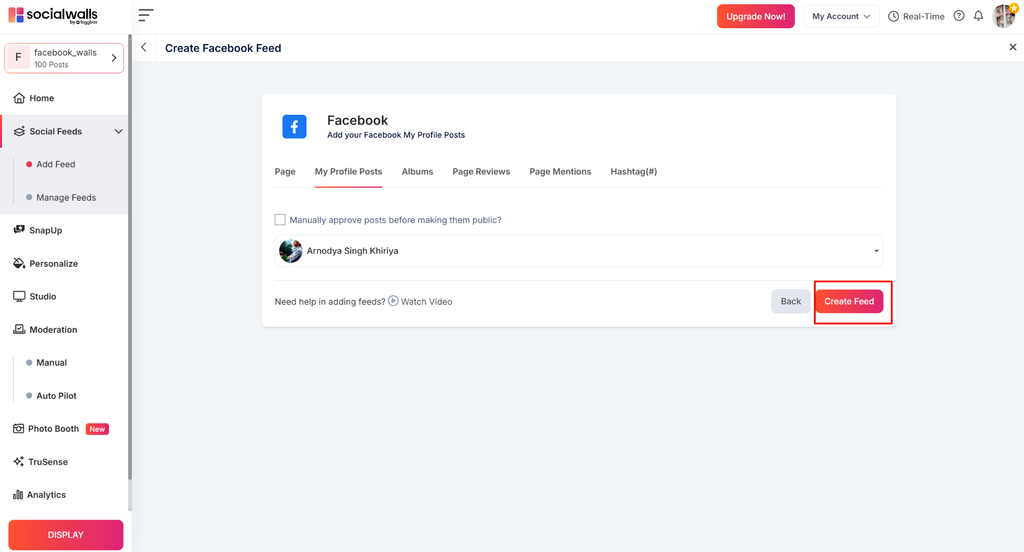
Repeat these steps if you want to add more feeds and bring content from multiple sources into one wall.
Step 3: Moderate Your Content
Once your feed is created, review the collected posts to ensure your social media wall displays relevant and appropriate content.
- Open the Moderation section from your wall dashboard.
- Review the posts collected from your connected sources.
- Set posts to Public to display them on your wall or Private to keep them hidden.
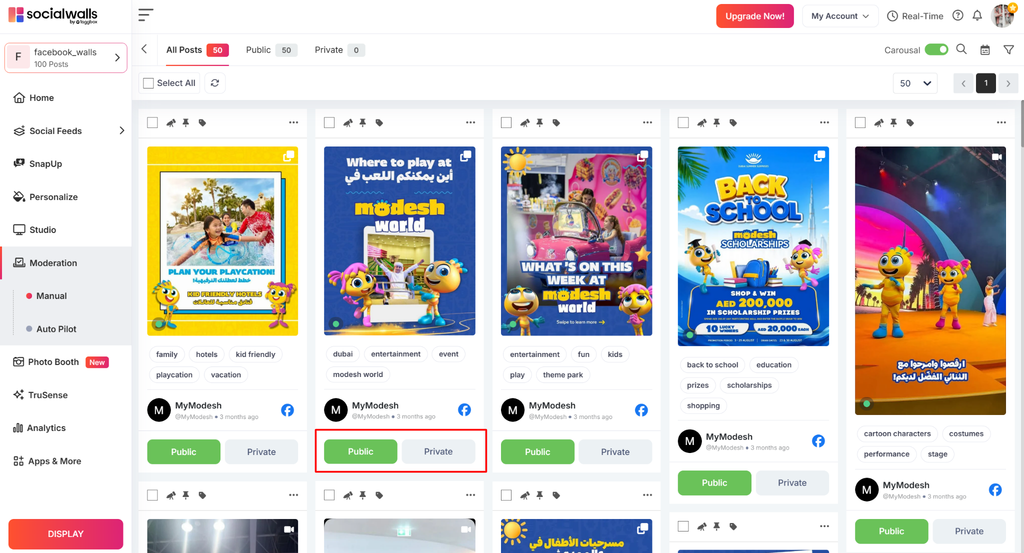
- Review the feed regularly to maintain the quality and relevance of your displayed content.
You can also explore available moderation settings to help manage the content that appears on your wall.
Step 4: Customize Your Social Media Wall
Make your social media wall match your brand, event, or display environment using the personalization settings.
- Now navigate to Personalize.
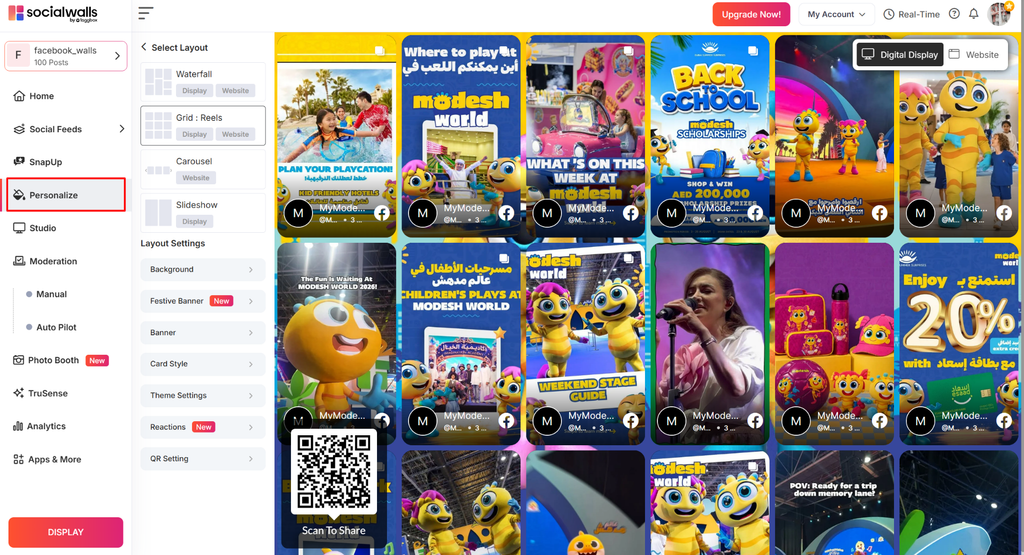
- Choose a suitable layout, such as a grid, waterfall, carousel, or slideshow, where available.
- Customize the theme, background, banner, fonts, and post card styles.
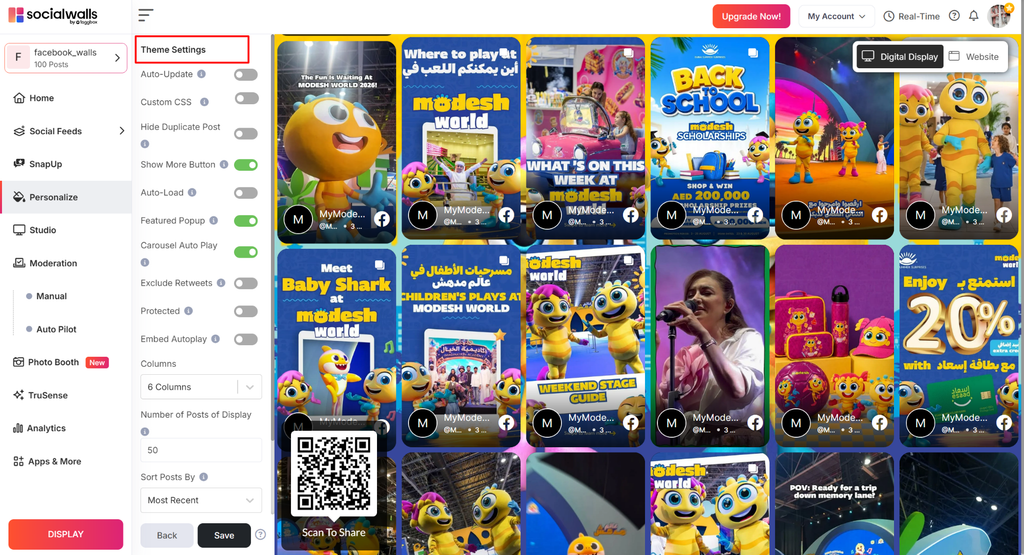
- Adjust the available settings to match your branding and display requirements.
- Save your changes.
Preview the wall to ensure the content is easy to read and looks good on your intended screen.
Step 5: Add Interactive Features (Optional)
Make your social media wall more engaging by exploring the additional features available in Social Walls.
Depending on your requirements, you can explore:
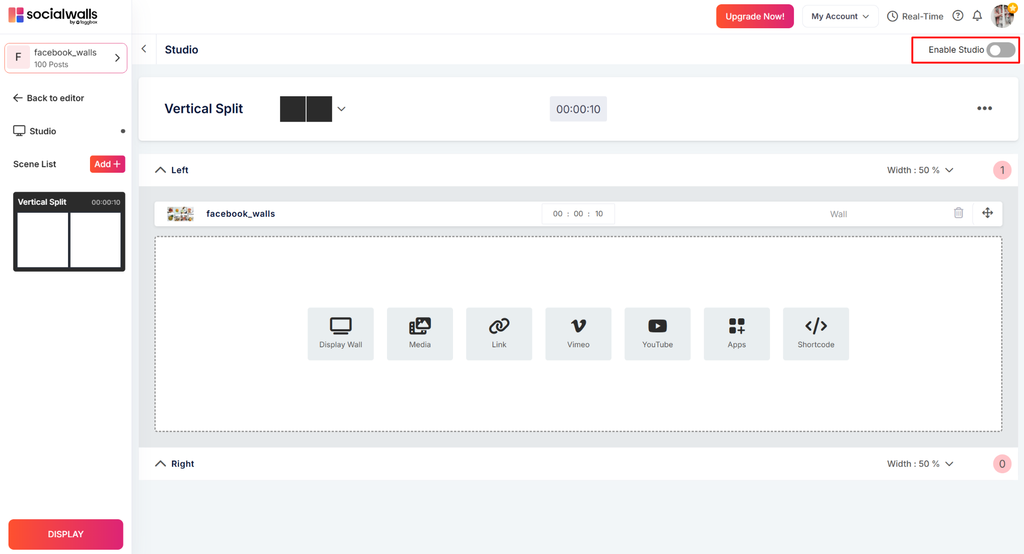
- Studio: Enhance your wall with available interactive and visual elements.
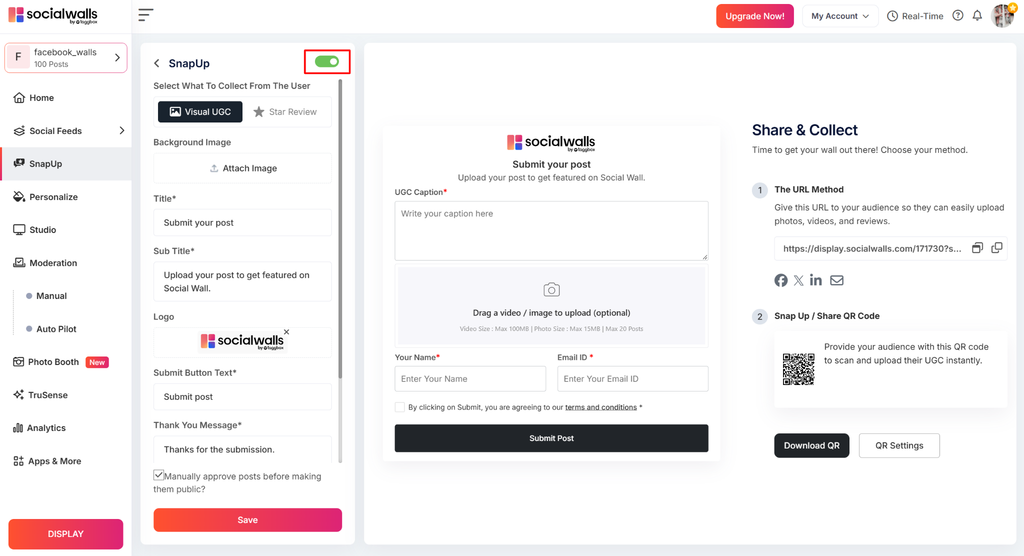
- SnapUp: Let your audience submit photos, videos, and messages through a QR code.
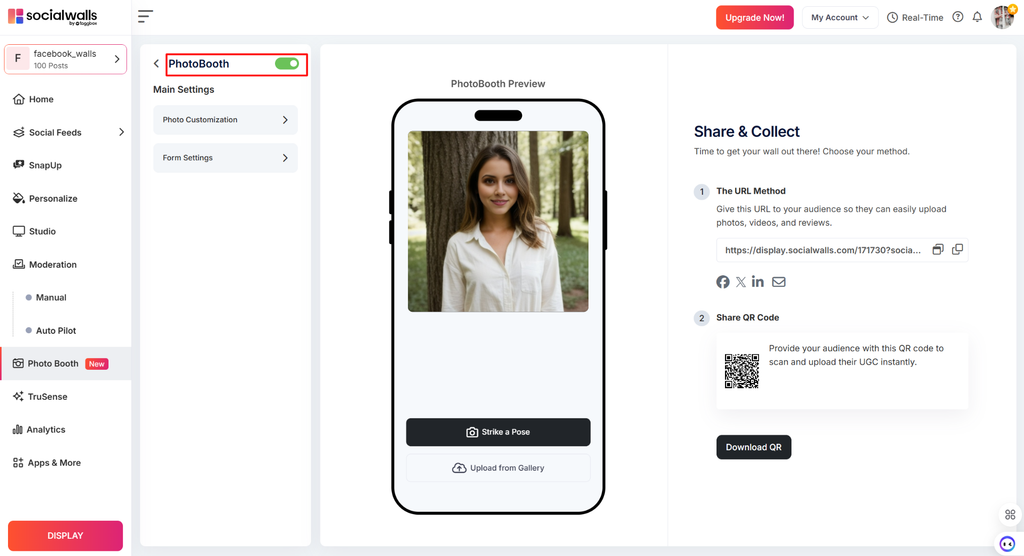
- Photo Booth: Create branded photo experiences for your audience.
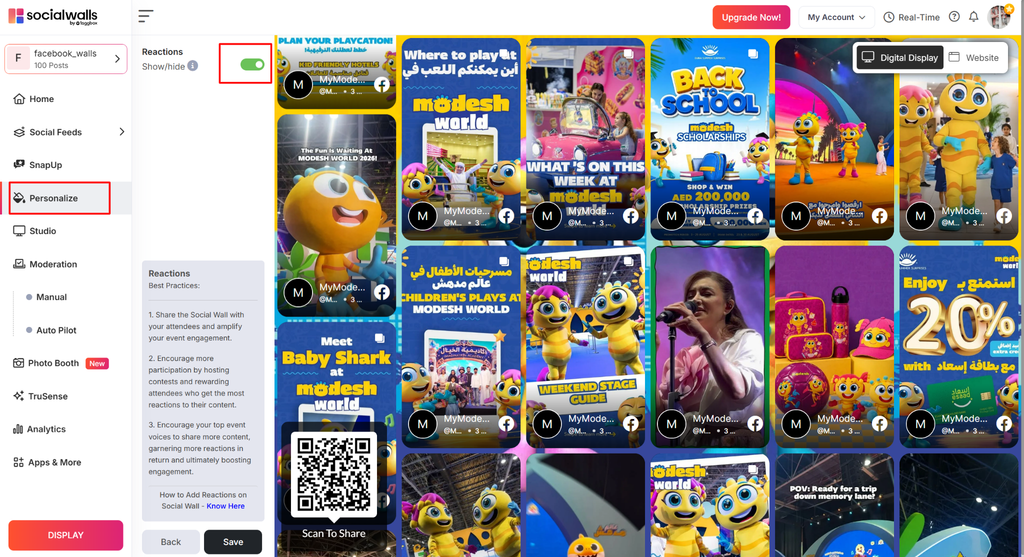
- Reactions: Encourage audience members to react to displayed content.
- Ticker: Display scrolling announcements, messages, and updates.
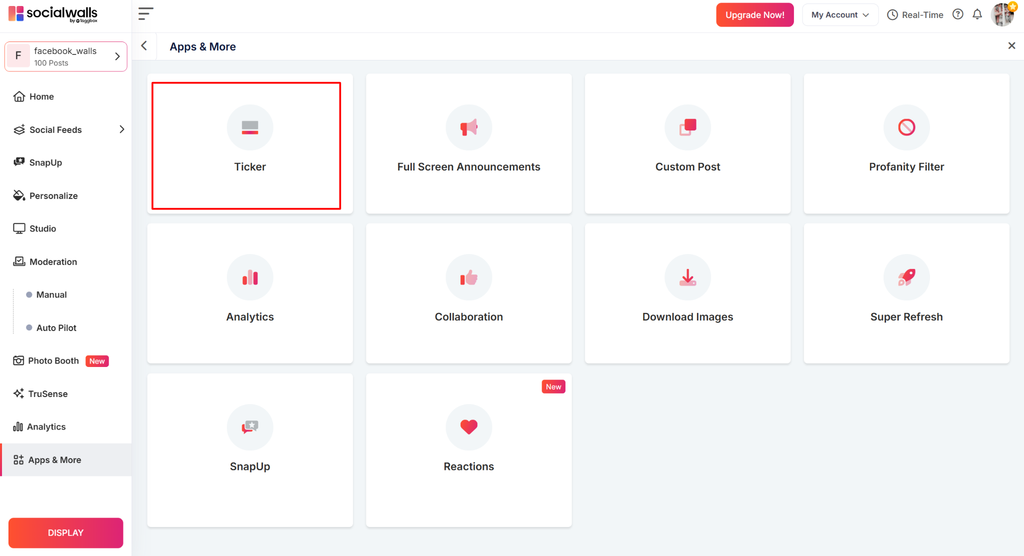
- Polls and Q&A: Encourage audience participation during events.
Open the relevant feature or app settings and configure the options you want to use.
Step 6: Display Your Social Media Wall
Once your content is moderated and your design is ready, publish your wall on your preferred screen.
- Then, select Display.
- Choose the appropriate display option, such as a projector, TV, or digital display, based on your setup.
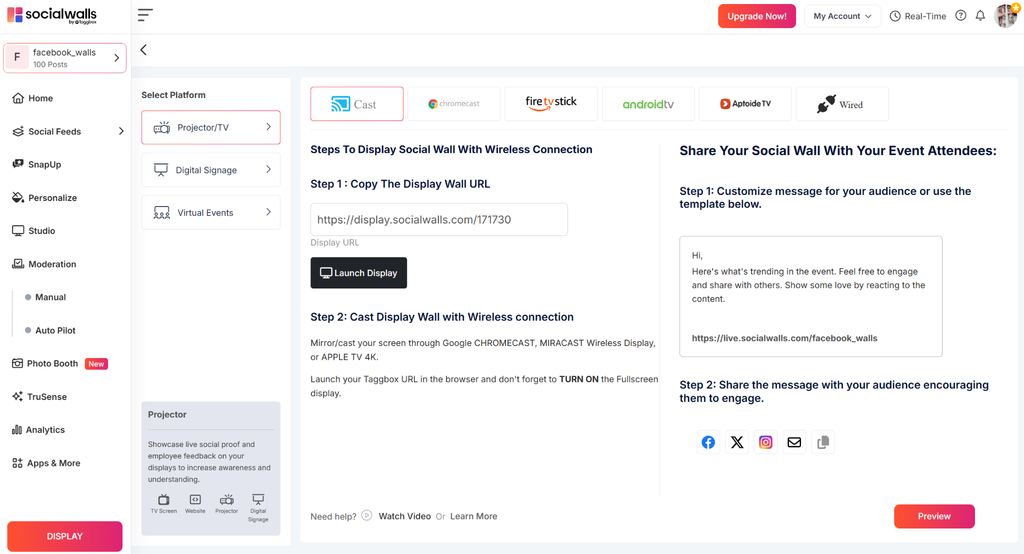
- Select the supported display method or application available for your device.
- Follow the on-screen instructions to connect your display and launch your wall.
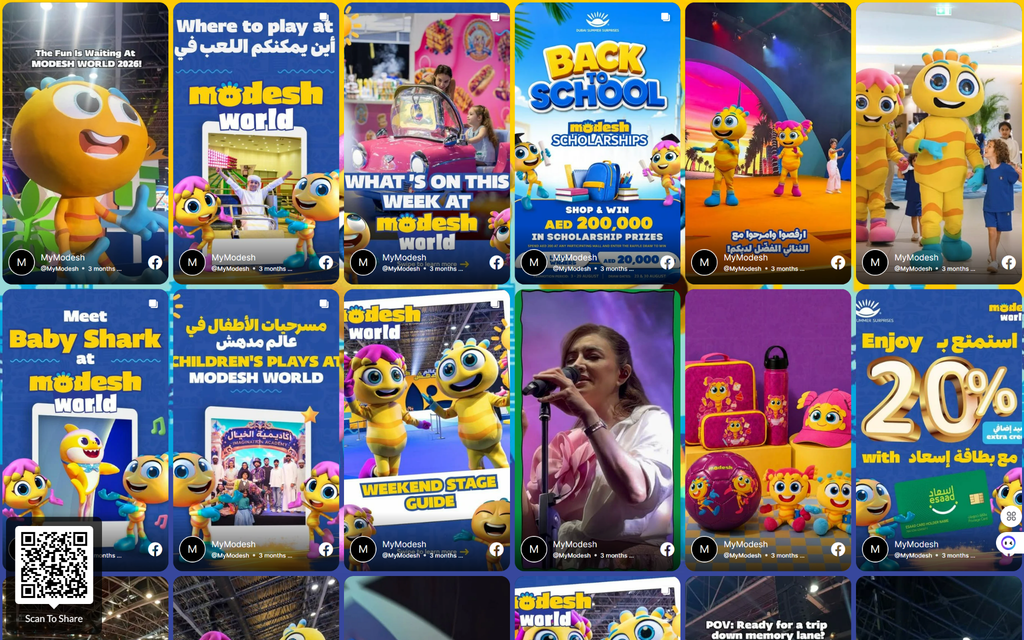
- Check the displayed content to ensure the wall is working as expected.
For a TV or projector, you can use a supported display application, casting option, or an HDMI connection, depending on your device and setup.
Need help?
If you need assistance creating or displaying your social media wall, contact the Social Walls support team for guidance.