If you want to showcase a live social media feed on a bigger screen, Google Chromecast makes it incredibly simple. With just a few clicks, you can mirror your laptop and display your content instantly.
Displaying a social wall on Chromecast further boosts engagement by streaming real-time updates directly to your audience. Additionally, once you open your Social Wall url in Chrome, you can cast it to any TV within seconds.
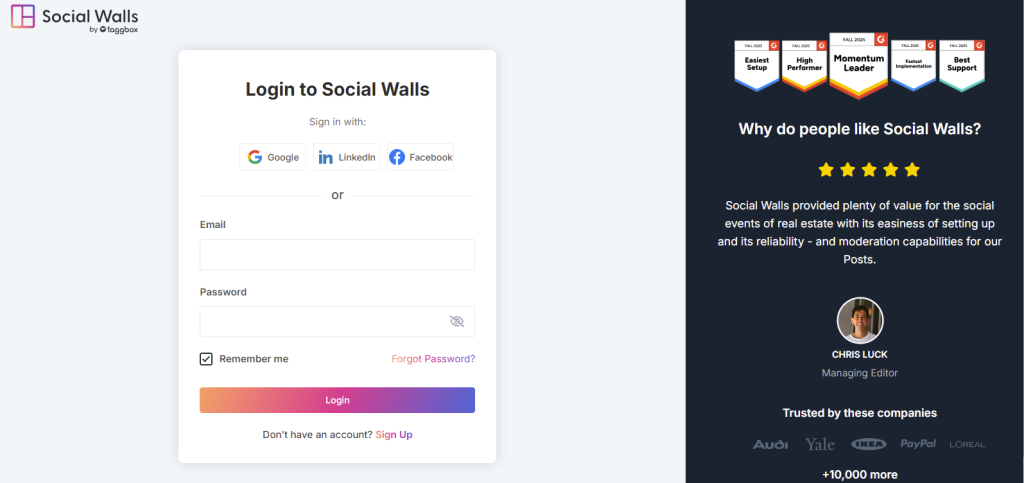
Step 1: To begin with, sign up or log in to your Social Walls account.
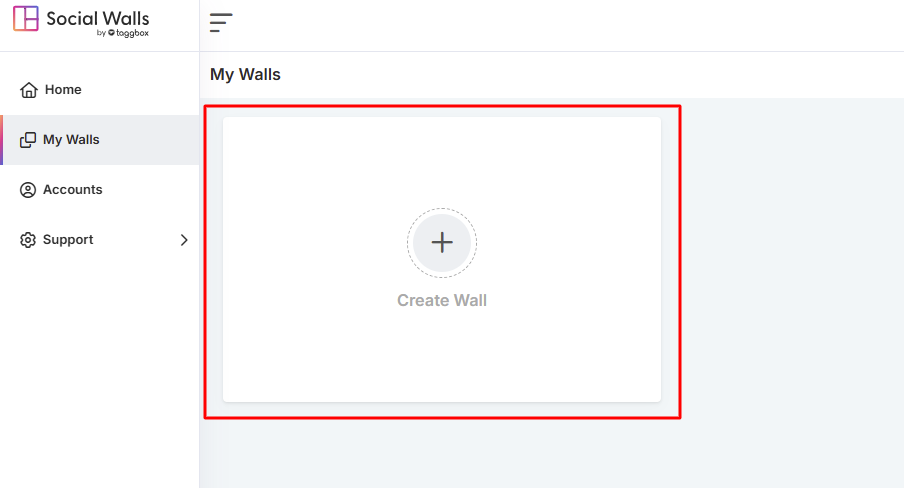
Step 2: After logging in, go to the dashboard and click Create a Wall.
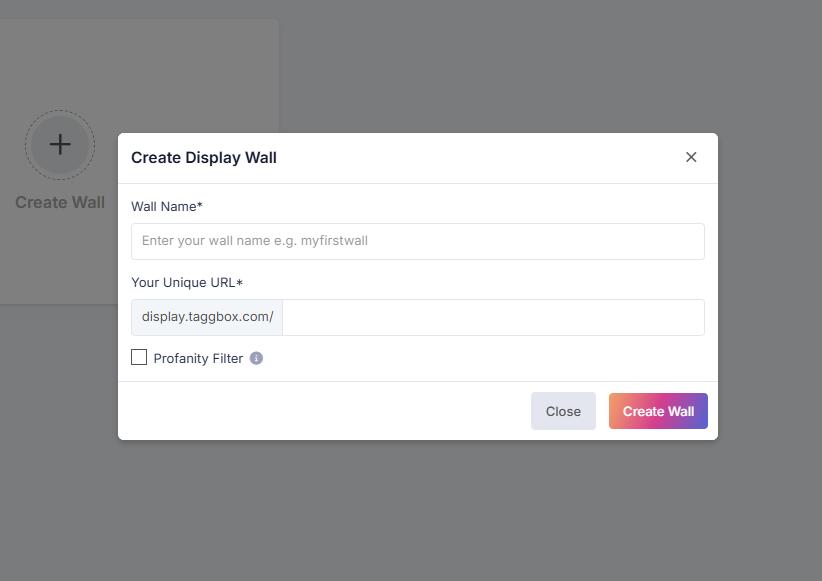
Step 3: Next, name your wall clearly so it aligns with your campaign, event, or theme.
Step 4: Once that’s done, select the social media source you want to pull feeds from.
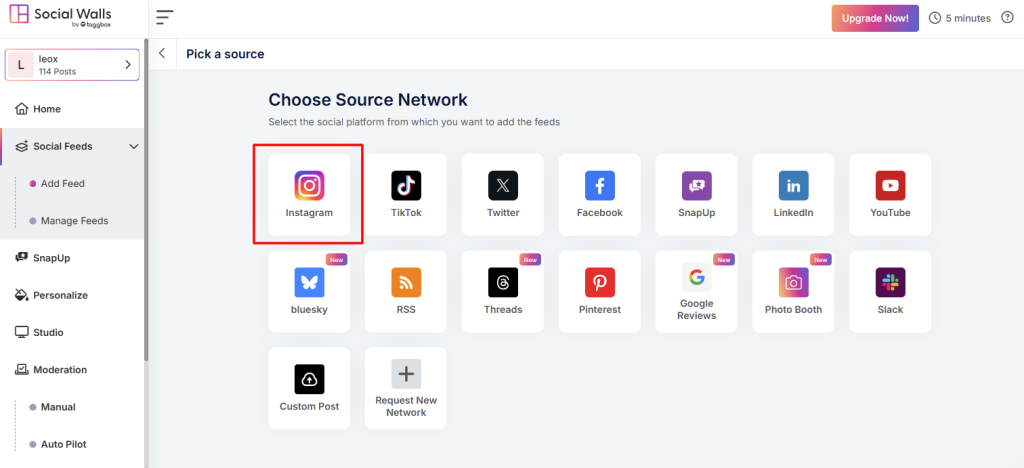
Step 5: Afterward, click the Instagram icon and choose your preferred feed type.
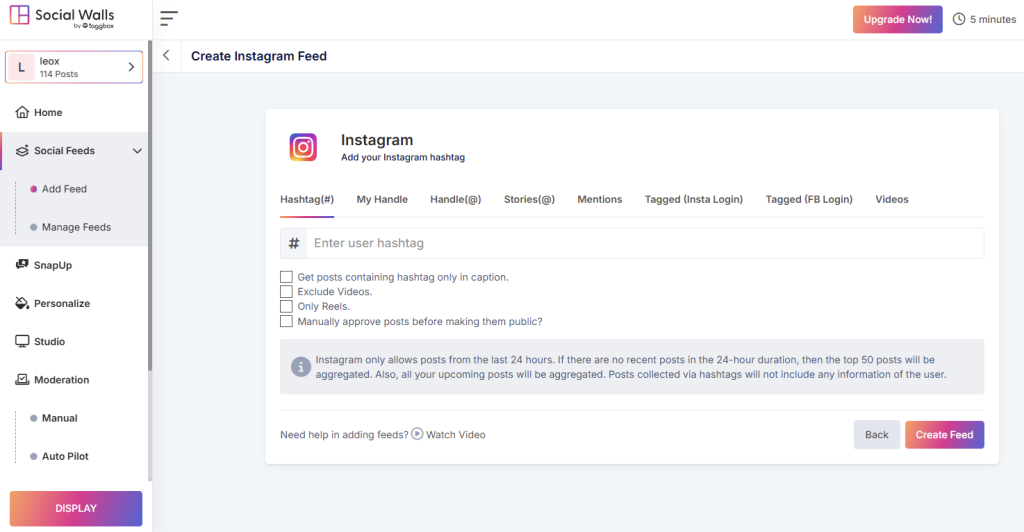
As a social media aggregator, Social Walls lets you collect content from:
- Hashtags – Pull posts using your event hashtag
- Mentions – Gather posts where users mention your brand
- Tagged Posts – Highlight user-generated content
- Handles / Personal Accounts – Stream posts from your official profiles
- Stories & IGTV Videos – Add rich, immersive visuals
Step 6: Once your sources are connected, preview your wall.
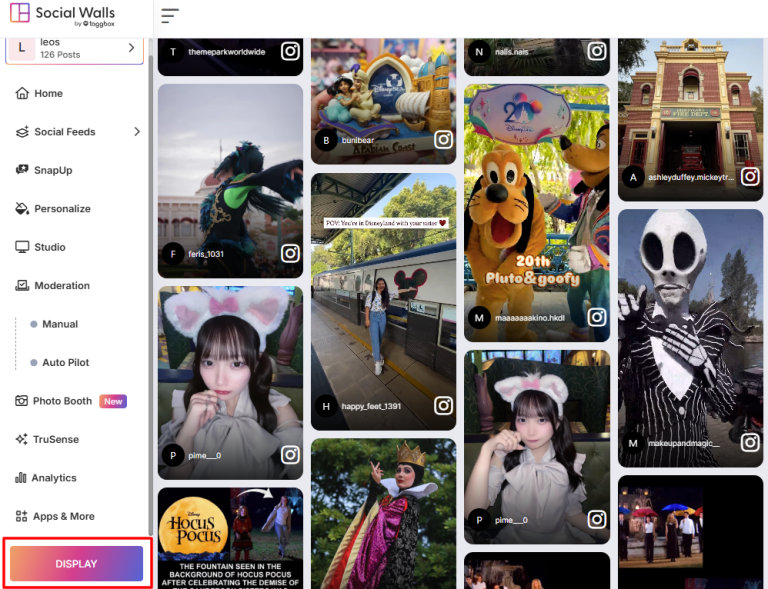
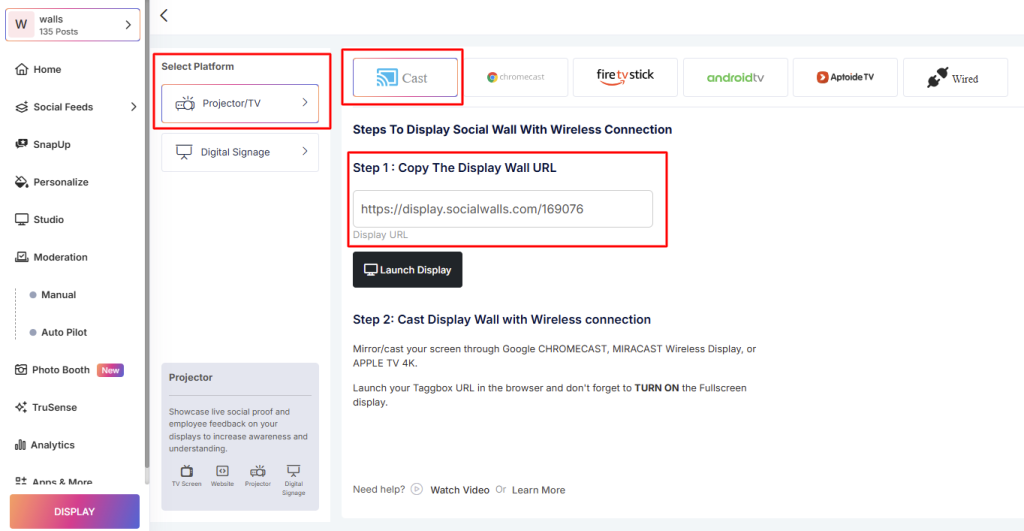
Step 7: Then, navigate to Integrate with Digital Display → Projector/TV and copy the Social Wall display URL.
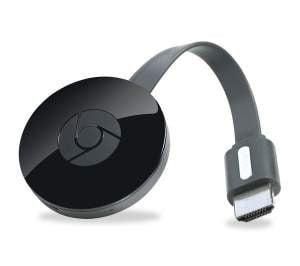
Step 8: To start the display process, set up your Chromecast by connecting it to your TV and completing the setup using the Google Home app.
Step 9: Afterward, open Google Chrome on your laptop and enter your Social Wall display URL.
Step 10: Finally, the social wall on Chromecast, your Social Wall will appear instantly on your TV screen.
If you have any questions or need help, please contact us or write to us at support@socialwalls.com