 Events
  Digital Signage
  Hybrid Events
  Instagram Wall
 Twitter Wall
  TikTok Wall
 Hashtag Campaign
 Social Media Aggregator
 Linkedin Wall
 Facebook Wall
 Studio
 SnapUp
 Spotlight
 Analytics
 Moderation
 Customization
 Reactions
 Photobooth
 Education
 Fitness
 Hospitality
 Healthcare
 Retail
 Agencies
 Sports
 Finance
 Non-profit
 News & Entertainment
 Ecommerce
 Blog
Blog Support
 Our Clients
 Integration
 Case Studies
 Get Inspired


Displaying a social wall on Aptoide TV makes it easy to showcase real-time content on any smart screen. With a simple setup, you can stream your live social media feed directly through the Social Walls app. This setup helps you engage viewers instantly by showing fresh posts and updates as they appear.
Step 1: First, sign up or log in to your Social Walls account.
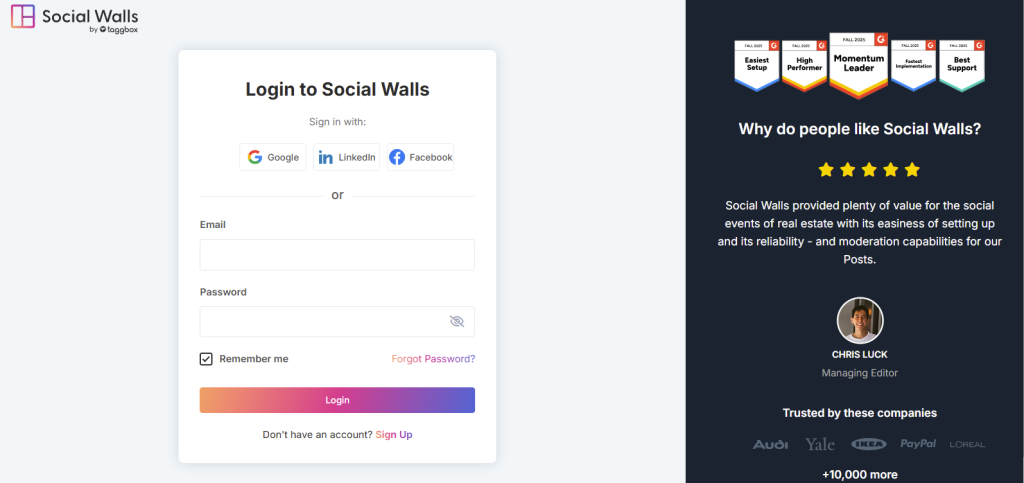
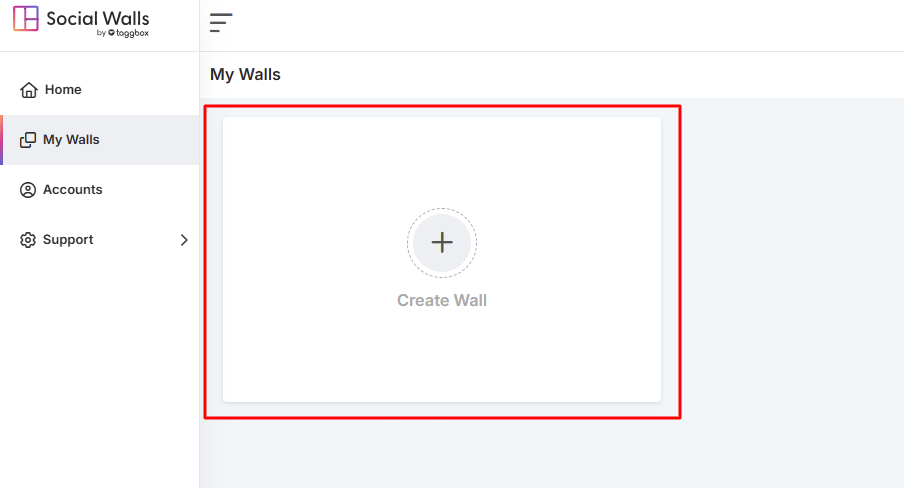
Step 2: Next, from the dashboard, click Create a Wall.
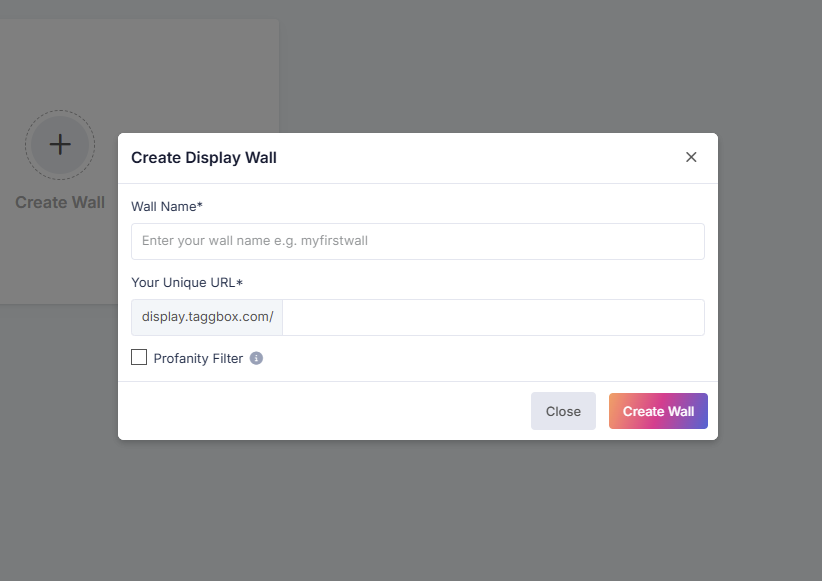
Step 3: Then, name your wall clearly to match the campaign, event, or theme.
Step 4: After that, select the social media source you want to pull feeds from.
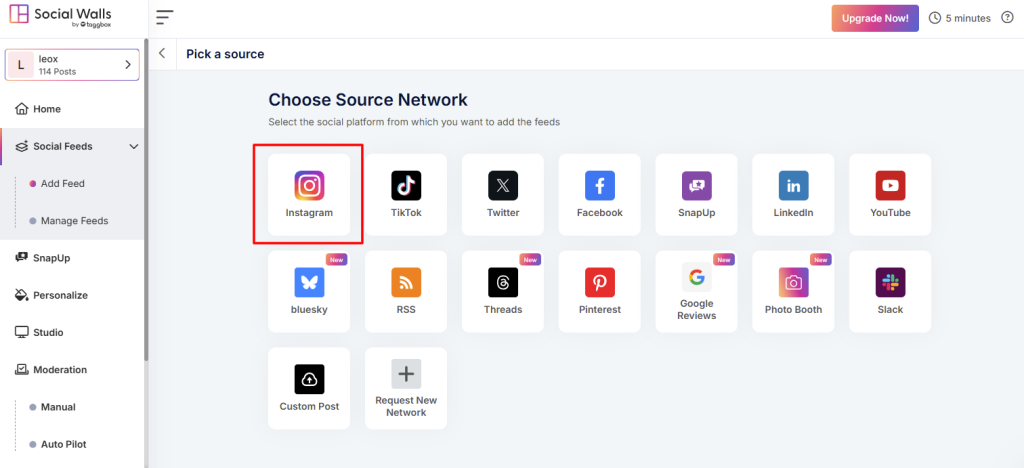
Step 5: Go to instagram icon and choose your source feeds.
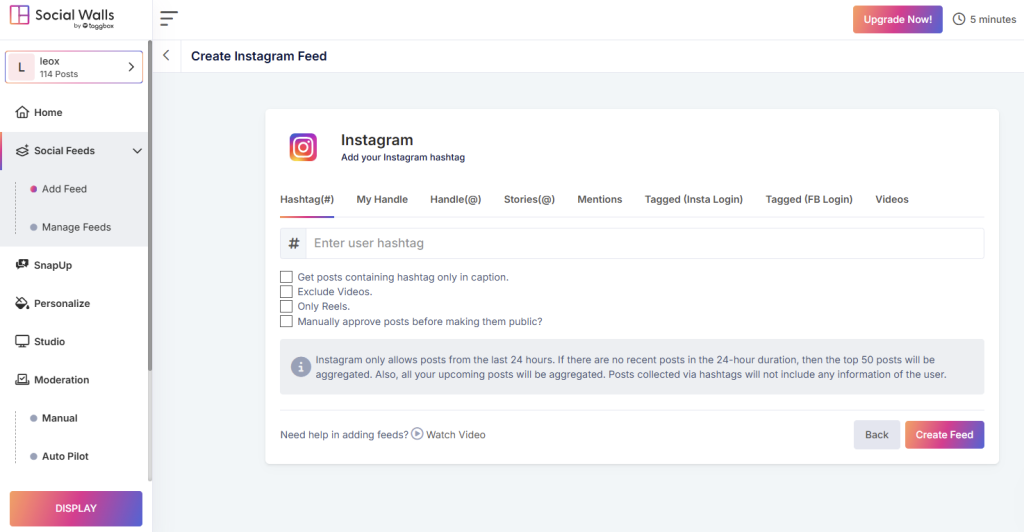
As a social media aggregator, Social Walls lets you collect content from:
- Hashtags – Pull posts using your event hashtag
- Mentions – Gather posts where users mention your brand
- Tagged Posts – Highlight user-generated content
- Handles / Personal Accounts – Stream posts from your official profiles
- Stories & IGTV Videos – Add rich, immersive visuals
Step 6: Finally, preview the wall.
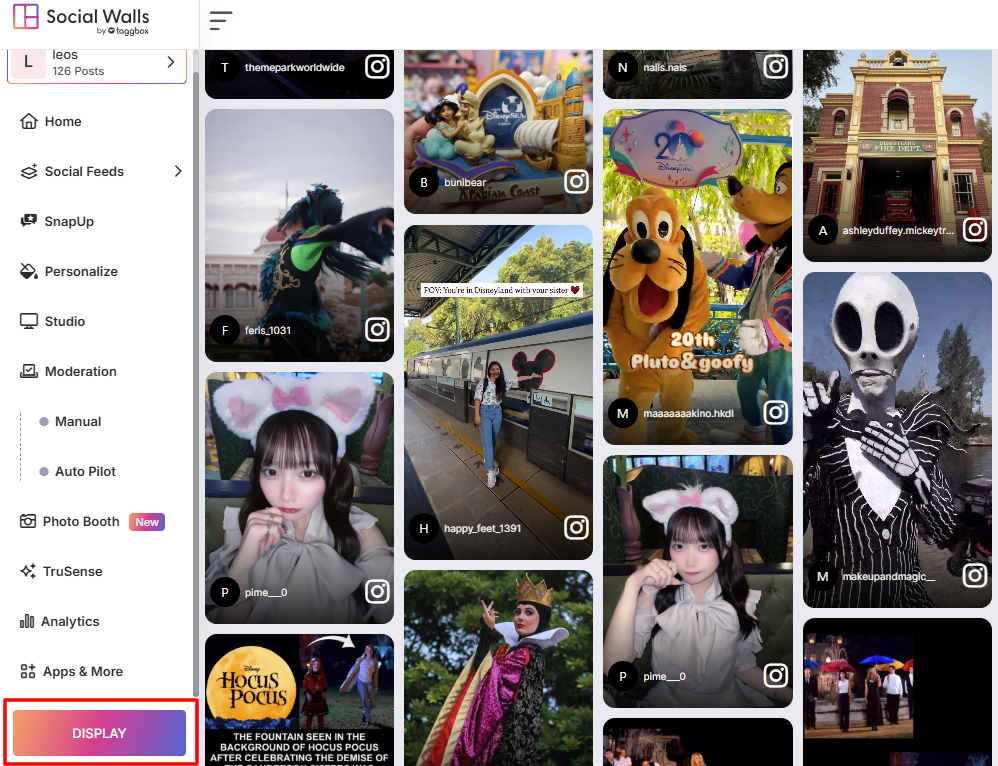
Step 7: Then navigate to Integrate with Digital Display → Projector/TV and copy the social wall display code.
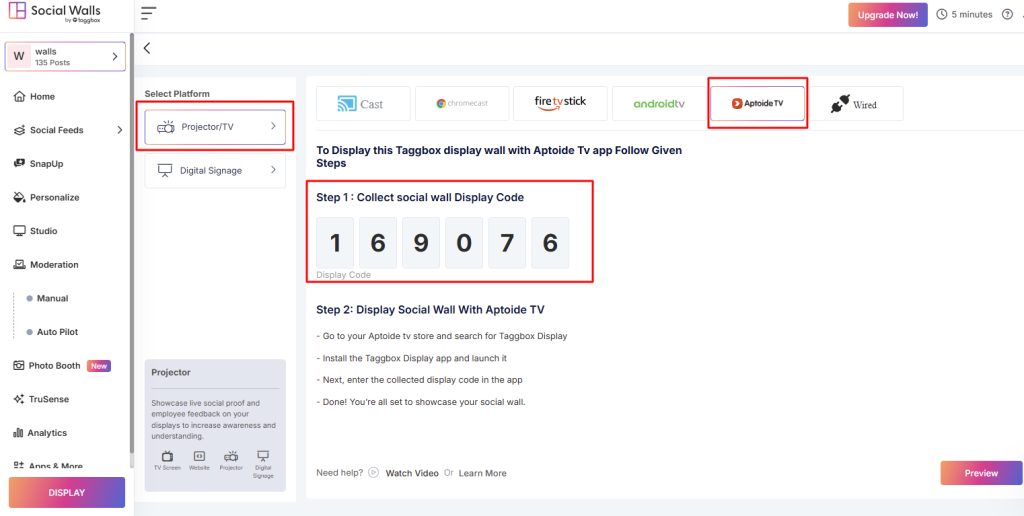
Step 8: To begin with, open your Smart TV or Android TV device and launch the Aptoide TV app.
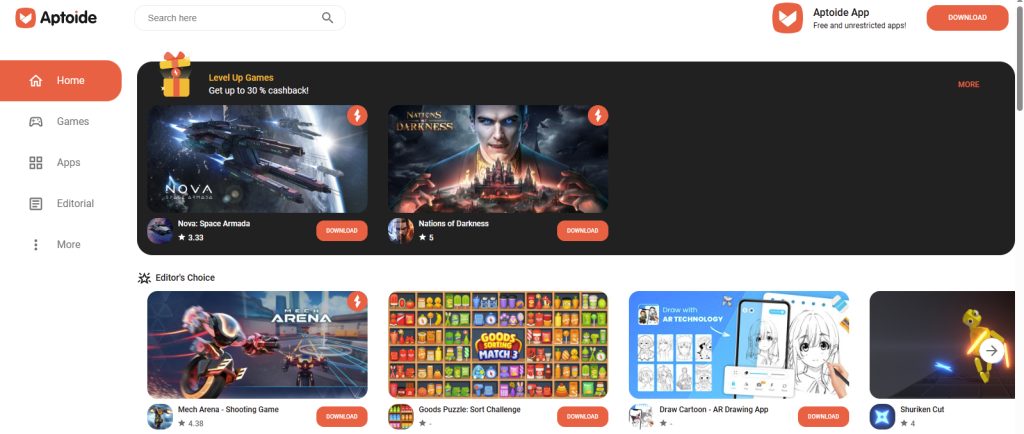
Step 9: Next, type “Social Walls” into the search bar using your remote. click the Install button to download and add the app to your TV.
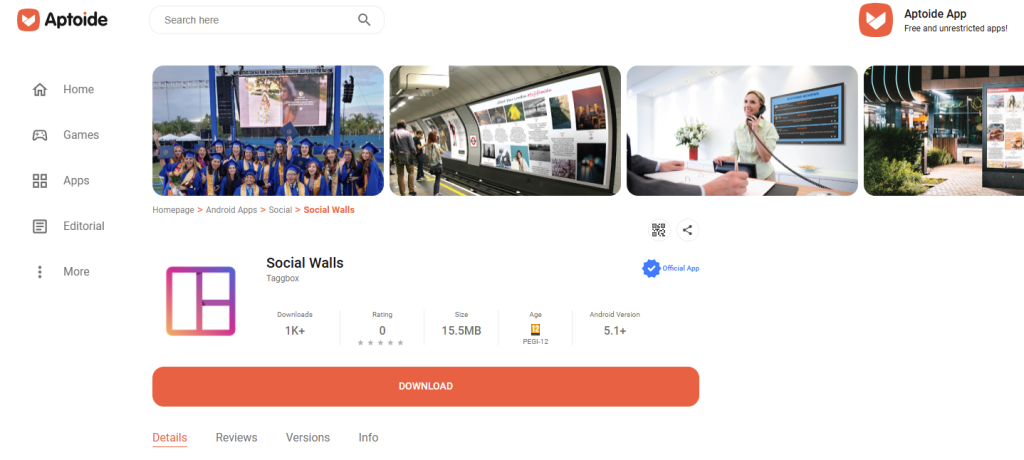
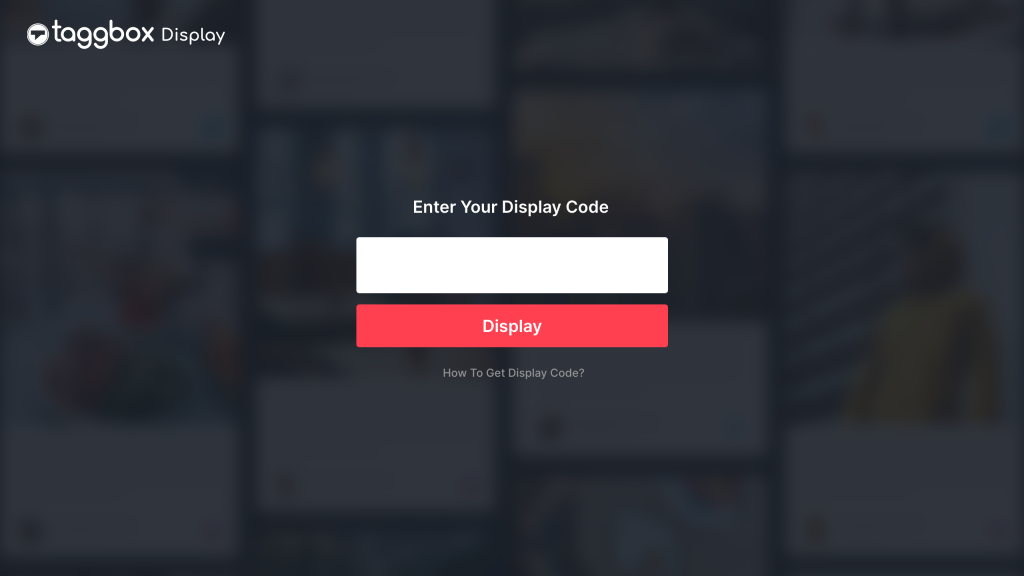
Step 10: Once the installation finishes, open the Social Walls app from your Apps section. Afterward, enter your Social Wall Display code or log in to your account.
Step 11: Finally, once the wall loads, your Social Wall will appear instantly on your TV through Aptoide TV.
If you have any questions or need help, please contact us or write to us at support@socialwalls.com