 Events
  Digital Signage
  Hybrid Events
  Instagram Wall
 Twitter Wall
  TikTok Wall
 Hashtag Campaign
 Social Media Aggregator
 Linkedin Wall
 Facebook Wall
 Studio
 SnapUp
 Spotlight
 Analytics
 Moderation
 Customization
 Reactions
 Photobooth
 Education
 Fitness
 Hospitality
 Healthcare
 Retail
 Agencies
 Sports
 Finance
 Non-profit
 News & Entertainment
 Ecommerce
 Blog
Blog Support
 Our Clients
 Integration
 Case Studies
 Get Inspired


LinkedIn isn’t just a place for resumes anymore. It’s where companies share what they’re doing, teams celebrate wins, and professionals talk about trends that actually matter.
And honestly, most websites could use more of that energy. Because let’s face it—static pages can look polished, but they don’t always feel alive. When you add a live LinkedIn feed on website, you’re showing real updates and real activity, not just claims.
It’s the difference between saying “We’re active in our industry”… and actually proving it.
So instead of typing out summaries or posting screenshots, streaming real LinkedIn content—posts, articles, employee highlights—gives visitors a glimpse of your brand in motion. And the best part? You can do it without complex coding.
Real-World Use Cases for Displaying a LinkedIn Feed
Strengthening Corporate Brand & Thought Leadership
If you publish insights or achievements, embedding LinkedIn feed on website lets you display them automatically. No rewriting. No screenshots.
Employer Branding & Hiring
Career pages instantly feel more human when you showcase culture, events, and team updates—straight from LinkedIn.
Client Trust & Social Proof
Displaying endorsements, recommendations, product launches, or milestones helps build credibility for B2B audiences.
Investor & Partner Relations
Professional activity and transparency matter. Real posts show momentum—not marketing spin.
Events, Webinars & Workshops
When you display LinkedIn feed on website, event coverage becomes visible before, during, and after.
This approach suits LinkedIn perfectly: professional content that signals authority.
Steps to Embed LinkedIn Feed on Website Using Social Walls
Below is a beginner-friendly walkthrough explaining how to show LinkedIn feed on website—no coding needed.
Step 1: Log In or Sign Up for Social Walls

Go to Social Walls, log in, or create an account. The dashboard keeps everything in one place so you can manage different feeds or pages easily.
Step 2: Create a New Wall
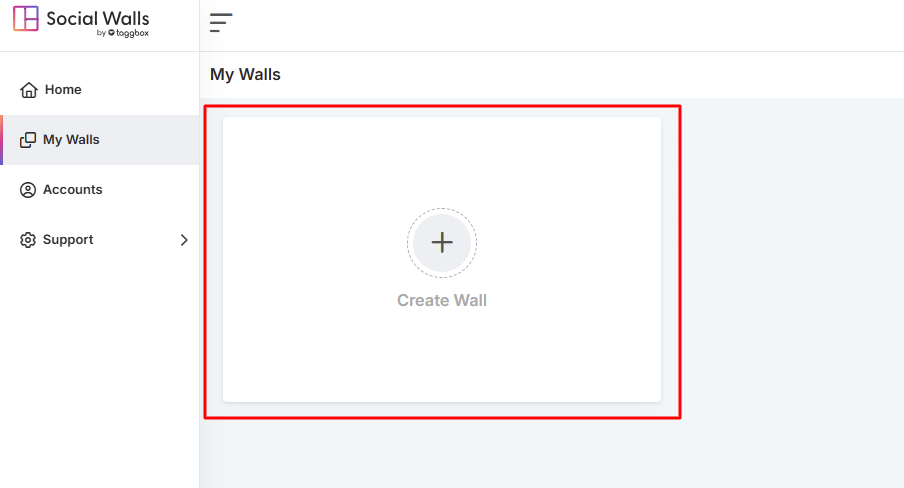
Click My Walls and select Create Wall. This is where your LinkedIn feed begins—like a workspace for layout and customization.
Step 3: Name Your Wall
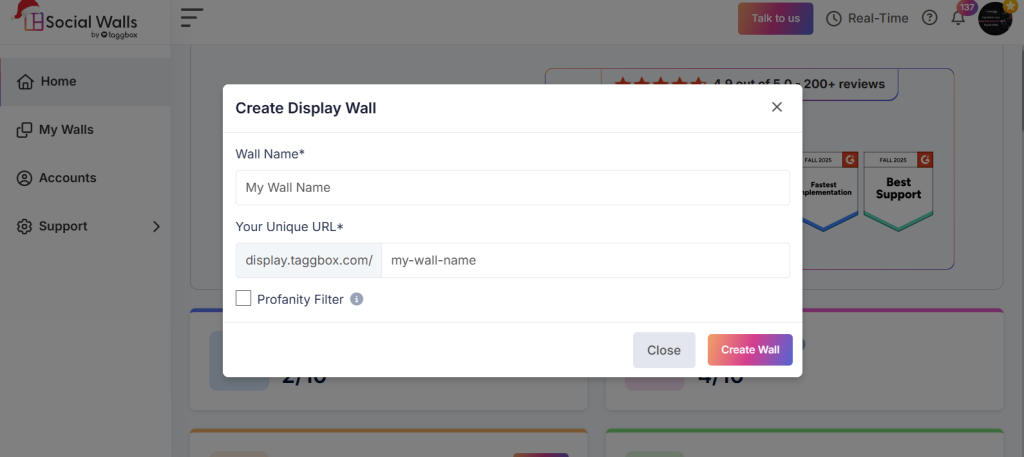
Pick a clear name, such as:
- Corporate Updates
- Careers & Culture
- Industry Insights
- Client Stories
This helps when managing multiple pages or campaigns.
Step 4: Select LinkedIn as the Platform
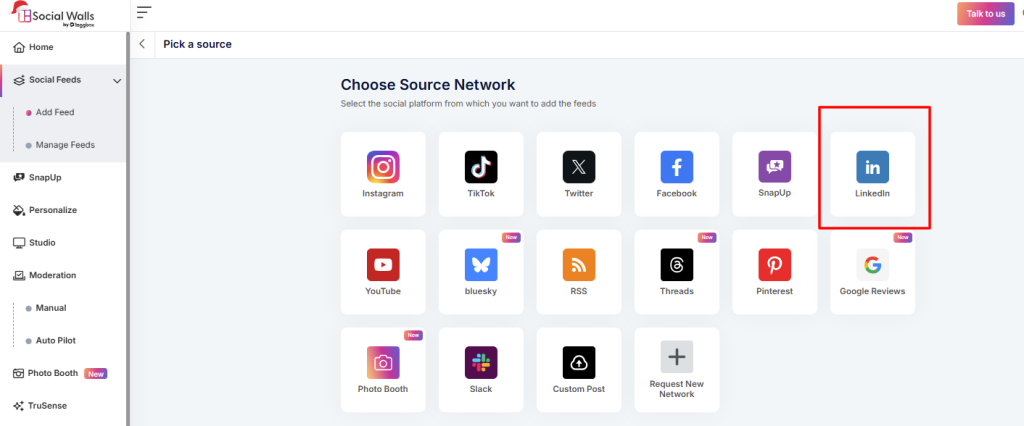
Choose LinkedIn so the tool knows which platform to pull content from. It syncs posts, articles, and shares.
Step 5: Choose LinkedIn Content Type
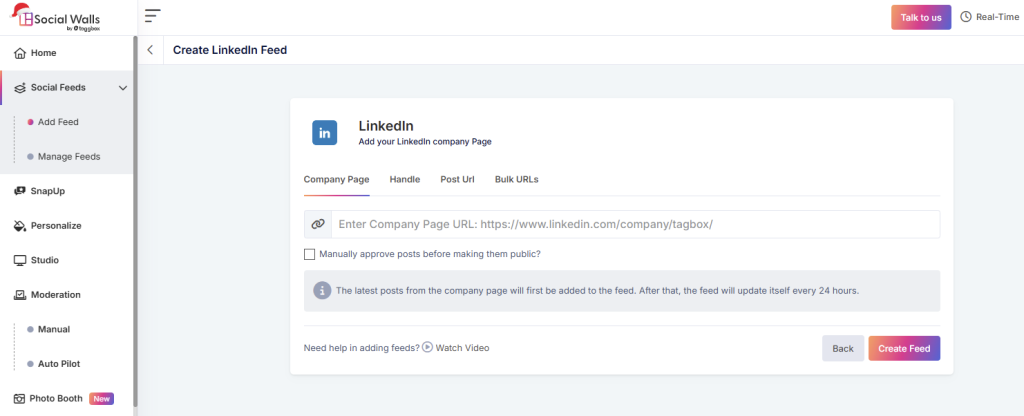
Select whether you want:
- Company page posts
- Personal profile posts
- Post URL
- Bulk URL’s
Your selection determines what you will display LinkedIn feed on website.
Step 6 & 7: Customize and Moderate Your LinkedIn Feed
Here, you decide not just how your feed looks—but what appears on it.
You can:
- choose grid, carousel, or wall layouts
- adjust spacing, margins, and colors
- show or hide headers
- filter or approve posts
Both design and moderation matter for professional audiences—especially in sectors where compliance matters (finance, healthcare, enterprise).
Step 8: Click “Display” and Copy the Embed Code
You’ll get a Litecode or iframe. This code is what makes embedding LinkedIn feed on website possible—it’s the live connection.
Conclusion
Adding a LinkedIn feed isn’t about decoration—it’s about proof. When you display LinkedIn feed on website, you bring real professional activity into view. Instead of relying on polished statements, you show actual posts, insights, and interactions happening in real time.
For businesses that care about credibility—consultants, agencies, employers, B2B brands—embedding LinkedIn feed on website is one of the easiest ways to make your site feel active, trustworthy, and current. And with tools like Social Walls, it’s simple to set up.