 Events
  Digital Signage
  Hybrid Events
  Instagram Wall
 Twitter Wall
  TikTok Wall
 Hashtag Campaign
 Social Media Aggregator
 Linkedin Wall
 Facebook Wall
 Studio
 SnapUp
 Spotlight
 Analytics
 Moderation
 Customization
 Reactions
 Photobooth
 Education
 Fitness
 Hospitality
 Healthcare
 Retail
 Agencies
 Sports
 Finance
 Non-profit
 News & Entertainment
 Ecommerce
 Blog
Blog Support
 Our Clients
 Integration
 Case Studies
 Get Inspired


A lot of websites lose visitors fast because the content just feels dead—like it hasn’t been touched in a while. People can spot staged images and scripted lines a mile away, and that kills trust right away.
Bringing in a live Instagram feed changes that atmosphere because it shows real people, real reactions, and things that actually happened. It adds movement and makes the site feel active instead of overly corporate.
So when you embed Instagram feed on website, you’re not just decorating the page—you’re giving it proof, activity, and some personality without diving into complex codes and redesigns. And honestly, it’s one of the easiest ways to make a site feel more credible and less outdated.
Benefits of Embed an Instagram Feed on a Website
1. Boosts Trust and Social Proof
When you embed instagram feed on website, visitors instantly see authentic posts instead of staged marketing. This visual transparency builds credibility and reassures potential customers.
2. Keeps Your Website Fresh and Relevant
An Instagram feed embed updates automatically with new content, eliminating manual uploads. This ensures your site appears active and keeps users engaged longer.
3. Improves Engagement and Time-on-Page
Real-time visuals encourage scrolling and interaction, which increases dwell time. When you embed Instagram feed, users explore more, and bounce rates decrease.
4. Enhances Branding and Visual Appeal
Embedded posts highlight your style, values, and products through real imagery. This strengthens brand storytelling and elevates the overall website experience.
5. Supports Social Growth and Conversions
When you embed Instagram feed on website, you drive curiosity and encourage profile visits. This boosts follower growth and increases conversion opportunities effortlessly.
Steps to Embed Instagram Feed on Website
Below is a comprehensive, expert-level walkthrough explaining how to embed Instagram feed using Social Walls.
Step 1: Sign Up or Log in to Your Social Walls Account

Start by accessing the Social Walls platform. If you already have an account, log in; if not, then sign up.
Creating an account isn’t just a formality—it opens access to advanced moderation tools, branding options, theme layouts, and analytics. When you plan to embed Instagram feed on website, having a central dashboard ensures long-term management.
Step 2: Click “My Walls” and Create a New Wall
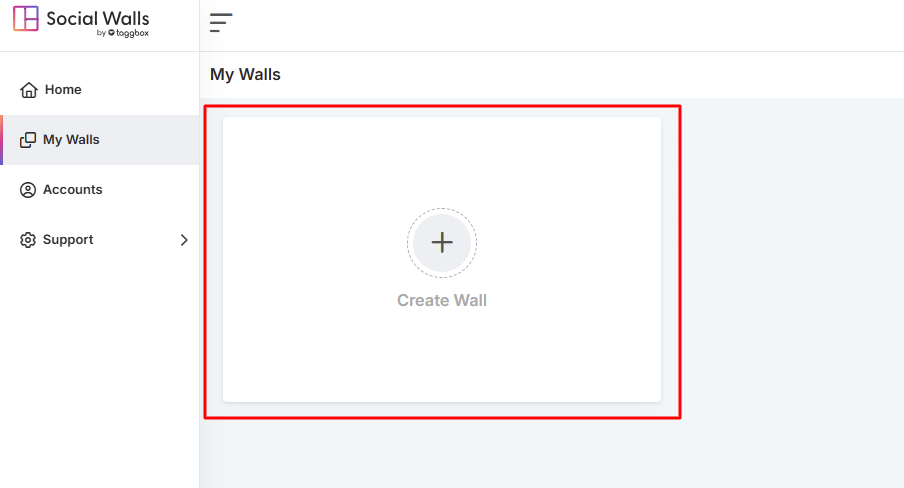
Step 3: Name Your Wall Based on Campaign, Event, or Theme
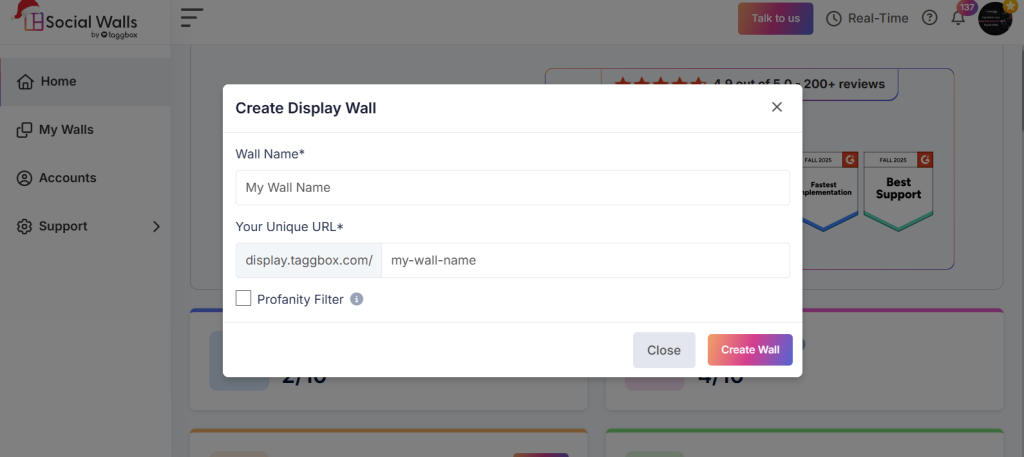
Naming isn’t about creativity—it’s about organization. Assign a name that reflects use case:
- Seasonal Sale Feed
- Real Customer Reviews
- Event Highlights
- Restaurant Menu Showcase
- Influencer Campaign
Naming helps you identify and edit feeds later—especially if you manage more than one.
Step 4: Select Instagram as Your Social Network
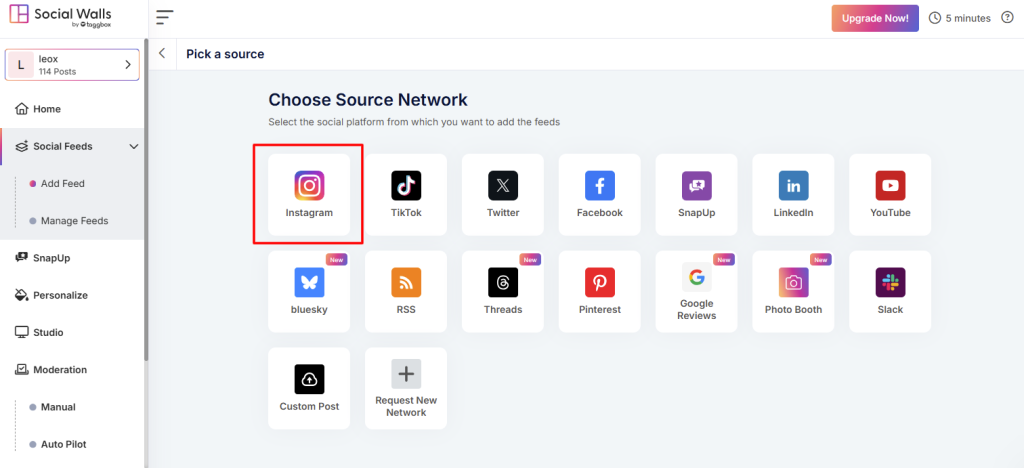
Now you’ll see different platform options; choose Instagram as the content source. This matters for several reasons.
First, selecting Instagram creates a direct pipeline for real-time content.
Second, it ensures your Instagram feed embed supports reels, stories, tagged posts, and hashtags, depending on your goals.
Step 4: Choose Instagram as a Source of Content to Display
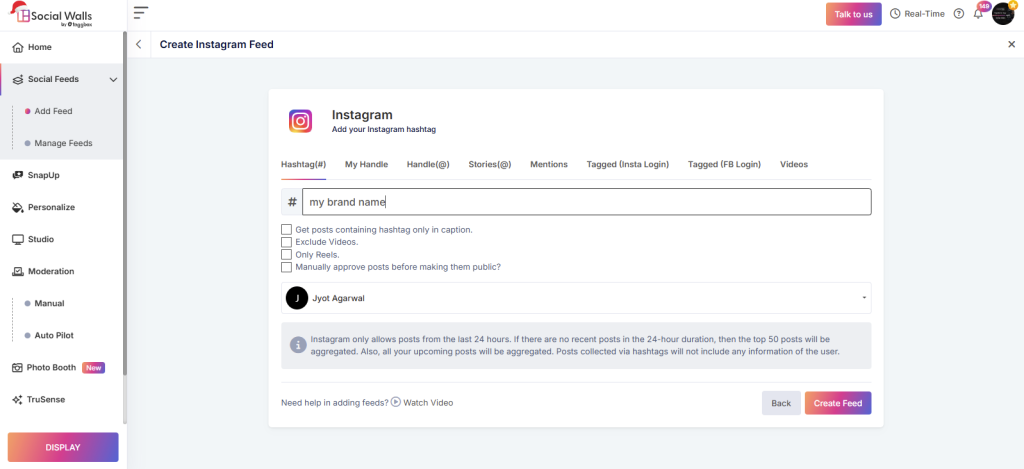
Now select what kind of Instagram content appears on your site. This is a crucial step because the signal-to-noise ratio is important. You can choose from:
- Hashtags — best for events, campaigns, UGC
- Mentions — great for reputation tracking
- Tagged Posts — showcases customer experience
- Handles / Accounts — ensures polished brand control
- Stories & Videos — adds dynamic visuals
Choosing smartly minimizes manual moderation and aligns the embed Instagram feed on website experience with conversion goals.
Step 5: Customize Feed Design & Moderation

You can adjust:
- layout style (grid, carousel, wall)
- spacing and margins
- number of posts displayed
- color palette and background
- header visibility
- call-to-action buttons
Further, moderation tools help filter inappropriate or irrelevant posts. You can enable automatic moderation, keyword banning, or manual approvals. Previewing ensures the embed Instagram feed doesn’t clash with the existing page design.
Step 6: Click “Display” and Copy the Embed Widget
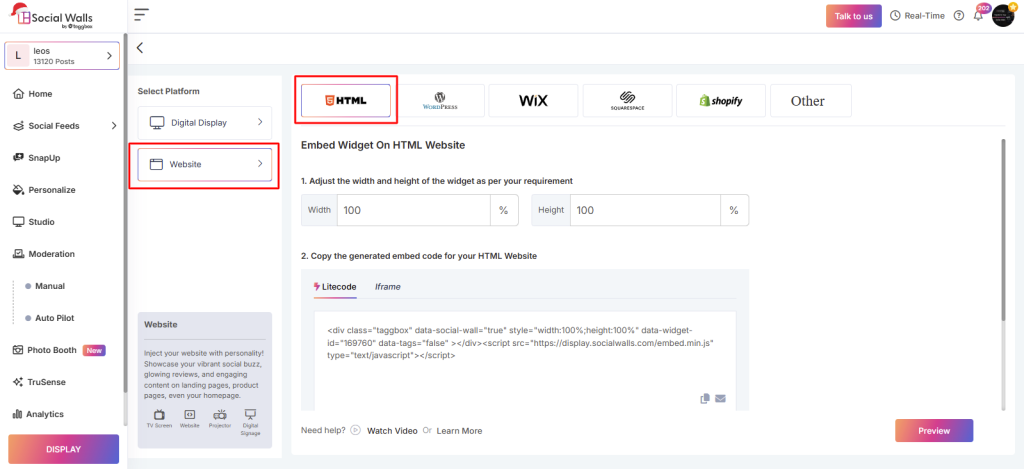
Once customization is complete, click Display. You’ll see an embed code—Litecode or iframe.
Either way, this code is what actually renders the live feed. Without it, you don’t embed anything. The code is what bridges Instagram and your site, enabling a real-time live connection, clarifying why updates require no manual intervention.
Conclusion
Embedding an Instagram feed is more than a visual upgrade—it’s a credibility enhancer and engagement tool. When you embed an Instagram widget on a website, you combine social proof, real-time content, and UX design to create a more persuasive experience. It supports branding, reduces maintenance, and encourages users to follow your Instagram, expanding reach beyond the website.