A social wall helps brands collect and display real-time posts, photos, and videos from their audience, creating engaging storytelling through authentic user-generated content.
On the other hand, OptiSigns is a powerful digital signage software that makes it effortless to showcase live content across digital screens anywhere.
Step 1: First, sign up or log in to your Social Walls account.
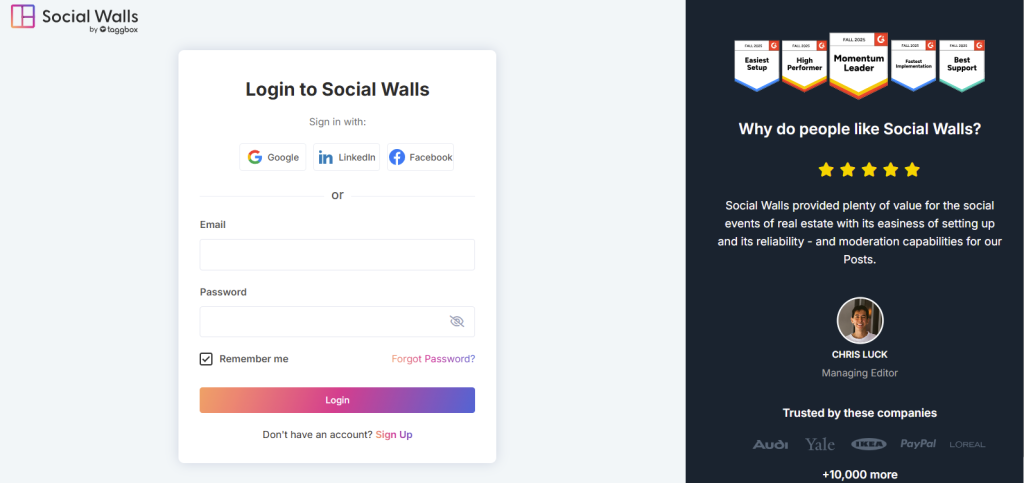
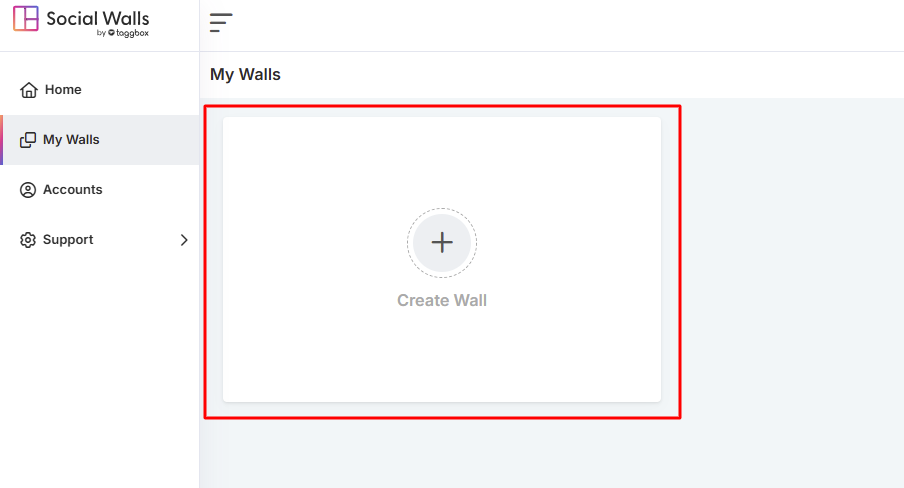
Step 2: Once logged in, you’ll land on the Social Walls dashboard. From there, click on “Create a Wall”.
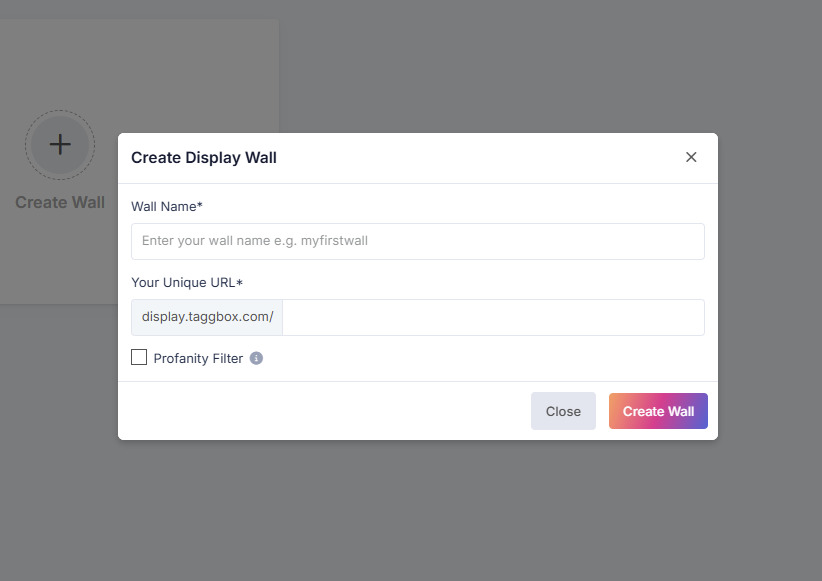
Step 3: After that, name your wall according to your event, campaign, or theme so you can easily recognize it later.
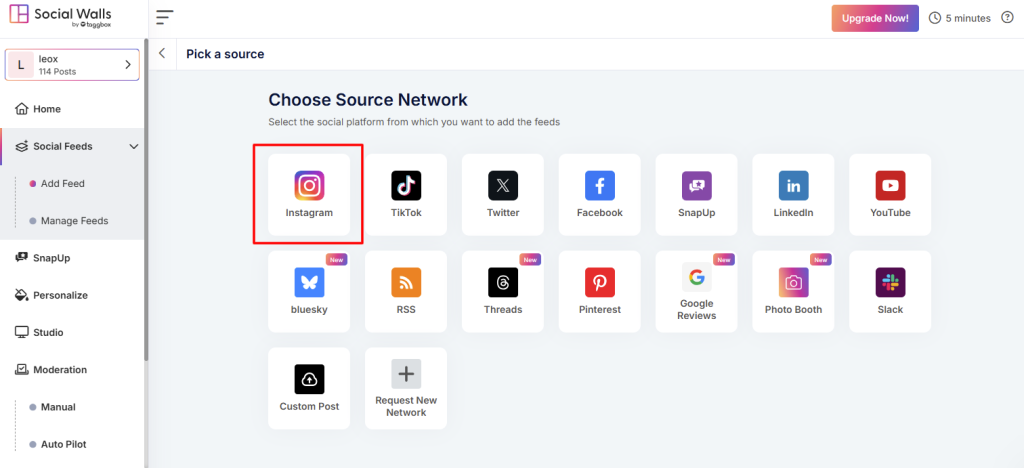
Step 4: Next, choose the social media source from which you want to fetch your feeds. Choose Instagram for feeds.
- Hashtags – Pull posts using your event hashtag.
- Mentions – Gather posts where users mention your brand.
- Tagged Posts – Highlight user-generated content.
- Handles / Personal Accounts – Stream posts from your official profiles.
- Stories & IGTV Videos – Add rich, immersive visuals.
Step 6: Once selected, preview your Social Wall to ensure it looks perfect before displaying it on optisigns.
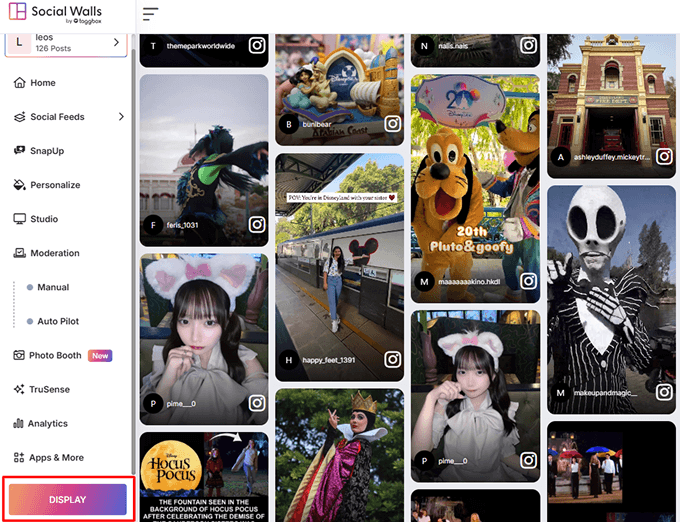
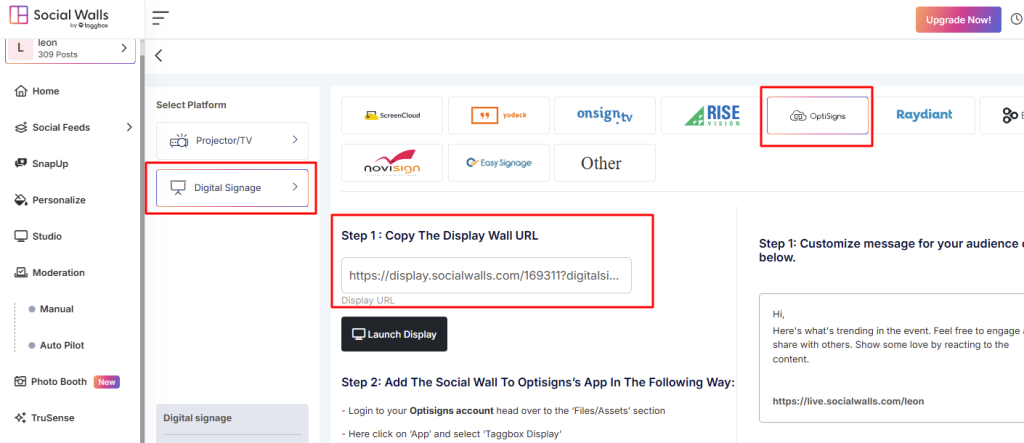
Step 7: Click the Display button, under Integrate with Digital Display → Digital Signage, there you will get social wall display url.
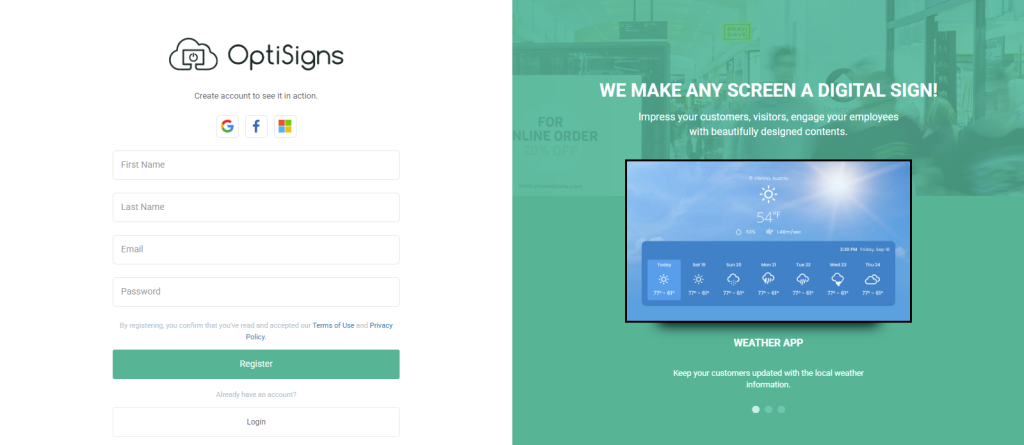
Step 8: Login or Signup to optisigns Digital Signage.
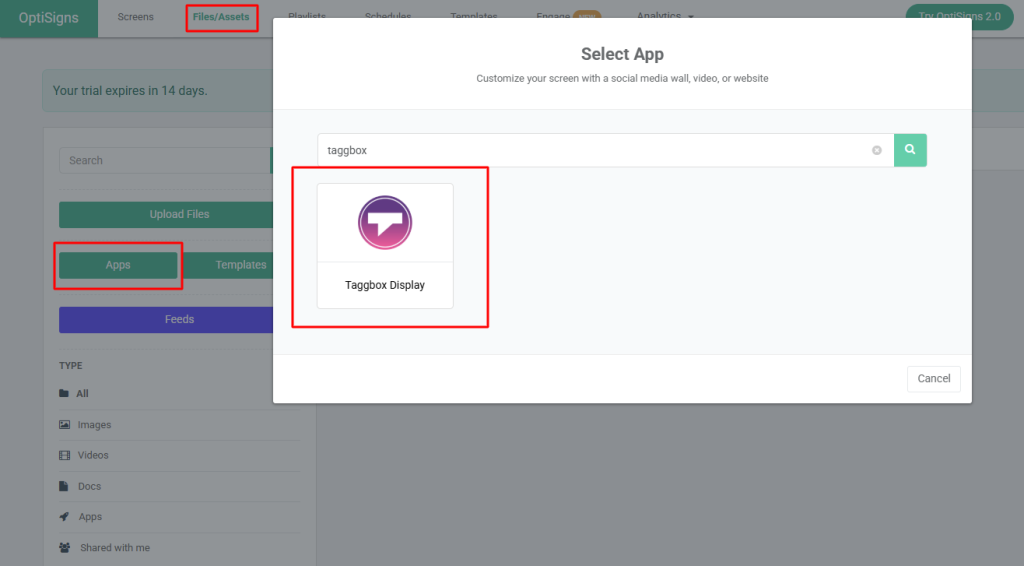
Step 8: Inside your OptiSigns dashboard, go to “Files/Assets” and click on “Apps.”
Step 9: Then, fine-tune your settings and display mode to make your digital signage social media content look sharp on screen.
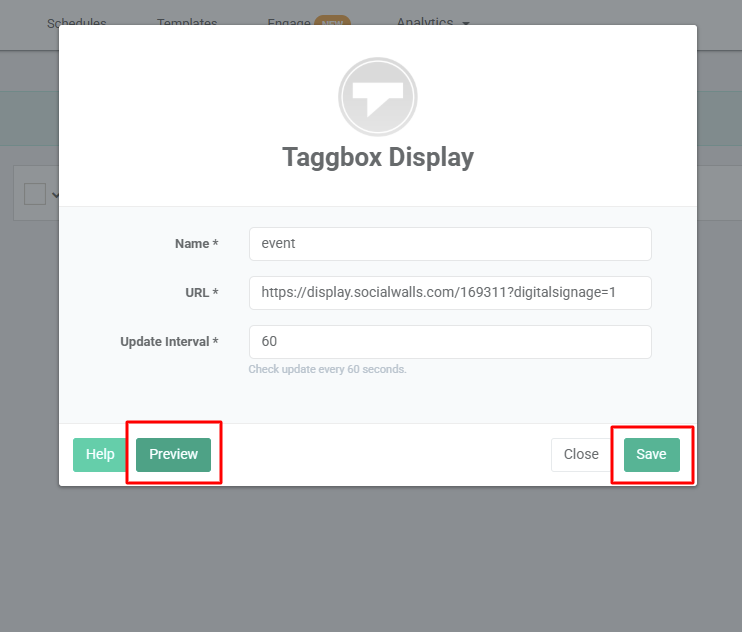
Step 10: In just a few moments, your live social wall on OptiSigns will appear across your digital screens, keeping your audience engaged and inspired.
If you need any assistance, feel free to contact us reach out to our support team at support@socialwalls.com.