
 Events
  Digital Signage
  Hybrid Events
  Instagram Wall
 Twitter Wall
  TikTok Wall
 Hashtag Campaign
 Social Media Aggregator
 Linkedin Wall
 Facebook Wall
 Studio
 SnapUp
 Spotlight
 Analytics
 Moderation
 Customization
 Reactions
 Photo Booth
 Education
 Fitness
 Hospitality
 Healthcare
 Retail
 Agencies
 Sports
 Finance
 Non-profit
 News & Entertainment
 Ecommerce
 Blog
Blog Support
 Our Clients
 Integration
 Case Studies
 Get Inspired


Instagram Widget – Complete Guide to Add Instagram Feed to Your Website
Author: Upendra Goswami
7 minute read
Table of Content:
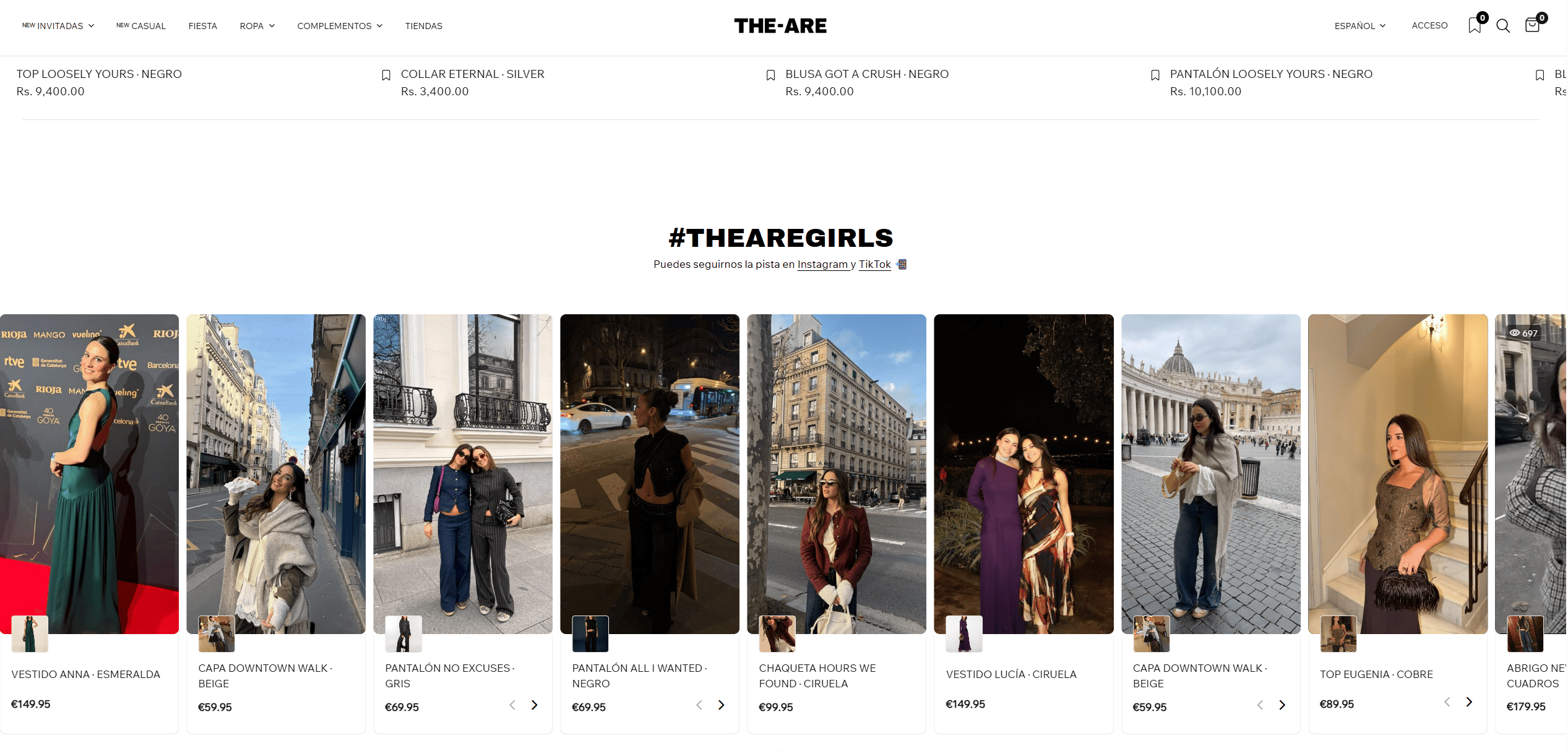
An Instagram widget lets you display your Instagram feed directly on your website without manual updates. It automatically pulls posts from your profile, hashtags, or mentions and showcases them in customizable layouts like grids or sliders.
Businesses use Instagram widgets to increase engagement, build trust through social proof, and keep their websites visually fresh. You can add one using no-code Instagram widget tools, plugins, or manual embedding—depending on your platform and needs.
In this guide, you’ll learn how to add an Instagram widget step-by-step, explore the best tools, and discover proven strategies to maximize results.
What is an Instagram Widget?
Definition and How It Works
An Instagram feed widget is a small embedded component that displays Instagram content (posts, reels, or videos) on a website.

It works by:
- Connecting to your Instagram account or hashtag
- Fetching content via API or authorized access
- Displaying it in a customizable layout using embed code
Once installed, it updates automatically whenever new content is posted.
Types of Instagram Widgets
1. Profile Feed Widget
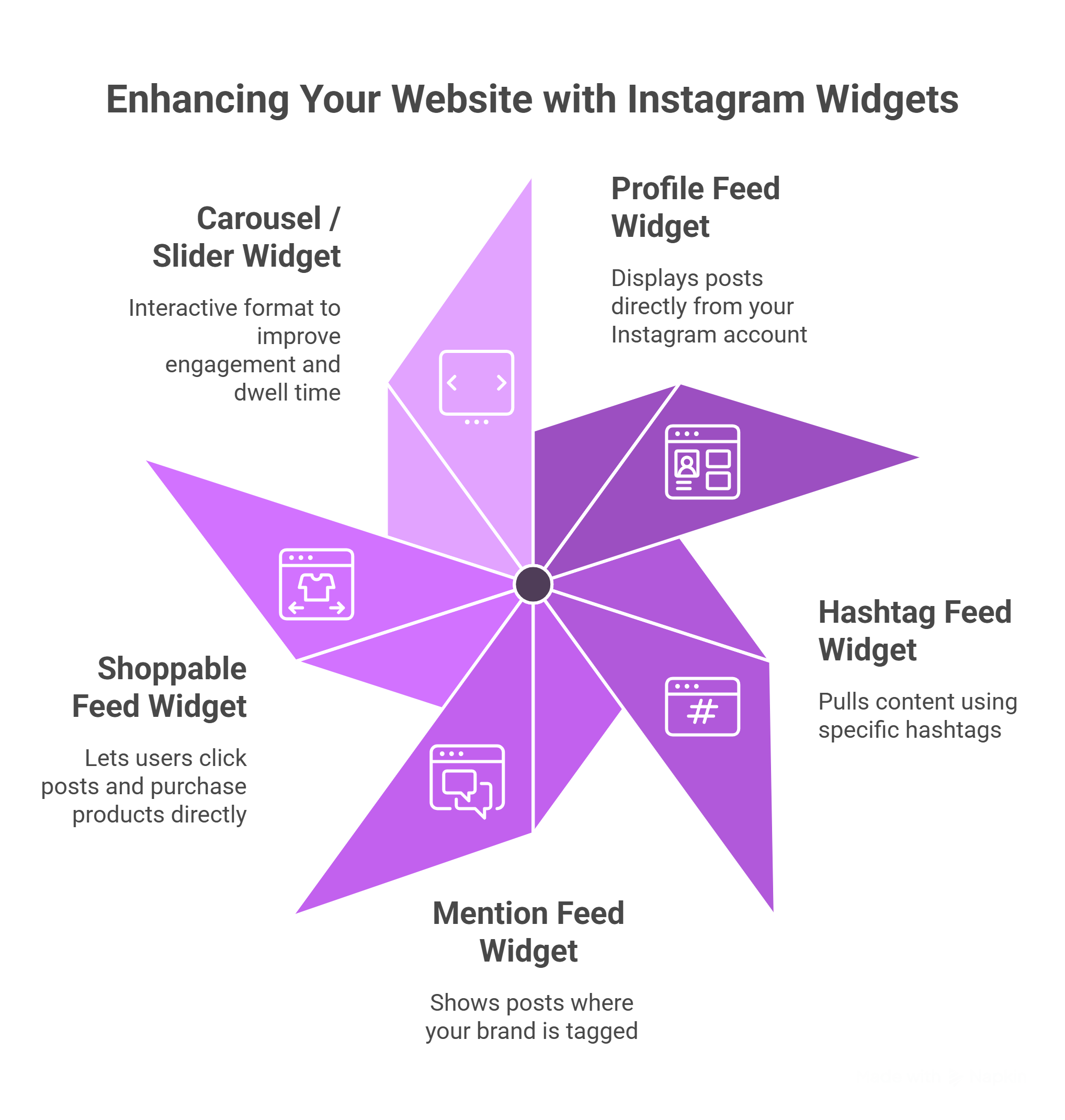
Instagram feed widgets displays posts directly from your Instagram account.
2. Hashtag Feed Widget
Pulls content using specific hashtags (great for hashtag campaigns & UGC).
3. Mention Feed Widget
Collect, curate and shows all posts where your brand is tagged.
4. Shoppable Feed Widget
Lets users click posts and purchase products directly from any web page you have embedded the widget.
5. Carousel / Slider Widget
Interactive format to improve engagement and dwell time.
Benefits of Using an Instagram Widget on Your Website
Boost Engagement and Time on Site
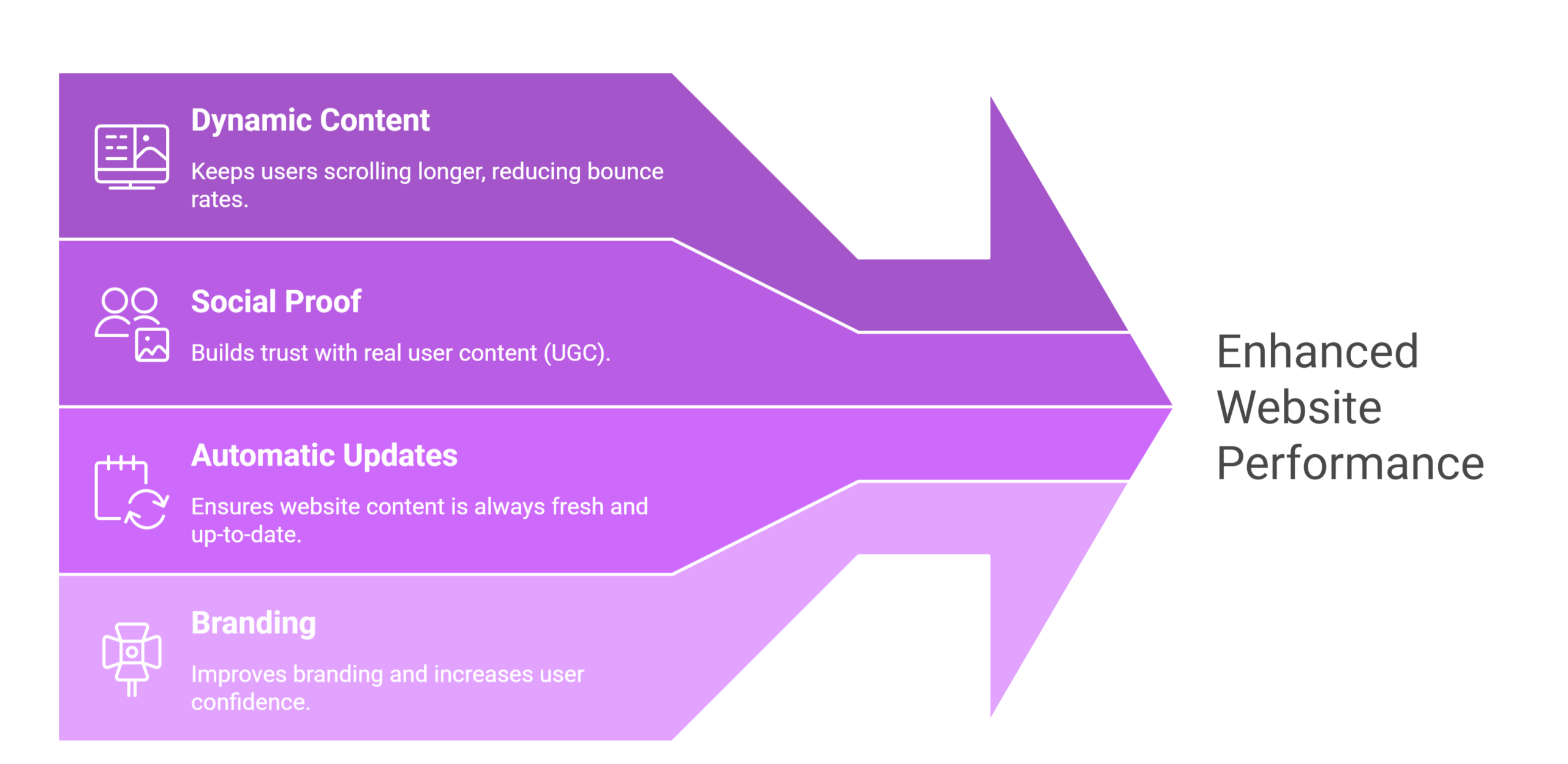
Dynamic content keeps users scrolling longer, reducing bounce rates.
Build Trust with Social Proof
Displaying real user-generated content (UGC) increases credibility and influences buying decisions.
Keep Website Content Fresh Automatically
No need to manually update pages—your latest Instagram posts appear instantly when you use Taggbox Instagram widget to embed Instagram feed on website.
Improve Conversions and Branding
Seeing real product usage or brand activity increases user confidence and conversions.
How to Add an Instagram Widget to Any Website
Method 1: Using No-Code Instagram Widget Tools (Recommended)
This is the easiest and most effective method for most users.
Step 1: Choose an Instagram Widget Tool
Select a platform that allows easy embedding and customization. We recommend Taggbox Widget for this.
Step 2: Connect Your Instagram Account
Log in and authorize access to your Instagram profile or hashtag feeds.
Step 3: Customize Your Widget
Adjust:
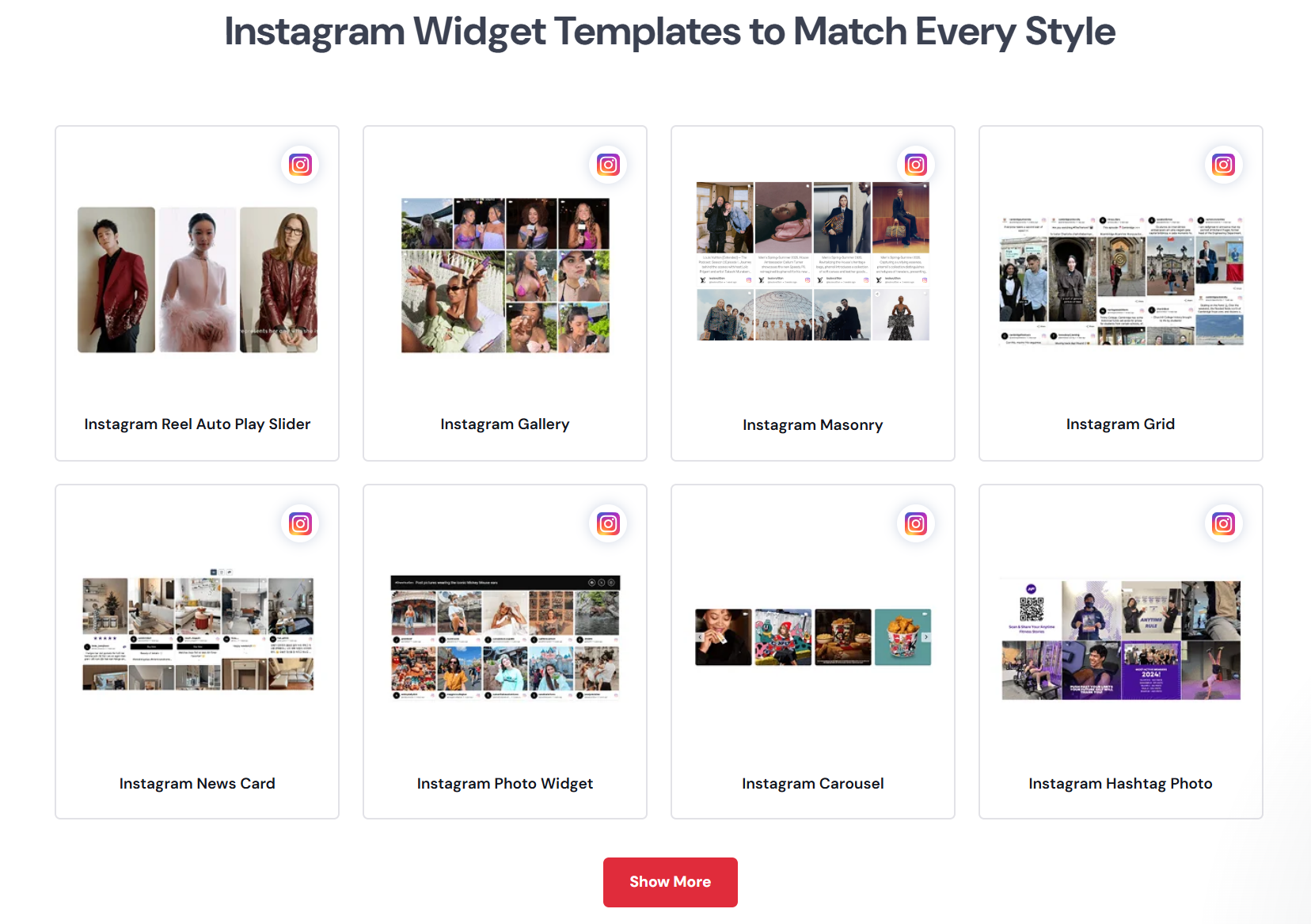
- Layout (grid, slider, masonry)
- Colors and fonts
- Number of posts
- Spacing and styling
Step 4: Generate Embed Code
The social media widget tool will provide a JavaScript or iframe embed code.
Step 5: Paste Code into Your Website
Add the code:
- In HTML section
- CMS (WordPress, Shopify, etc.)
- Website builder blocks
✅ Done — your Instagram feed widget is now live and auto-updating.
Method 2 – Add Instagram Widget Using HTML (Manual)(Best for Single Post Embed)
You can manually embed Instagram posts using Instagram’s native embed feature.
Steps:
- Open the Instagram post
- Click “Embed”
- Copy the HTML code
- Paste into your website
⚠️ Limitations:
- Only works for individual posts
- No customization
- No automatic feed updates
Method 3 – Add Instagram Widget in WordPress
Option 1: Use a Plugin
- Install an Instagram feed plugin like Tagembed
- Connect account
- Add widget via shortcode or block
Option 2: Use Page Builders
- Drag-and-drop embed block
- Paste widget code
Quick Tip
👉 The fastest way to add an Instagram widget is by using a no-code tool like Taggbox—connect your account, customize the feed, and paste the embed code into your website in under 5 minutes.
Best Instagram Widget Tools (2025 Comparison)
Choosing the right Instagram widget tool is crucial—it impacts design flexibility, loading speed, and conversion potential.
Key Features to Compare
When evaluating tools, look for:
- Ease of use (no-code setup)
- Customization options (layouts, colors, branding)
- Content moderation (filter posts)
- Mobile responsiveness
- Page speed optimization (lazy loading)
- Shoppable feed support
- Analytics & insights
Top Instagram Widget Tools (Comparison)
| Tool | Best For | Key Features | Free Plan |
|---|---|---|---|
| Taggbox | Businesses & UGC Marketing | Shoppable feeds, moderation, analytics | Yes |
| Tagembed | Easy embedding | Multiple layouts, no-code setup | Yes |
| EmbedSocial | Marketing teams | UGC + automation tools | Limited |
| SnapWidget | Simple websites | Basic embeds, quick setup | Yes |
| LightWidget | Lightweight sites | Minimal design, fast loading | Yes |
👉 Pro Tip: If your goal is conversions, choose a tool that supports UGC + shoppable feeds rather than just display.
Instagram Widget Examples (Real Use Cases)
E-commerce Product Pages

Brands display Instagram feeds showing real customers using their products.
Impact:
- Builds trust instantly
- Reduces hesitation before purchase
Homepage Social Proof Sections
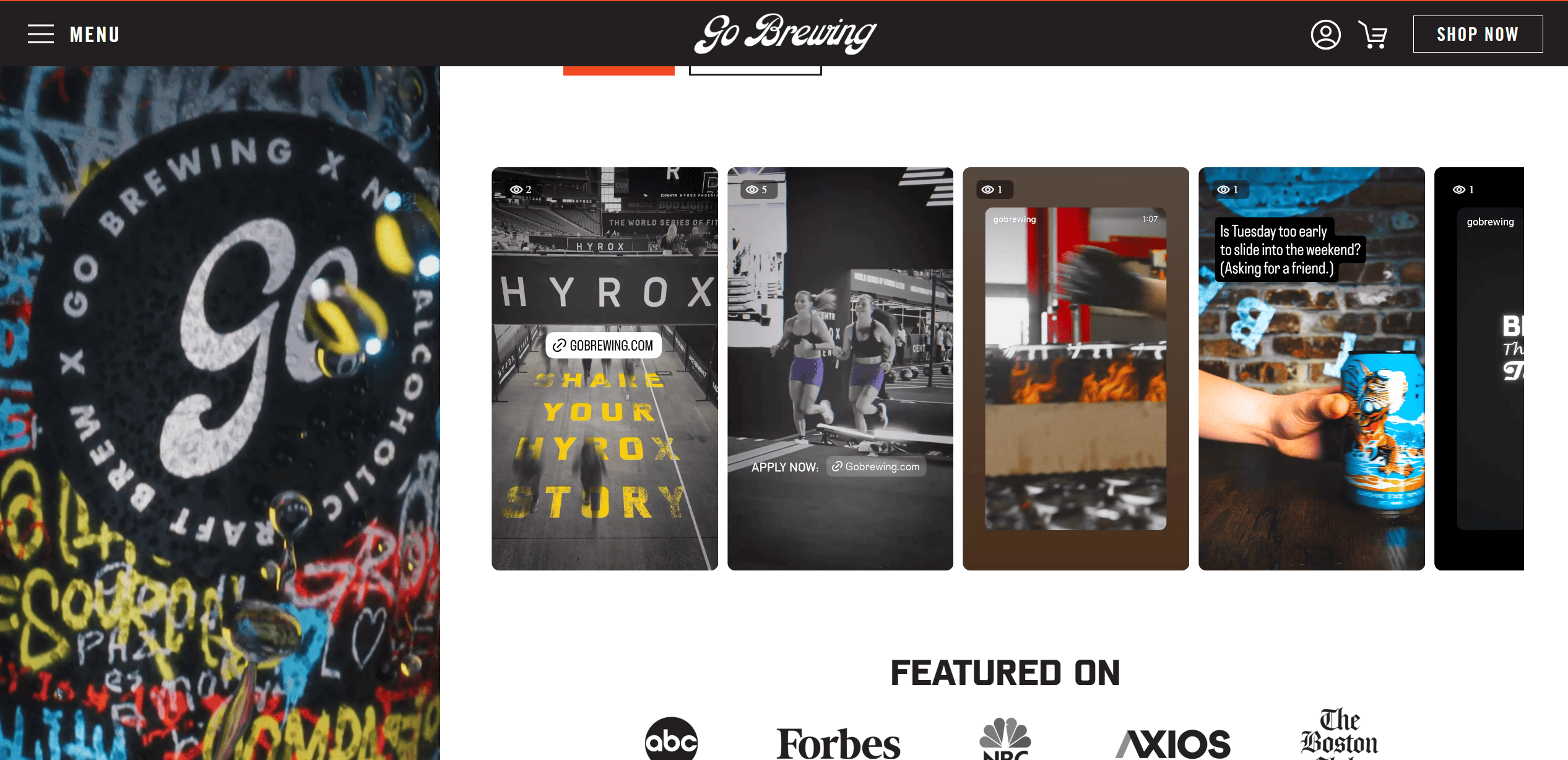
Embedding Instagram feeds on homepage:
- Shows active brand presence
- Makes website feel dynamic
Hashtag Campaigns & Events
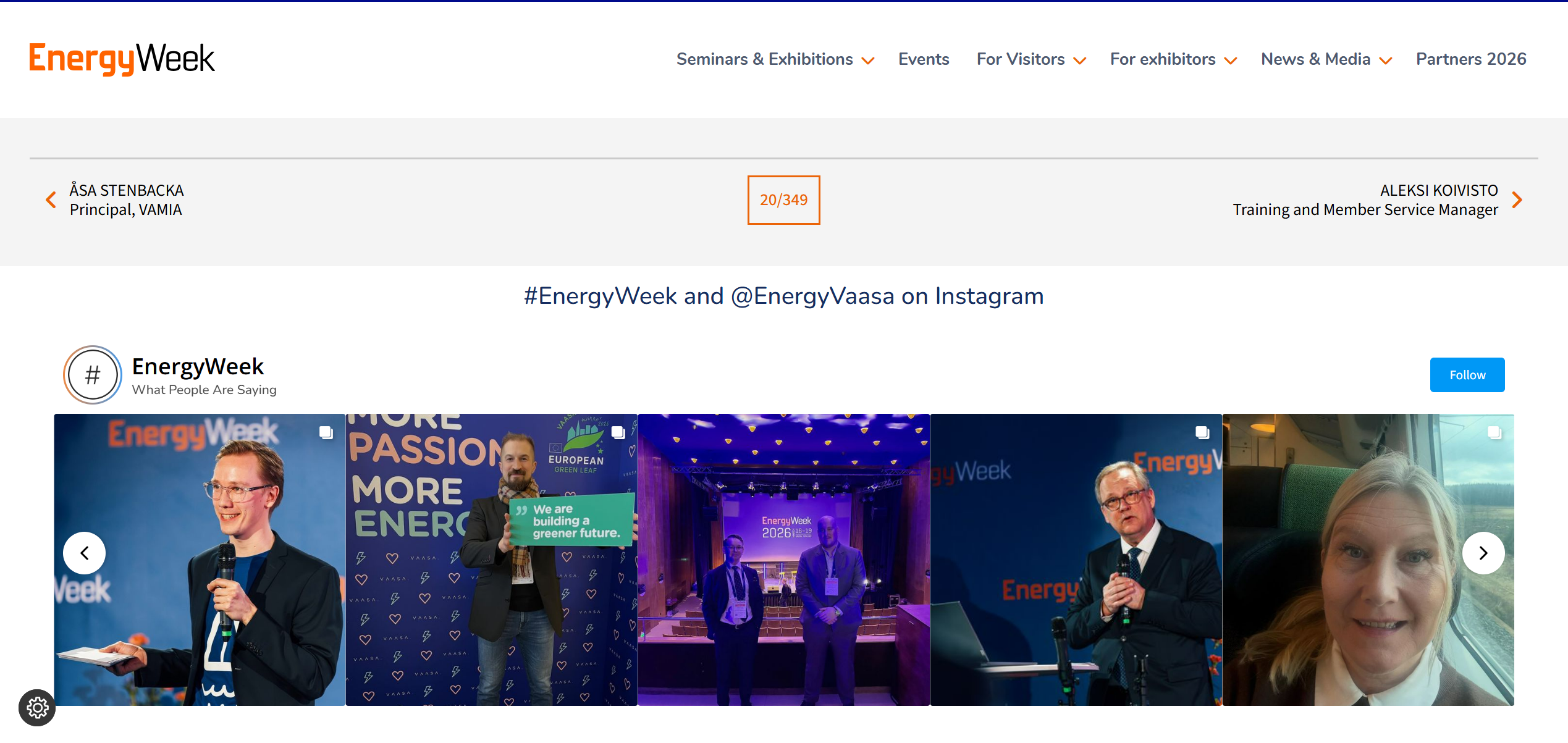
Collect and display posts using branded hashtags and display them using an Instagram Wall on any type of screen with real time updates.
Example Use Case:
- Event marketing
- Product launches
- Influencer campaigns
Customization Options for Instagram Widgets
Layout Styles
- Grid layout (clean & structured)
- Masonry layout (dynamic look)
- Carousel/slider (interactive)
Design Customization
- Colors and themes
- Fonts and spacing
- Hover effects and animations
Content Moderation & Filtering
Control what appears on your website:
- Filter by hashtags
- Remove irrelevant or negative content
- Highlight top-performing posts
SEO & Website Performance Considerations
Does Instagram Widget Affect Page Speed?
Yes—if not optimized.
Widgets load external scripts, which can impact performance.
How to Optimize Instagram Widget Performance
- Enable lazy loading
- Limit number of posts displayed
- Use lightweight widget tools
- Load scripts asynchronously
Impact on Core Web Vitals
Poor implementation can affect:
- LCP (loading speed)
- INP (interaction delay)
- CLS (layout shifts)
👉 Always test using PageSpeed Insights.
Common Issues with Instagram Feed Widget & Troubleshooting
Instagram Feed Not Loading
Possible causes:
- API connection expired
- Incorrect embed code
- Tool authorization issues
Widget Not Responsive
- Check mobile settings
- Adjust container width
- Use responsive layouts
Instagram API Limitations
Instagram restricts:
- Data access
- Frequency of updates
👉 Use trusted Instagram widget tools like Taggbox to avoid disruptions.
Pro Tips to Maximize Results with Instagram Feed Widgets
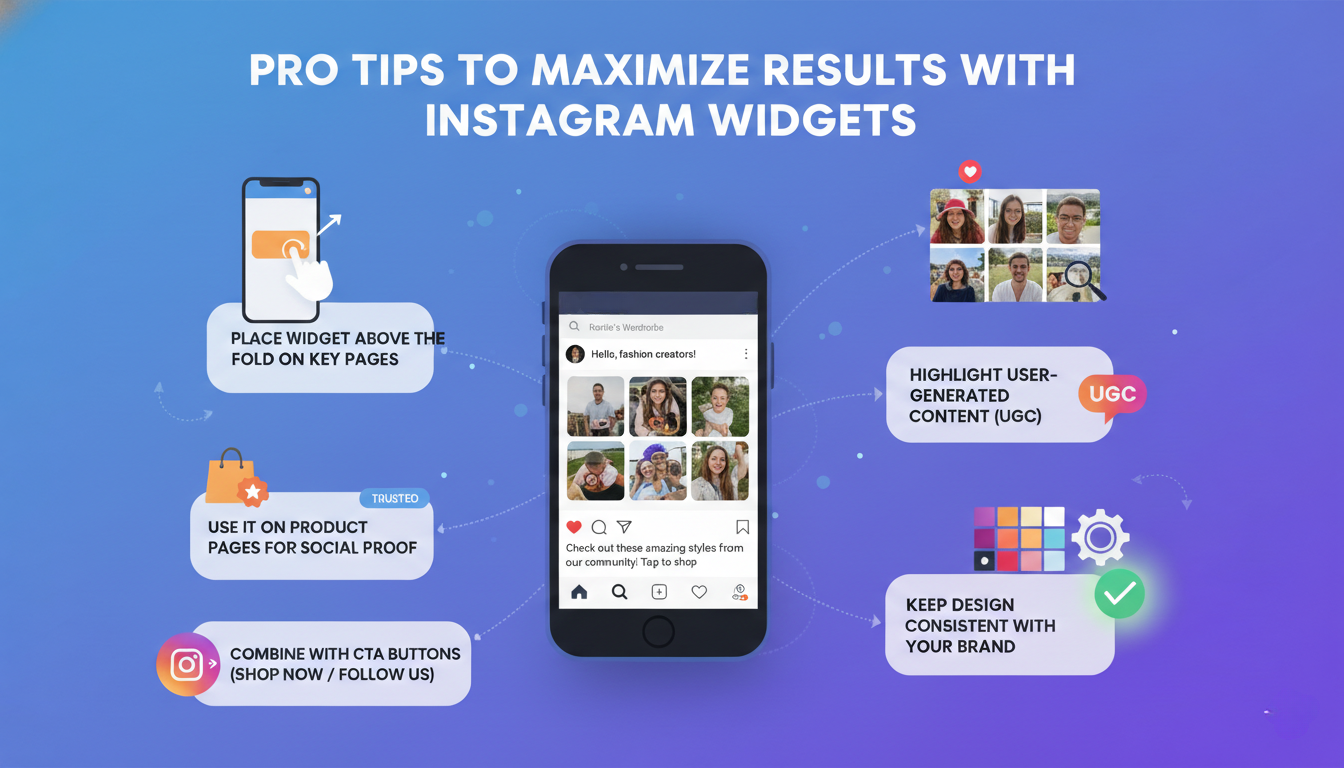
- Place widget above the fold on key pages
- Use it on product pages for social proof
- Combine with CTA buttons (Shop Now / Follow Us)
- Highlight user-generated content (UGC)
- Keep design consistent with your brand
Expert Tips for Using Instagram Widgets Effectively
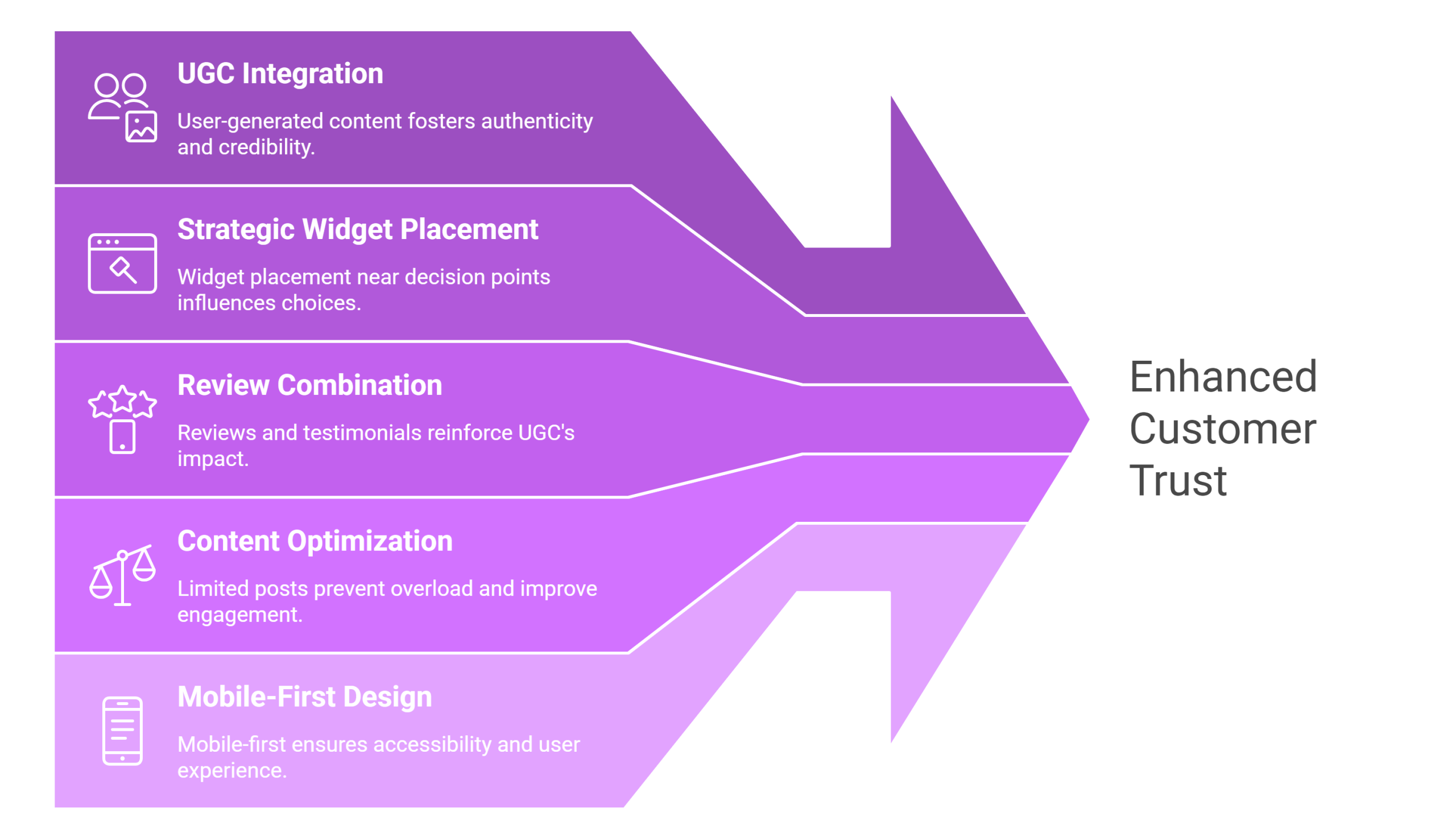
Based on real-world implementation across multiple websites:
- Use UGC, not just brand posts → builds stronger trust
- Place widget near decision points (product pages, pricing pages)
- Combine with reviews or testimonials
- Avoid overloading — 6–12 posts perform best
- Ensure mobile-first design
Frequently Asked Questions (FAQs)
What is the best Instagram widget for websites?
The best tool depends on your needs, we recommend Taggbox as a overall best Instagram widget tool.
For conversions → choose UGC + shoppable tools
For simplicity → choose lightweight embed tools
For customization → choose advanced widget platforms
Can I embed an Instagram feed without plugins?
Yes, you can manually embed individual Instagram posts using HTML embed code. However, to display a full feed or automate updates, you’ll need a widget tool or plugin.
Is an Instagram widget free?
Yes, many Instagram widget tools offer free plans with basic features. However, advanced features like customization, analytics, and shoppable feeds are usually available in paid plans.
How do I add an Instagram widget to my website?
You can add an Instagram widget by using a no-code tool, connecting your Instagram account, customizing the feed, and embedding the generated code into your website. Most tools allow setup in under 5 minutes.
Does an Instagram widget slow down my website?
It can, if not optimized. Using lightweight tools, enabling lazy loading, and limiting the number of posts can minimize performance impact.
How to embed Instagram feed on an HTML website?
Copy the widget embed code from your chosen tool and paste it into your website’s HTML where you want the feed to appear.
Case Study: How Instagram Widgets Increased Conversions
Mum & Daughter Clothing added an shoppable Instagram widget to its product pages and witnessed an increase in conversions by 186%.

Before:
- Static product images
- Limited social proof
After:
- Real customer posts displayed
- Interactive and shoppable Instagram feed
Results:
- +58% increase in average order value
- +186% increase in conversions
- Lower bounce rate
💡 Insight: Users trust real people more than brand-created content.

Upendra leads the marketing team at Social Walls, bringing over 9 years of expertise in event marketing and SaaS growth strategies....