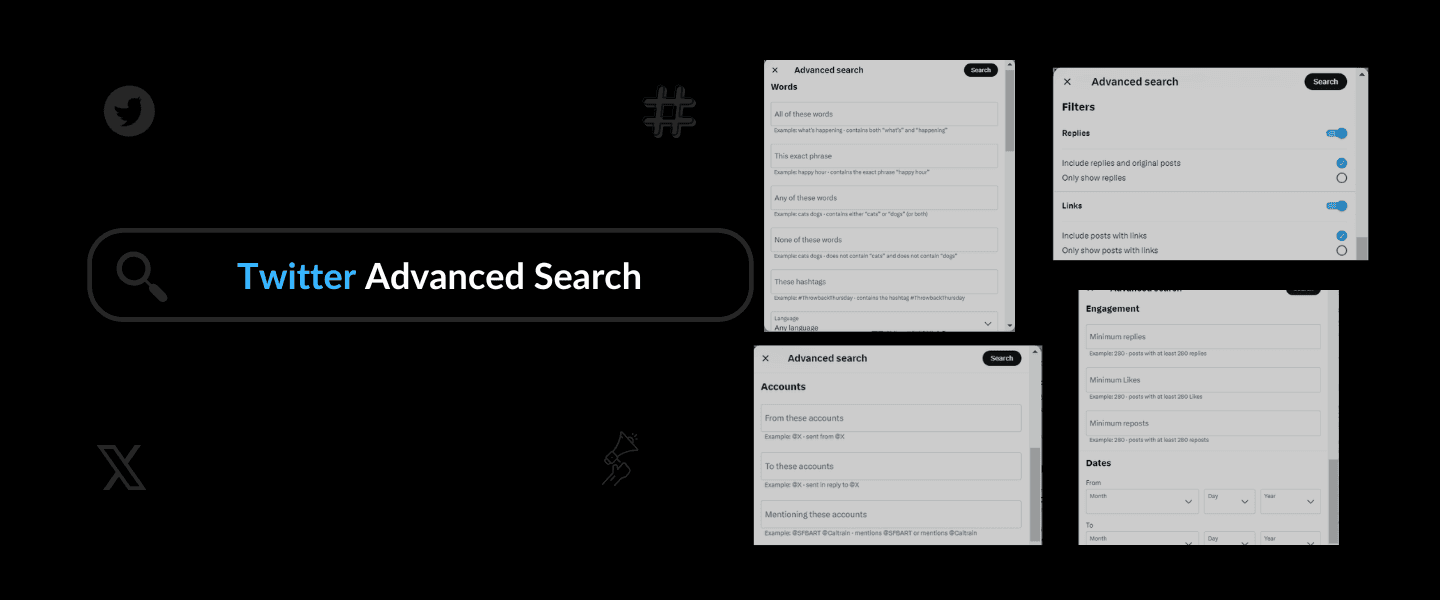






Twitter Advanced Search: Your Ultimate Twitter Search Guide

作者: Dakshit Mathur/8 一分钟阅读/
Twitter Advanced Search

If you are wondering how to search for a Twitter account or a tweet post, you are in the right place!

Twitter advanced search is like a super-strong social media search engine that helps you find old tweets or users using exact topics, keywords, hashtags, or mentions using special commands.

Usually, when you search on the X / Twitter platform, you only see tweets and profiles. But twotter advanced search lets you see tweets and profiles and get extra information about Twitter.

In this post, we’ll discuss using Twitter’s advanced search bar to find a person’s tweet and how a social media aggregator tool like Social Walls can help you search, collect, and create an AI Twitter wall for your digital display.

So, without further ado, let’s get you started!

What Is Twitter Advanced Search?

Twitter advanced search is designed to customize your search experience by applying various filters. This functionality lets you pinpoint your specific search using keywords or hashtags to get to your desired tweets.

With this search tweets feature, you can search tweets from a user, including a particular word, hashtags, or phrases. Additionally, you can exclude certain keywords or focus your search on Tweets from specific accounts.

The tool lets you filter results based on engagement metrics, search tweets by date ranges, and other criteria. But how can you access and use Twitter’s advanced search to search a Twitter account? Let’s answer this in the following section.

How Can You Access Twitter Advanced Search?

If you want to make your Twitter searches more specific, you can use the advanced search feature. Here’s how you can access it:

Start by entering your search section in the standard Twitter search bar.

Once you see the search results, look for three dots next to the search bar.

Click on those three dots, and a dropdown menu will appear.

In the dropdown menu, you will find and click on “Advanced Search.” This will open up a tool that allows you to fine-tune your search criteria for more accurate results.

Using Twitter advanced search, you can narrow your searches to find exactly what you’re looking for on the platform.

On the Twitter platform, no feature allows you to check your Twitter profile views, but by using the advanced search feature, you can access content that gives your brand more credibility and builds a strong connection with the viewers.

In the next section, you can read more about how to use Twitter’s advanced search bar more effectively.

Twitter Search Tweets: Advanced Search

Using special commands, Twitter’s advanced search lets you find specific old tweets on X. You can include or exclude specific words, mentions, hashtags, and more in the search results.

Instead of analyzing all the tweets with a hashtag, you should only focus on tweets in a specific language or from certain users. Sometimes, summarizing your search can help you make the most of the available data.

This section will highlight some of the most helpful Twitter advanced search filters. Keep reading to learn more.

1. Hashtag

The Twitter search bar allows you to find any tweet posted by anyone using a specific hashtag or by someone you follow.

Find content on your searched hashtag by top, latest, or media. Learn how to search someone’s tweets through a common or popular hashtag. You can also look for content based on location anywhere or near you. Stay trendy and updated by posting content using the most searched hashtags.

  1. Hashtags- Search for trending hashtags or campaign-specific content, such as # throwbackthursday, to get a more detailed search result.

2. Words

Twitter Advanced Search

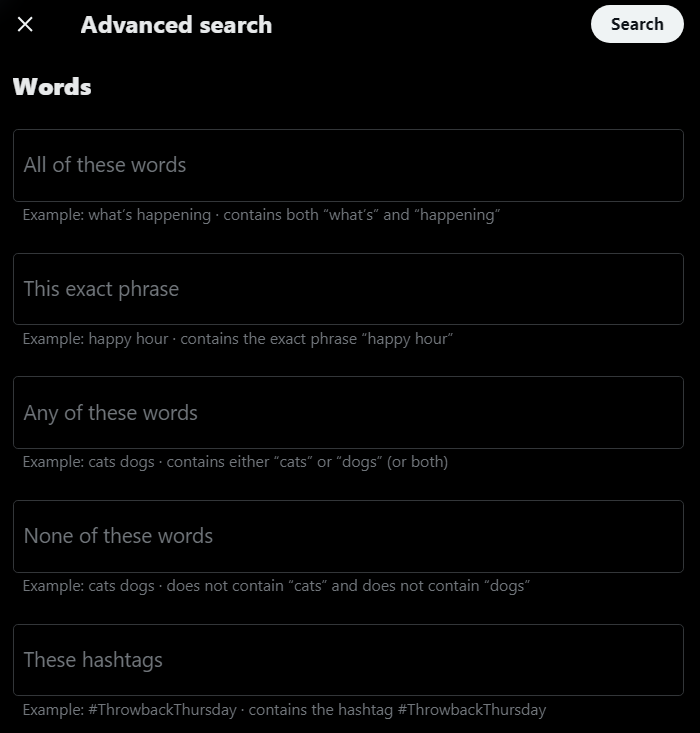
With Twitter’s advanced search, you can look for content and gain information by searching for a particular word or phrase.

In this search, you can search tweets that help you get posts and tweets with that word in them, posted by anyone or someone you follow.

1. All these words- Type in a phrase in your twitter advanced search, look for what’s trending, and get closer to content containing both “whats” and “trending” in your result.

2. Exact phrase- Look for phrases like ” happy hours” for a better search result.

3. Any of these words- When unsure what to type in the Twitter advanced search, type in all the related keywords to get closer to your content.

4. None of these words- For example, you can type in ” dogs ” and ” cats, ” and the result will contain either “cats” or “dogs” (or both).

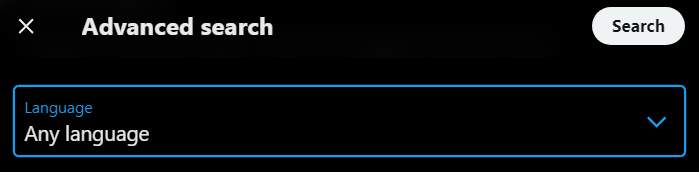
5. Language is also a criterion you can use to filter out your content. Select your preferred language content, and your search bar will work accordingly.

Twitter Advanced Search

3. Accounts

Just as on any other social media platform, Twitter allows users to search for content with mentions.

As a brand, you can look for anyone or your competitors by typing the account name in the twotter advanced search bar. Get your users’ content to influence potential customers and increase brand traffic.

Twitter Advanced Search

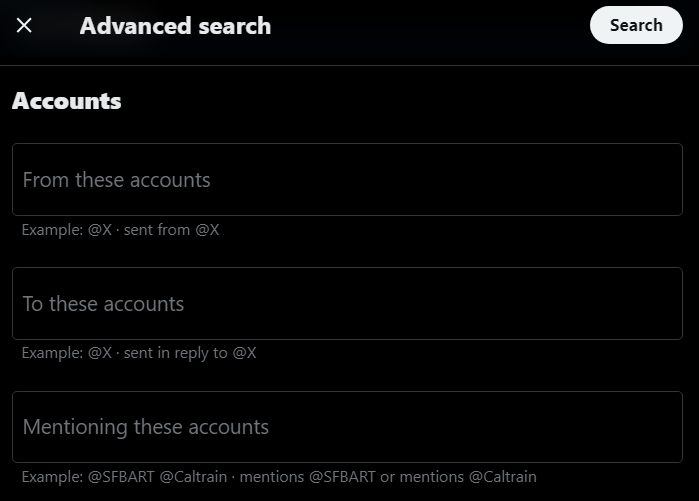
1. From or to these accounts- In Twitter’s advanced search for accounts, you can look for tweets sent from or to an account.

2. Mentioning these accounts- Type multiple accounts in the search bar and get to them without any steps.

4. Filters

Twitter Advanced Search

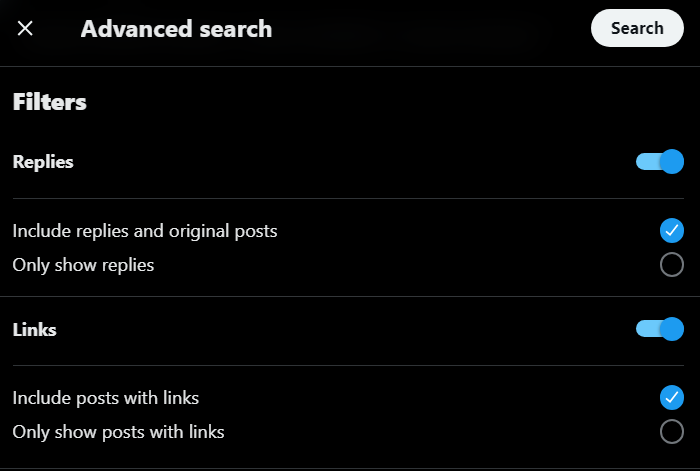
1. Replies- You can Filter out reply posts and tweets and not include them in your search results or showcase only the replies posts; it’s entirely up to you.

2. Links- Just like the replies filtering, you can also choose if you want your search result to include posts with links or only show posts with links.

5. Engagement

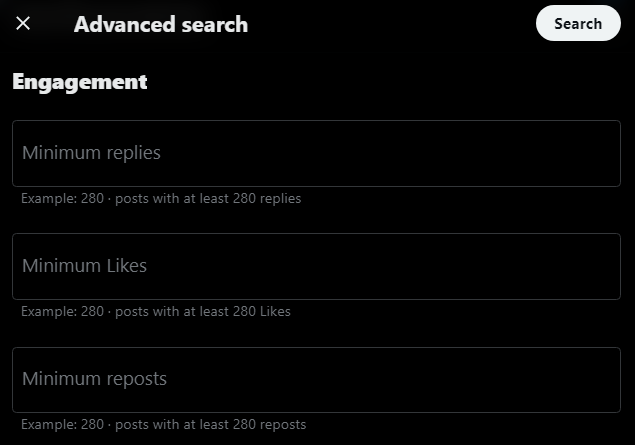
Twitter allows users to search for content using the engagement bar of that specific post or mentioned account.

Twitter Advanced Search

1. Minimum replies- Type in the number of replies you want your result to contain; for example, you can look for posts with a minimum of 250 replies.

2. Minimum likes- Like the above, you can also search for the minimum likes.

3. Minimum reposts- Not only that, but you can also search for posts with a minimum of a particular report number.

6. Dates

From and To- Using the Twitter advanced search, you can look for posts or tweets posted precisely after or before a date. Just fill in the date in the format- month, day, and year as required.

Twitter Advanced Search

These filters allow brands to access live Twitter feeds. You can type in your criteria and information and then sort by the date the tweet content was posted.

How can Social Walls help you further?

You can also use social media aggregator tools like Social Walls for advanced Twitter searches. The AI-Powered free Social Wall is an excellent tool for helping brands connect with content viewers in an engaging way.

It gathers and shows off content from social media, like Instagram and Twitter, on websites, event screens, and even in stores. This helps brands build trust by displaying actual posts from users.

It provides all the advanced features of the Twitter app, and Social Wall is handy for events, digital signs, websites, and more. It boosts engagement through games, showcases user-generated content, and gives insights into customer behavior.

With features like Snapup for easy sharing, Studio for customizing displays, and support available 24/7, elevate your brand by turning customer content into exciting stories.

What sets this Twitter hashtag tracking tool, or Social Walls, apart from the original Twitter social media platform and its advanced search is that it allows users to aggregate content as per the search and curate a Twitter wall.

social wall

Advanced search includes more than hashtags, handles, and mentions; you can reach wider and add content to your feed.

Social walls enable users to advance their search with-

1. Keywords

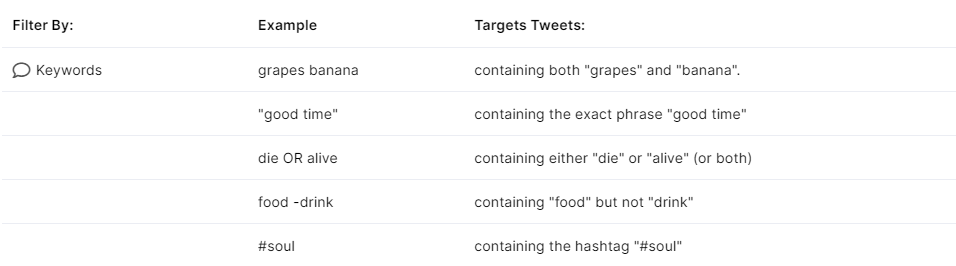
1. This and that- This contains both words typed in the search bar, for example, ” grapes ” and ” banana, ” so it will show results containing “grapes” and “banana.”

2. Exact phrase- Show the result with the exact phrase, for example, “good time,” containing the exact phrase “good time.”

search with keywords

3. This or that- Containing either one word or both, for example, die OR alive containing either “die” or “alive” (or both).

4. This minus that- Display only the content with the first word minus food -drink, containing “food” but not “drink.”

5. Hashtag- Using a keyword typed in with a hashtag, for example, #soul containing the hashtag “#soul.”

2. User

search with users

As a brand, you can look for anyone or your competitors by typing the account name in the twotter advanced search bar. Get your users’ content to influence potential customers and increase brand traffic.

1. From or To- In Twitter’s advanced search for accounts, you can watch out for tweets sent from a specific account or from that account.

2. Using @- Furthermore, type in multiple accounts in the search bar and get to them without any steps.

3. Content

Keyword with a link: Search for content from Twitter’s social media channel. For example, the funny filter uses links containing ” funny” and with a URL.

4. Dates

search with dates

Keyword and start or end time- Twitter’s advanced search feature allows you to locate posts or tweets published specifically after or before a particular date. Input the date in the month, day, and year format.

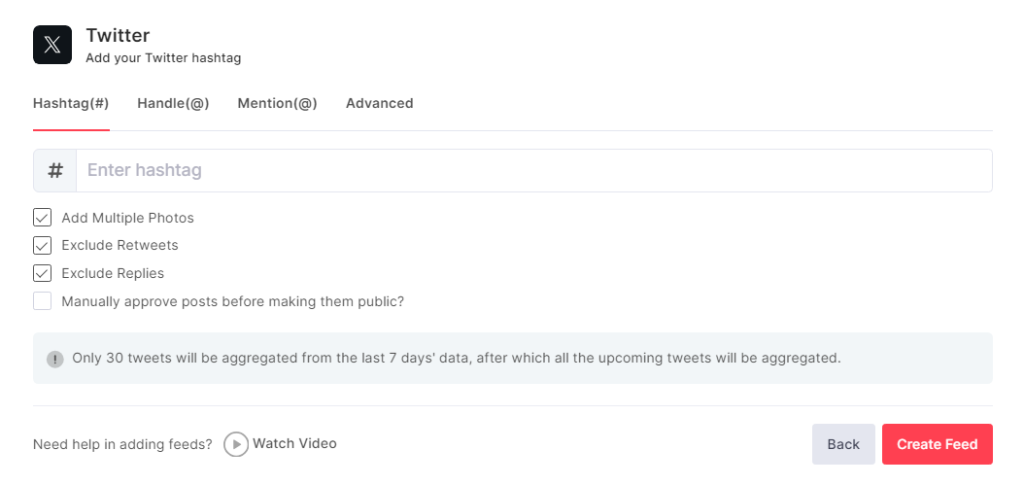
Using the advanced features, you can choose whether to add multiple photos, excluding retweets or replies. You can also manually approve posts before making them public in your feed.

Over To You

In conclusion, the advanced search feature on Twitter is like a super tool that helps you get closer to your preferred content. You can also create a Twitter wall to help you get detailed analytics using a Twitter viewer related to your brand. Applying the tips, we discussed, lets you take your Twitter game to the next level and find valuable insights.

And if navigating Twitter ever feels a bit overwhelming, don’t stress! There are handy tools available to make your job easier, like Social Walls. Take advantage of them to simplify your tasks and make the most out of Twitter for your brand.

Keep it simple, stay connected, and enjoy building meaningful relationships with your audience

相关文章

指南

标签聚合器 – 什么是标签聚合器以及为什么企业将其用于营销

一个标签聚合器是一个工具,它从多个社交平台收集、策划并显示带有特定标签的公开社交帖子,将其整合到一个单一的仪表板或可嵌入的提要中,用于监控、用户生成内容策划、活动墙、分析和活动报告。为什么标签聚合在 2026 年很重要 在 2026 年,社交媒体仍然是 […]

Upendra Goswami
Upendra GoswamiDecember 9, 2025
标签聚合器 – 什么是标签聚合器以及为什么企业将其用于营销
推特

最佳推特查看器工具 – 收集和展示 X (推特) 内容

在围绕着像Twitter这样的社交媒体渠道运转的数字世界中,人们分享他们的想法并创造趋势,您是否知道超越Twitter的观看是一个简单的过程?您是否知道一些工具和应用程序可以轻松跟踪和理解Twitter上正在发生的事情?这就是Social Walls的用武之地——[…]

Dakshit Mathur
Dakshit MathurMay 22, 2024
最佳推特查看器工具 – 收集和展示 X (推特) 内容
推特

16 Best Twitter Hashtag Analytics & Tracking Tools in 2026

In the ever-altering world of social media marketing, Twitter holds the throne for real-time conversations and audience engagement. However, with millions of tweets flying every second, composing a great tweet is just half the battle. To genuinely boost your message and get the right audience, you need to have powerful Twitter hashtag tracking tools at […]

Dakshit Mathur
Dakshit MathurMay 6, 2024
16 Best Twitter Hashtag Analytics & Tracking Tools in 2026
Twitter Advanced Search: Your Ultimate Twitter Search Guide