








如何将TikTok投屏到电视:2026年完整指南
Want to watch TikTok on TV instead of your phone? You have several options: use the TikTok app on a supported TV, cast from your phone or tablet, mirror your computer, use Chromecast, or display TikTok content through a social wall.
But there’s an important difference between watching TikTok on a TV and displaying TikTok content on a TV.
If you’re watching videos yourself or with friends, casting TikTok or screen mirroring is usually enough. If you want TikTok content running on a shared screen at an event, business, venue, or public space, you need a setup designed for continuous display.
This guide covers both.
What You Need to Watch TikTok on TV
Depending on the method you choose, you may need:
- A Smart TV or compatible streaming device
- The TikTok app, where it’s supported
- A phone, tablet, or computer for casting or mirroring
- Chromecast or another compatible casting device
- A stable Wi-Fi connection
If your goal is to display TikTok content for an audience, you’ll also need a social wall tool and a compatible screen or display setup.
Now, let’s look at each option.
Explore 7 Ways to Watch TikTok on TV
From using the TikTok app to casting and screen mirroring, here are 7 easy methods to get TikTok on your TV.
1. Watch TikTok on TV Using the TikTok App
If your Smart TV or streaming device supports the TikTok app, you can watch TikTok directly on your TV without connecting your phone. However, TikTok availability can vary depending on your TV model, operating system, device, and location.
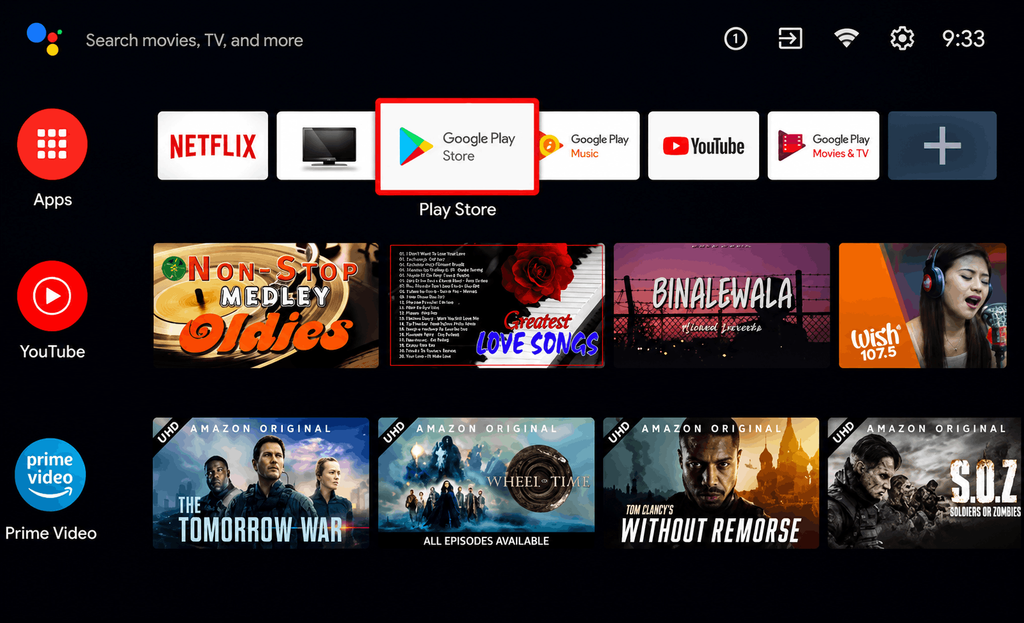
How to get TikTok on your Smart TV
- Open the app store on your Smart TV or supported streaming device.
- Search for TikTok.
- If the official TikTok app is available, download and install it.
- Open TikTok and sign in if required.
- Browse and watch TikTok videos directly on your TV.
This is the simplest option if your TV supports the app.
Best for: Personal viewing at home.
Keep in mind: App availability isn’t universal. If TikTok isn’t available on your TV, you can still use casting or screen mirroring.
2. Cast TikTok From Your Phone or Tablet
If your TV or streaming device supports a compatible casting method, you can send TikTok content from your phone or tablet to the big screen.
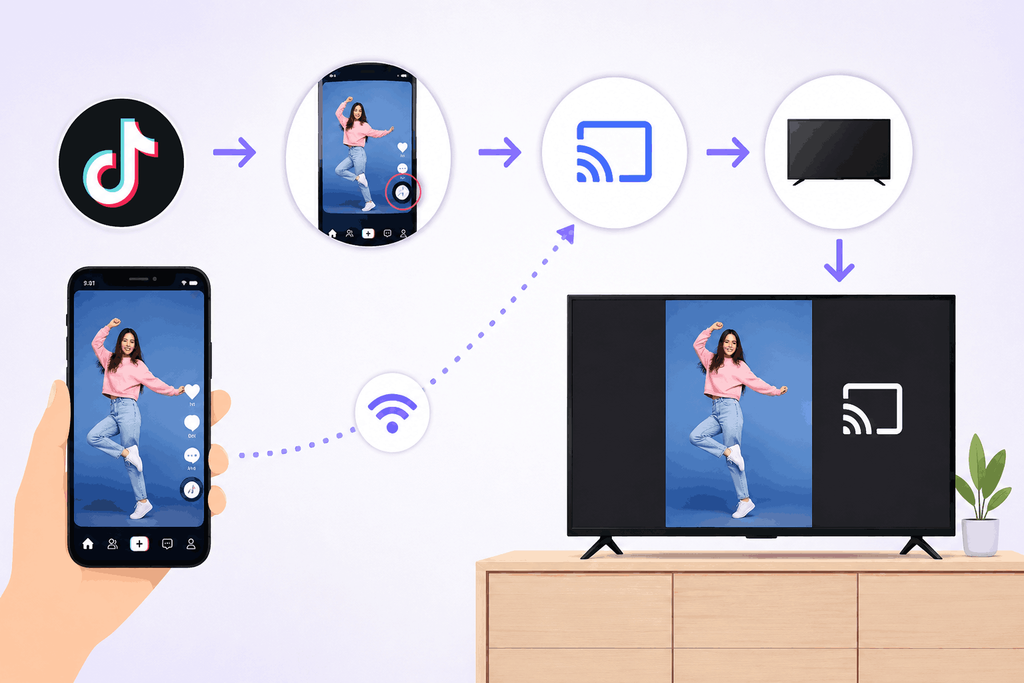
How to cast TikTok to your TV
- Open the TikTok app on your phone or tablet.
- Find the video you want to watch.
- Tap Share.
- Look for the available Cast option.
- Select your compatible TV or streaming device.
- Start watching TikTok on your TV.
The exact casting options can vary depending on your phone, TV, and streaming setup.
Best for: Watching individual TikTok videos on a bigger screen.
Keep in mind: Your phone remains part of the experience, so this isn’t the best option when you want a screen to run TikTok content for an audience.
3. Mirror TikTok From Your Computer
Prefer browsing TikTok on a laptop or desktop? You can open TikTok in your browser and mirror your computer screen to your TV.
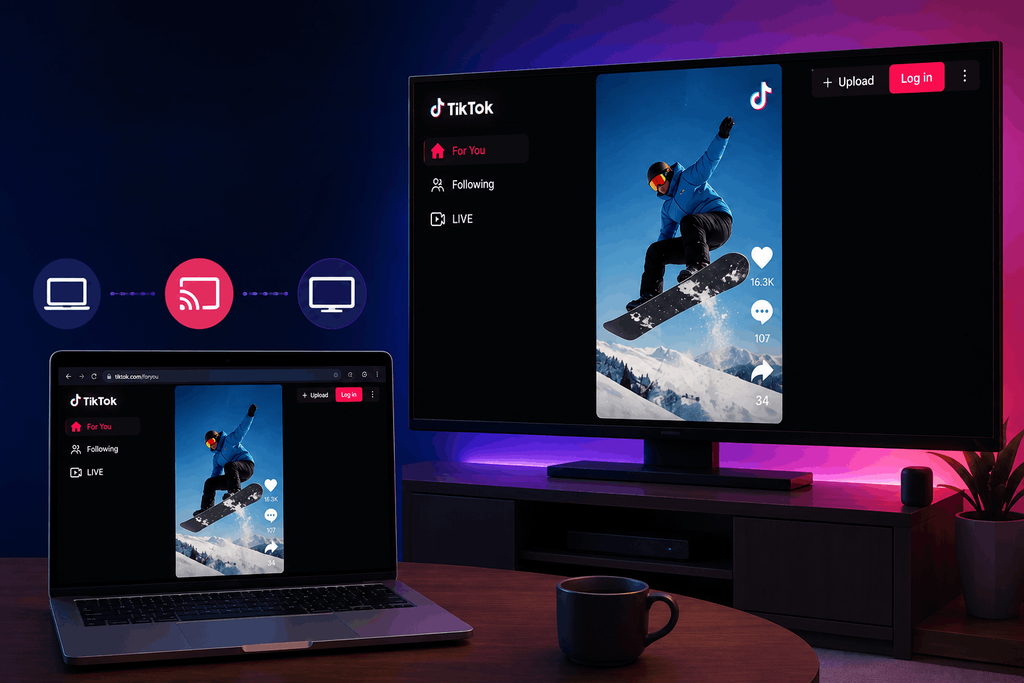
How to mirror TikTok to your TV
- Open TikTok in your computer’s web browser.
- Find the TikTok video or feed you want to watch.
- Turn on your computer’s screen-mirroring or wireless-display feature.
- Select your compatible TV.
- Open TikTok and start watching.
If wireless mirroring isn’t available, you can also use a compatible HDMI connection between your computer and TV.
Best for: Watching TikTok from a desktop or laptop.
Keep in mind: Your computer needs to stay connected and active, which makes this less practical for a dedicated public display.
4. Watch TikTok on TV With Chromecast
If you have a Chromecast device or a TV with Chromecast built in, you can use it to cast compatible content from a mobile device to your TV.
Before you start, you’ll generally need:
- A compatible phone or tablet
- The TikTok app
- A Chromecast device or Chromecast-enabled TV
- A stable Wi-Fi connection
- Devices connected to the same Wi-Fi network where required
How to Stream TikTok on TV with Chromecast
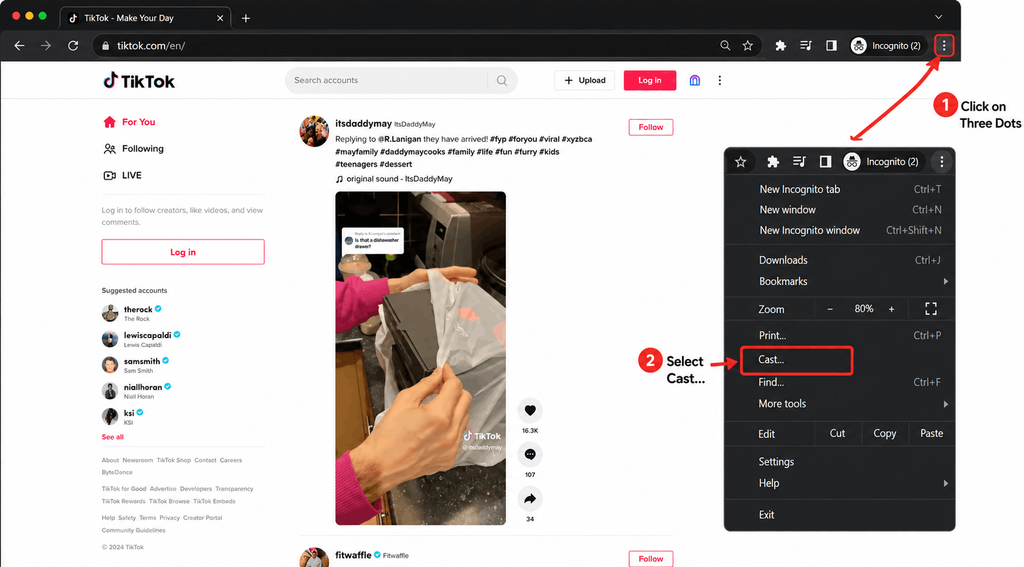
- Open TikTok on your phone or tablet.
- Find the video you want to watch.
- Tap Share.
- Select the available casting option.
- Choose your Chromecast device.
- Start watching TikTok on your TV.
Chromecast is convenient when you want to move TikTok from your phone to your TV without using a cable.
Best for: Wireless casting and personal viewing.
Keep in mind: Chromecast is still primarily a casting solution. If you want social content to run independently on a shared screen, a social wall is a better fit.
5. AirPlay TikTok to TV
If you have an AirPlay-compatible TV or streaming device, you can mirror TikTok from your iPhone or iPad and watch it on your TV.
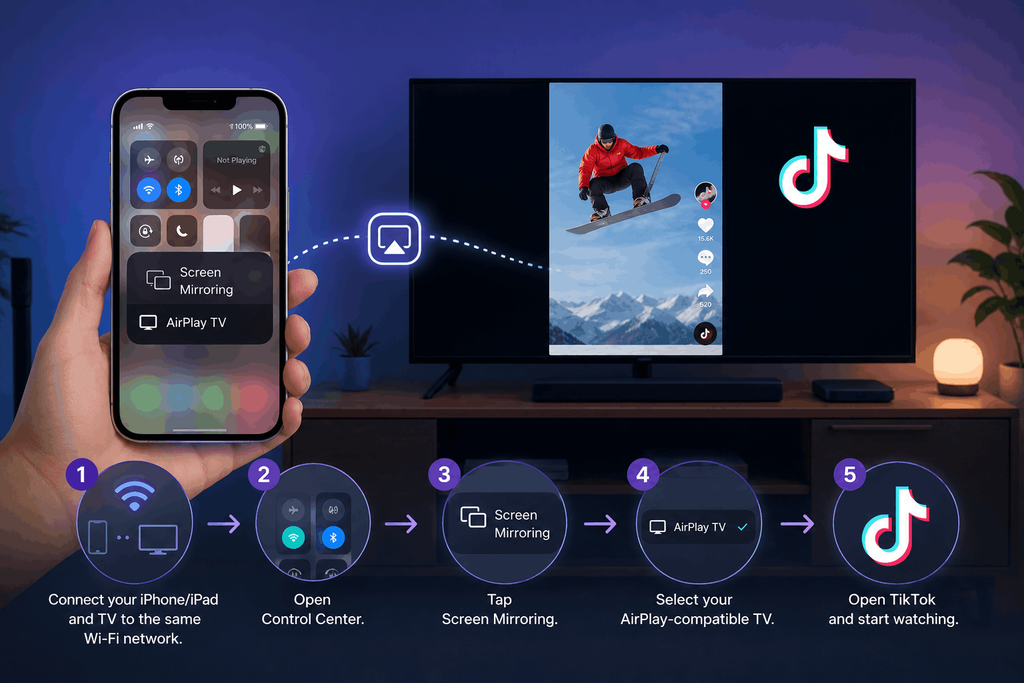
How to AirPlay TikTok to TV
- Make sure your iPhone or iPad and TV are connected to the same Wi-Fi network.
- Open Control Center on your iPhone or iPad.
- Tap Screen Mirroring.
- Select your AirPlay-compatible TV.
- Open TikTok and start watching.
AirPlay mirrors your entire iPhone or iPad screen, so you can watch TikTok on your TV without connecting a cable.
Best for: Watching TikTok from an iPhone or iPad.
Keep in mind: TikTok doesn’t have a dedicated AirPlay button. You’re mirroring your entire screen instead.
TikTok on Apple TV
If TikTok is available on your Apple TV, you can download the app and watch TikTok directly without mirroring your iPhone or iPad. If the app isn’t available, you can use AirPlay instead.
6. Watch TikTok on Roku TV
If TikTok isn’t available directly on your Roku TV, you can still watch it by casting or mirroring your screen from a compatible Android phone or Windows PC.
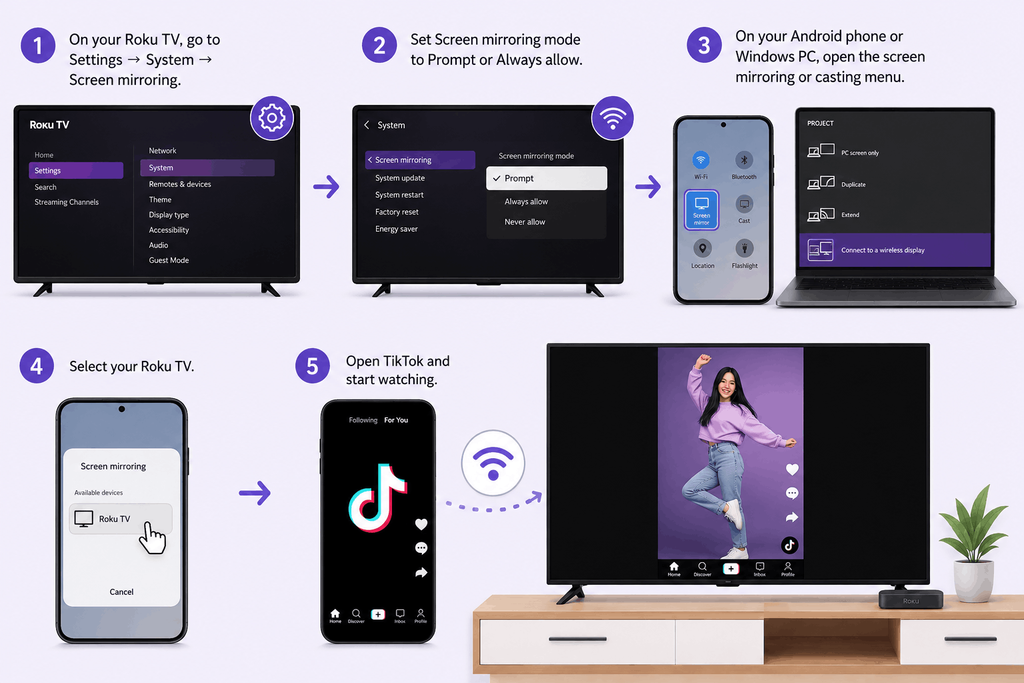
How to Cast TikTok to Roku TV
- On your Roku TV, go to Settings → System → Screen mirroring.
- Set Screen mirroring mode to Prompt or Always allow.
- On your Android phone or Windows PC, open the screen mirroring or casting menu.
- Select your Roku TV.
- Open TikTok and start watching.
This lets you watch TikTok on your Roku TV without needing a dedicated TikTok app.
Best for: Watching TikTok from an Android phone or Windows PC.
Keep in mind: Roku’s TikTok availability and supported casting options can vary by device and software version.
7. Display TikTok on TV for Events, Businesses & Digital Signage
This is where watching TikTok and displaying TikTok become two different things. Casting is useful when one person wants to control what appears on the TV. A TikTok social wall is designed for the other scenario: when the screen itself is part of the experience.
With Social Walls, you can collect TikTok content and turn it into a curated social media feed for TVs, event screens, digital signage, and other displays. Instead of keeping someone’s phone connected and manually choosing every video, you can create a dedicated TikTok display for your audience.
Collect and display relevant TikTok content on your big screens in real time.
No Credit Card Required
How to Display TikTok on a TV With Social Walls
1. Create your Social Walls account
Log in or sign up for Social Walls and start your trial.
2. Connect TikTok
Choose TikTok as your social media source and connect the content you want to display.
3. Choose the content you want to show
Bring relevant TikTok content into your wall using supported sources such as hashtags, profiles, or specific content.
For example, you can collect TikTok posts using your event-branded hashtag and turn them into a live social feed.
4. Moderate your content
Not every social post belongs on a public screen. Use moderation controls to review the content before it appears on your display.
5. Customize your TikTok wall
Choose a theme and customise your wall’s appearance to fit your brand, event, venue, or screen.
6. Display your TikTok wall
Connect your compatible display setup, such as Chromecast or Fire TV Stick, and bring your TikTok wall to the big screen.
Collect, moderate, and display TikTok content on screens at your events, venue, business, or digital signage setup with Social Walls.
No Credit Card Required
Casting TikTok vs. Displaying a TikTok Social Wall
| Casting TikTok | TikTok Social Wall |
| Designed for personal viewing | Designed for audience viewing |
| Usually controlled from a phone or computer | Runs as a dedicated display |
| Best for individual videos | Best for curated social feeds |
| Requires active device control | Designed for continuous display |
| Good for home entertainment | Good for events, businesses & venues |
| Limited control over what appears | Lets you curate and moderate content |
So, if you’re sitting on your sofa and want to watch TikTok on your TV, casting is probably all you need. But if you’re putting TikTok on a screen for other people to see, a social wall gives you much more control over the experience.
Why Display TikTok on a Big Screen?
A TikTok wall isn’t just about making videos bigger. It turns social content into part of the physical experience.
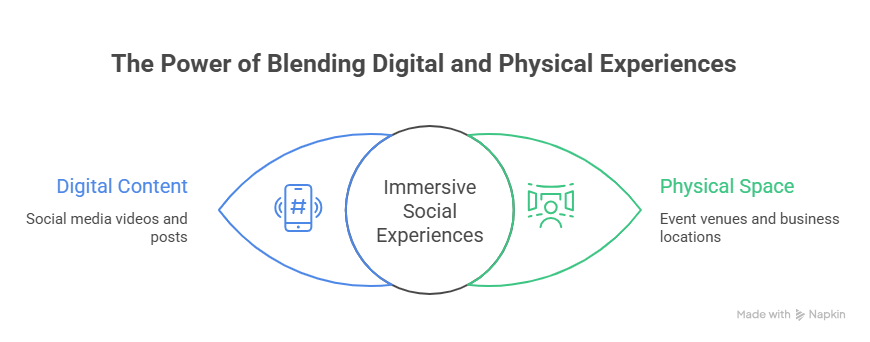
- Turn Event Attendees Into Part of the Screen
Encourage attendees to post using your event hashtag, then display approved TikTok content on screens around the venue. The experience becomes:
Post → Get featured → Encourage more participation.
Instead of social activity staying on individual phones, it becomes visible to everyone in the room.
- Put Customer Content Where People Can See It
Retail stores, restaurants, hotels, and other businesses can showcase customer-created TikTok content on their screens. This brings social proof out of the app and into the physical space where customers are already making decisions.
- Keep Digital Signage Fresh
Static screens show the same message repeatedly. A social wall can bring new social content onto your screens, making your social media digital signage more dynamic and participatory.
- Make Live Events More Social
At conferences, exhibitions, product launches, festivals, and other live events, displaying social content gives attendees another reason to participate. Someone posts. The content gets approved. It appears on the big screen. The screen becomes part of the social experience.
TikTok Not Working on Your TV? Try These Fixes
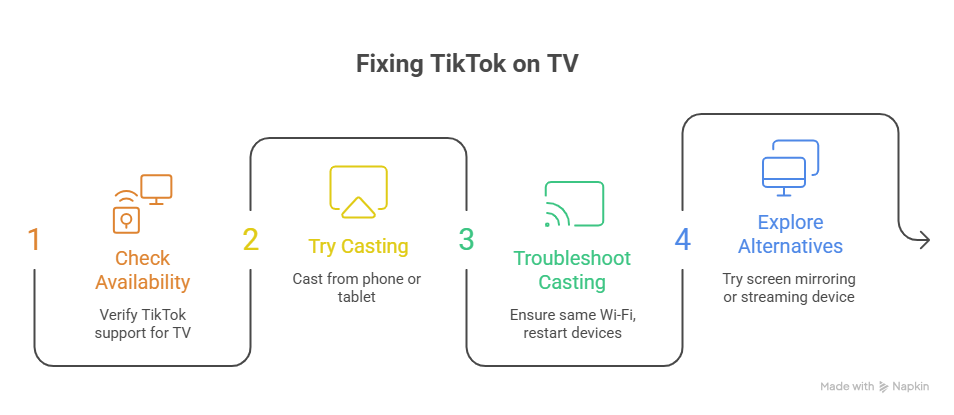
Having trouble getting TikTok onto your TV? Try these quick fixes before switching setups.
- TikTok isn’t available on my TV
TikTok availability can vary by TV model, operating system, device, and location. If you can’t find the app, try casting TikTok from a compatible phone or tablet or mirroring your computer instead.
- What to Do If Casting Isn’t Working
Check that your phone and TV or casting device are connected to the same Wi-Fi network where required. If they are, restart both devices and try again.
- TikTok casting keeps disconnecting
An unstable Wi-Fi connection can interrupt casting. Check your network connection, move your devices closer to the router if possible, and restart the relevant devices.
- TikTok works on my phone but not on my TV
Your TV may not support the TikTok app or the casting method you’re using. Try another supported method, such as screen mirroring or a compatible streaming device.
- I want TikTok to stay on the screen without using my phone
That’s a different use case from casting. If you need TikTok content running continuously on a shared screen, consider using a social wall instead of keeping a phone connected and controlling the feed manually.
Create a branded social wall and turn TikTok posts into an engaging big-screen experience.
No Credit Card Required
Final Take
There are several ways to get TikTok on your TV, but the best method depends on what you want the screen to do.
For personal viewing, use the TikTok app where supported, cast from your phone, mirror your computer, or use Chromecast.
For events, businesses, venues, and digital signage, think beyond casting. A TikTok social wall lets you collect, curate, moderate, and display social content on a shared screen, turning TikTok from something people watch on their phones into something an entire audience can experience together.
Frequently Asked Questions
Yes, if your Smart TV or streaming device supports the TikTok app. You can also use a compatible casting or screen-mirroring method if the app isn’t available.
To screen share TikTok to your TV, connect both devices to the same Wi-Fi, then use AirPlay on iPhone or Cast/Smart View on Android. Open TikTok and select your TV to start sharing.
Yes. If your TV or streaming device supports a compatible casting method, you can cast TikTok from your phone or tablet.
Yes, depending on your TV and casting setup. You can use a supported TikTok app, compatible casting method, or screen mirroring to view TikTok content on a larger display.
No, TikTok is not currently available as an official app on Roku TV. However, you can still watch TikTok on your Roku TV by mirroring or casting TikTok from a smartphone or computer.
Yes. A TikTok social wall is designed for this type of use case. You can collect, curate, moderate, and display TikTok content on compatible TVs and digital screens.