





如何在数字标牌上显示 Tumblr Feed?
Introduction
Amongst social media platforms, microblogging platforms have gradually made a place for itself since it gives a bigger space to the users to voice their opinions openly.
When we talk about microblogging platforms, we just cannot miss out on Tumblr.
Tumblr is one of the highly leveraged and growing social media platforms worldwide. The platform caters to over 21 million users in the US itself. On average, the platform has about 22.2 million posts per day which clearly shows its wide popularity and usage.
Being such a highly leveraged platform, the users make the most of this and post blogs about their opinions on various topics including reviews and posts on particular bands.
Showcasing such content publicly on a tool like Digital signage can effectively help your brand to gather more attention from potential customers, increase engagement and display social proof.
To do the needful all you require is a content aggregation tool like Social Walls to collect content from Tumblr, curate it, and display it on digital signage.
您可以使用平台的附加功能来增强信息流的外观。自定义功能使用户能够使信息流更具吸引力。审核功能允许用户过滤掉任何不需要的内容。
该工具还为用户提供高级分析,以获取有关信息流性能的详细见解。
如果您在使用平台时遇到问题,社交墙显示团队有专家可以帮助您解决问题。
在下一节中,我们将为您提供有关如何使用社交墙在数字标牌上显示您的 Tumblr 信息流的分步指南。
在数字标牌上显示 Tumblr 墙
要创建 Tumblr 墙,您需要按照给定的步骤进行操作-
步骤 1
首先注册或登录您的 社交墙账户

步骤 2
登录后,您将进入 社交墙 主页,点击“立即开始”,然后在下一个屏幕上,您将被要求选择一个网络来创建社交墙

步骤 3
在出现的弹出窗口中,选择源 Tumblr 然后填写必填字段。

第 4 步
选择以下任一选项以添加 feed:
标签(#): 要通过标签获取 Tumblr feed,请输入您的 Tumblr 标签。
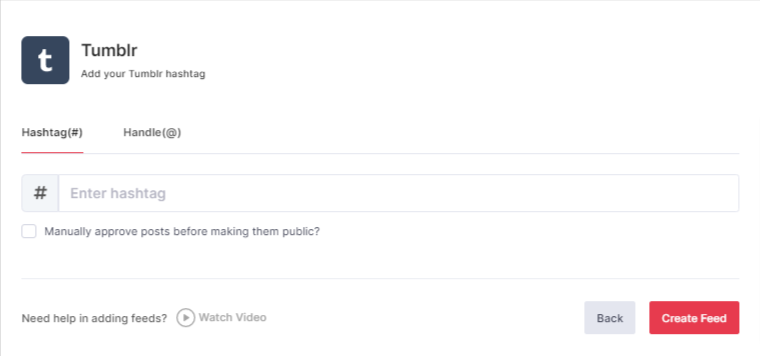
用户名(@): 要从该帐户获取 Tumblr feed,请输入您的 Tumblr 用户名。
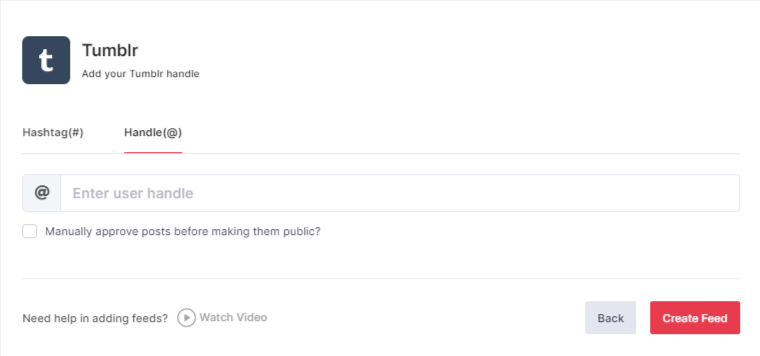
要启用连接上的审核,请选择“在发布前手动批准帖子”。
第 5 步
然后单击“创建 Feed”按钮以完成添加 feed。
太好了,连接已创建,几分钟后帖子将出现在墙编辑器中。
在任何数字标牌平台上显示 Tumblr 社交墙
要在任何数字标牌平台上显示 Tumblr feed,您需要按照以下步骤操作:–
第 1 步
单击墙编辑器左侧栏底部的显示按钮。

第 2 步
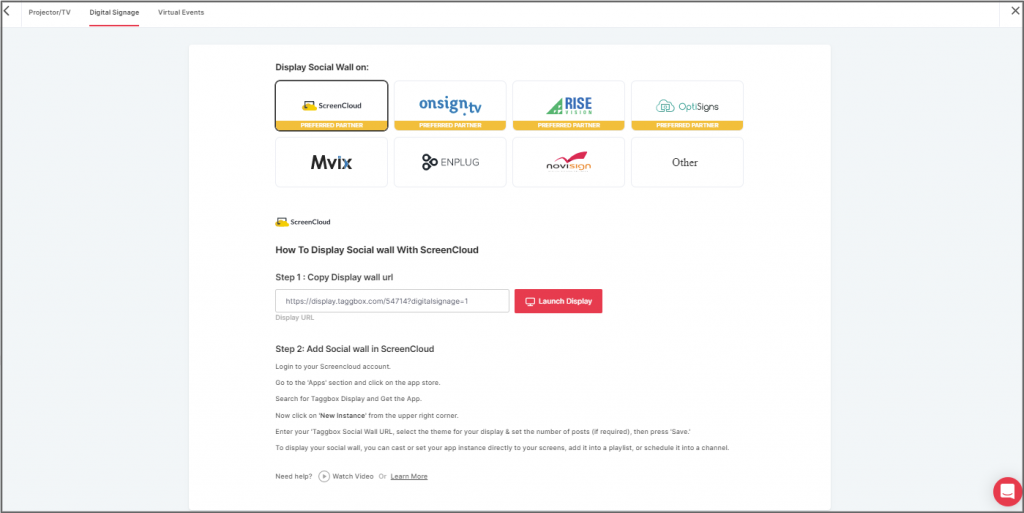
选择 您的平台 (例如:Mvix, Enplug, Scala 等)
尝试社交动态墙 – 开始您的 14 天免费试用
显示在 Screencloud 上
步骤 1
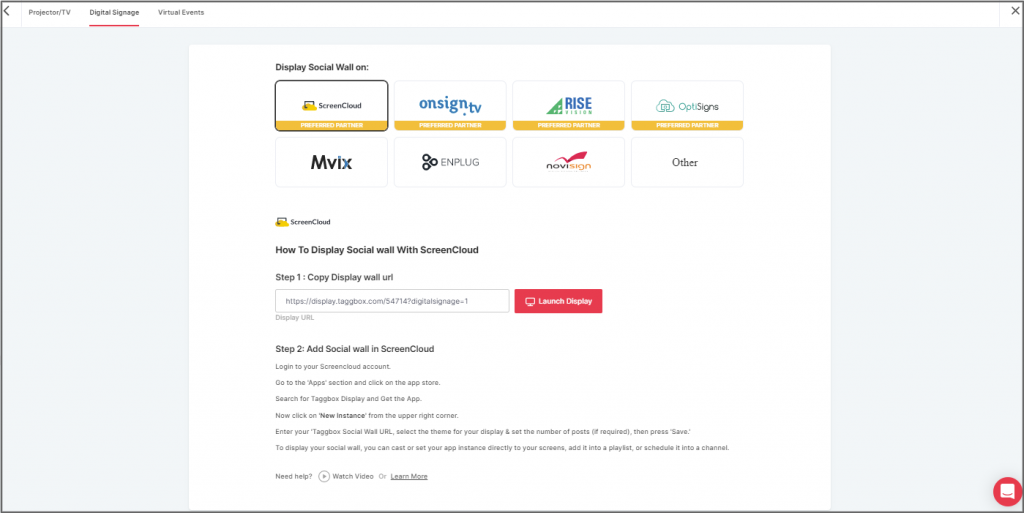
要在 Screen Cloud 上显示,请选择 Screen Cloud 作为您的数字标牌选项
步骤 2
将出现一个解释如何在 Screen Cloud 上显示社交动态墙的步骤说明对话框。从最后一步,将 嵌入代码/URL 复制到剪贴板。
步骤 3
现在,登录您的 Screen Cloud 帐户。

步骤 4
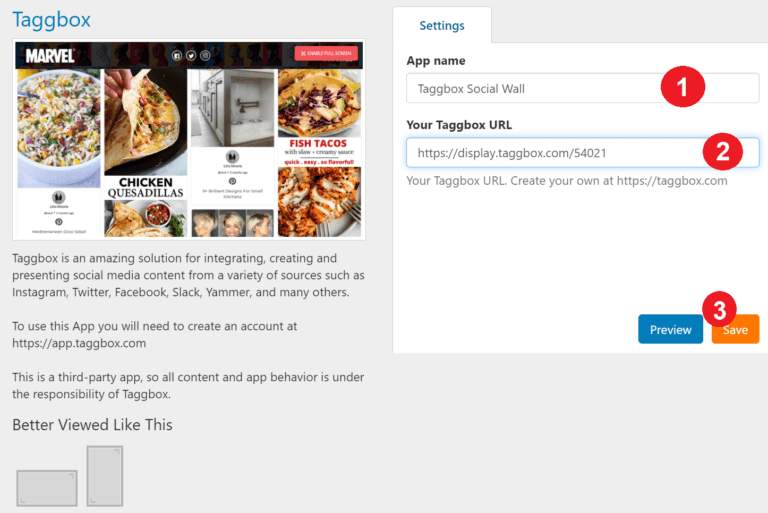
点击“应用”并搜索社交动态墙
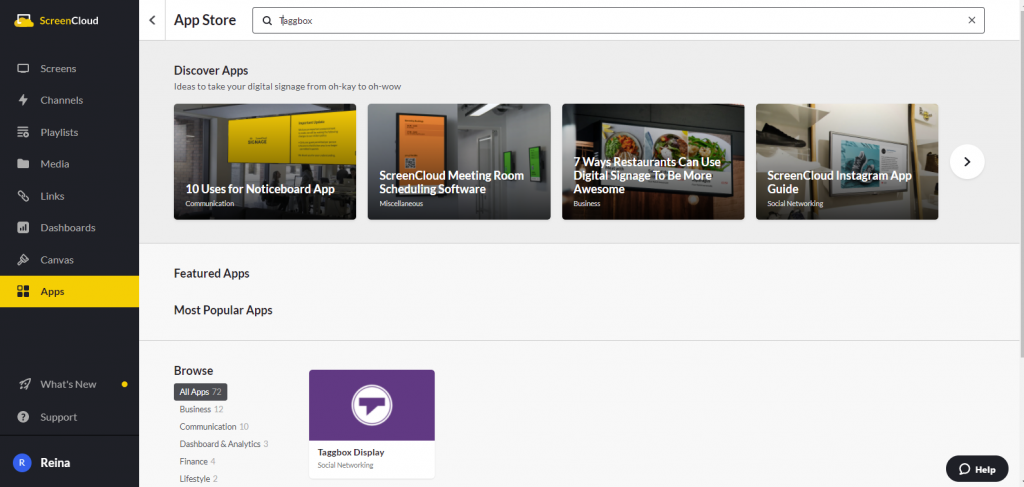
步骤 5
现在您将看到应用指南,点击获取选项
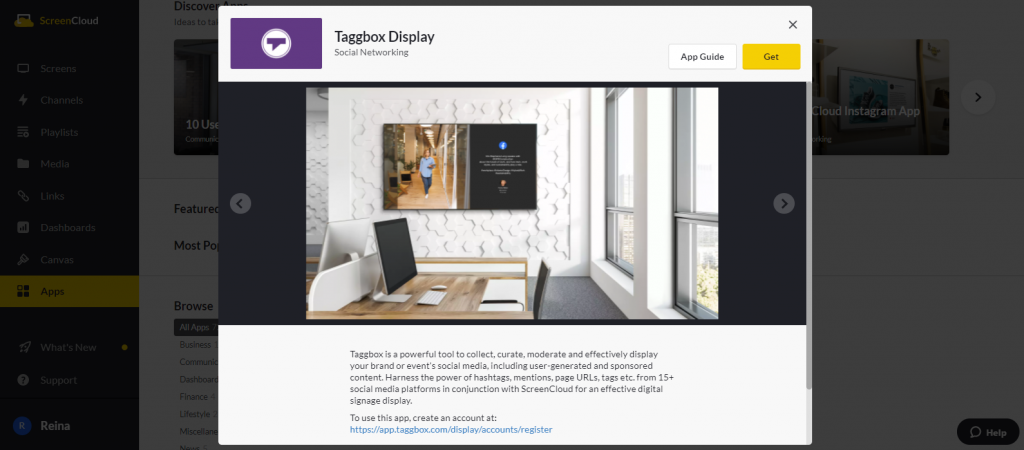
步骤 6
现在为您的动态墙命名,输入您的社交媒体动态墙的唯一 URL(如上所示),选择主题和帖子数量。点击保存。

Great! You have successfully integrated social wall on your Screen Cloud digital signage.
Display on Onsign
Step 1
Click on the display button and you will get the following options. Here you have to select Onsign.tv
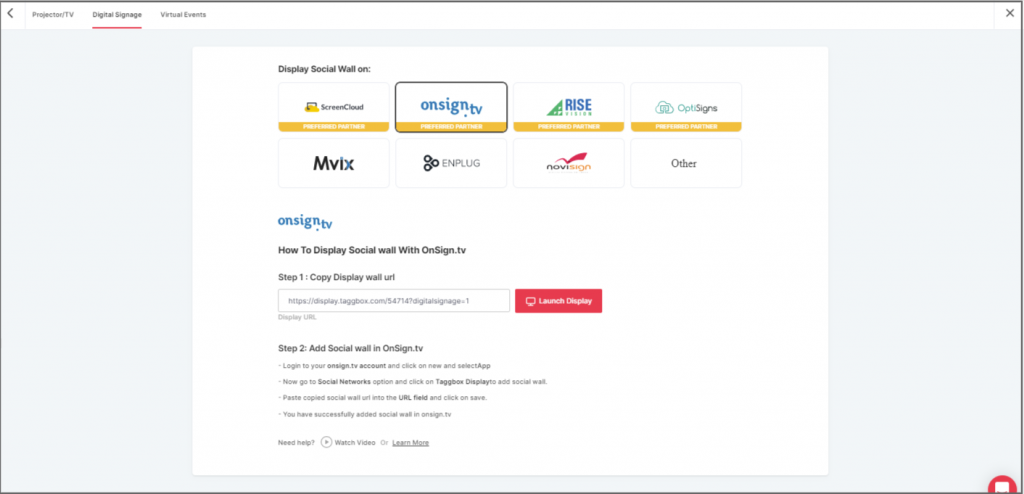
Step 2
Now, Register on OnSign or login to your existing account.

Step 3
Go to the Content section on the upper left. Click on New and then select App.

Step 4
Search here for social networks and click on the Social Networks Tab. Then choose the Social Walls App Option.
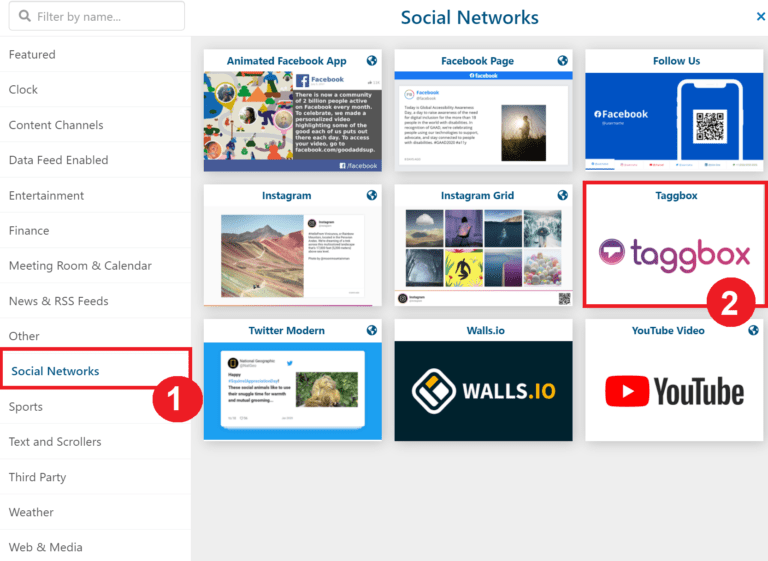
Step 5
Paste your Social Walls wall link into the URL field. Then select the ‘Preview’ button in the lower-right corner. Everything looking good? Hit the Save button.
在 Rise Vision 上显示
步骤 1
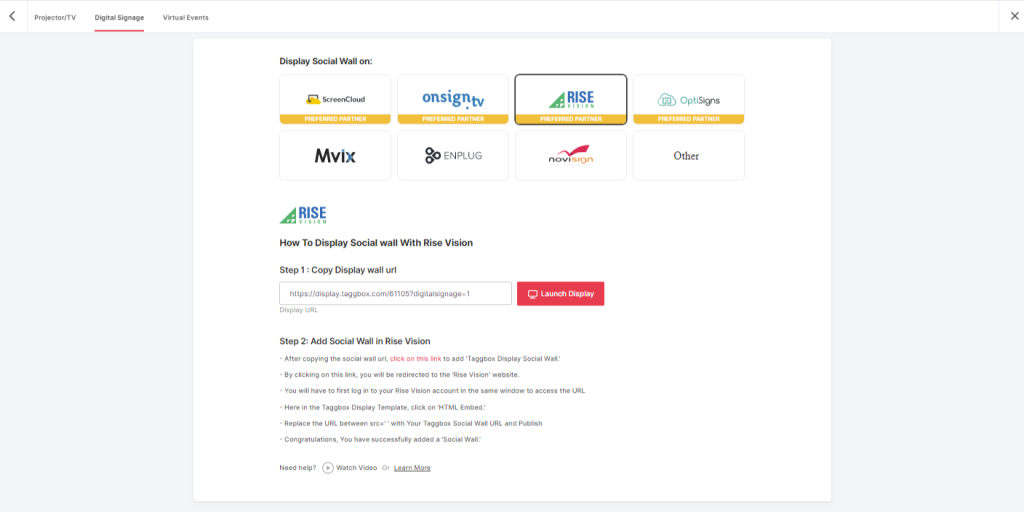
点击显示按钮,您将获得以下选项 & 选择 Rise Vision
步骤 2
将出现一个对话框,解释如何在 Rise Vision 上显示社交墙的步骤。从第一步开始,复制 嵌入代码/URL 到剪贴板。
步骤 3
现在,在 Rise Vision 上注册或登录,或登录到您现有的帐户。或者,如果您已经登录到 Rise Vision ,请直接按照 步骤 4 进行操作。

步骤 4
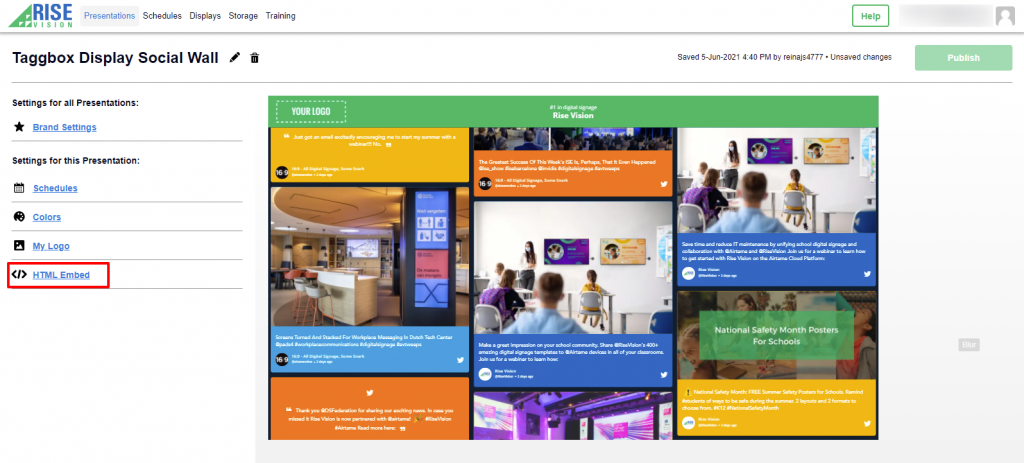
现在点击此链接“https://bit.ly/3igriSA”,您将看到社交墙模板屏幕。 在这里您需要选择“HTML 嵌入”选项。
步骤 5
现在,将 “src=’ ‘ 之间的 URL 替换为 iframe class 部分” 中的社交墙 URL,然后点击发布按钮
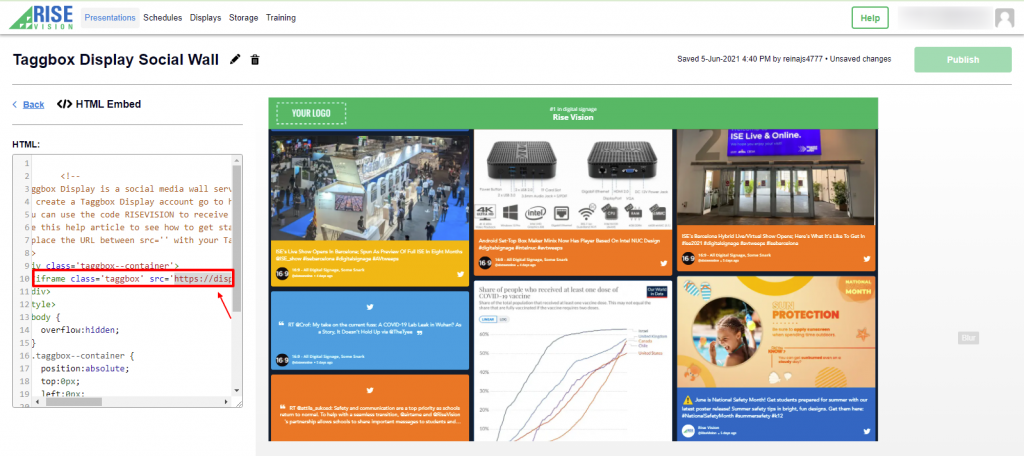
恭喜,您已成功集成 社交动态墙 到 Rise Vision
在 OptiSigns 上显示
第 1 步
单击显示按钮并选择 OptiSigns 作为您的选项
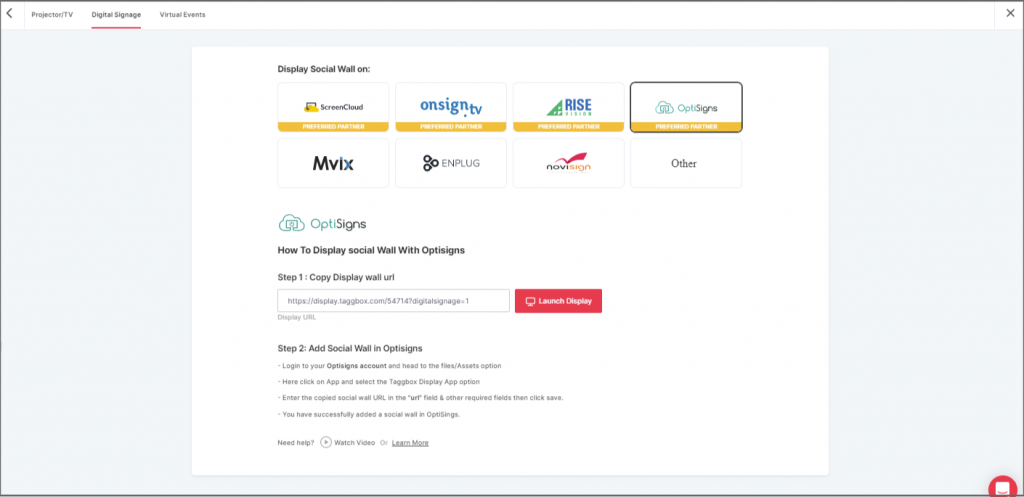
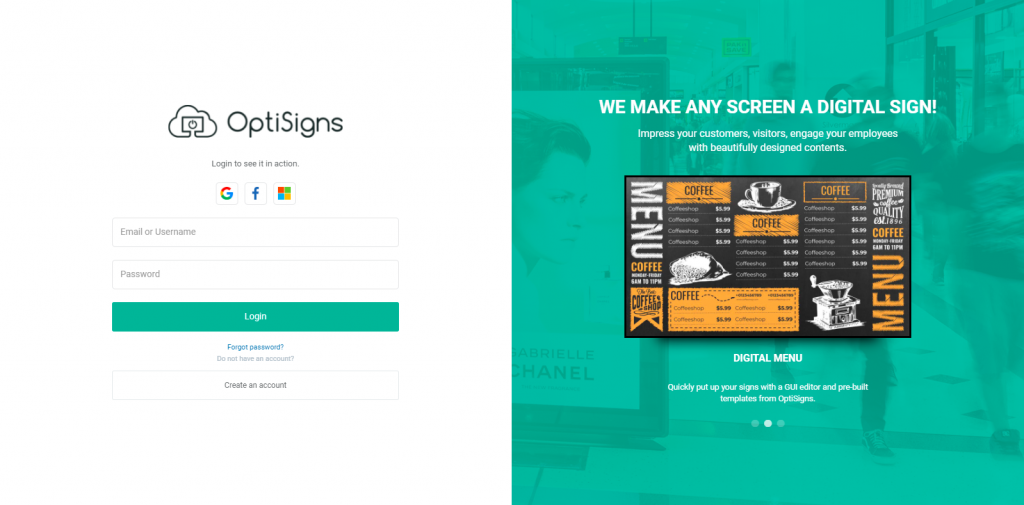
第 2 步
现在注册或登录到您现有的 Optisigns 账户
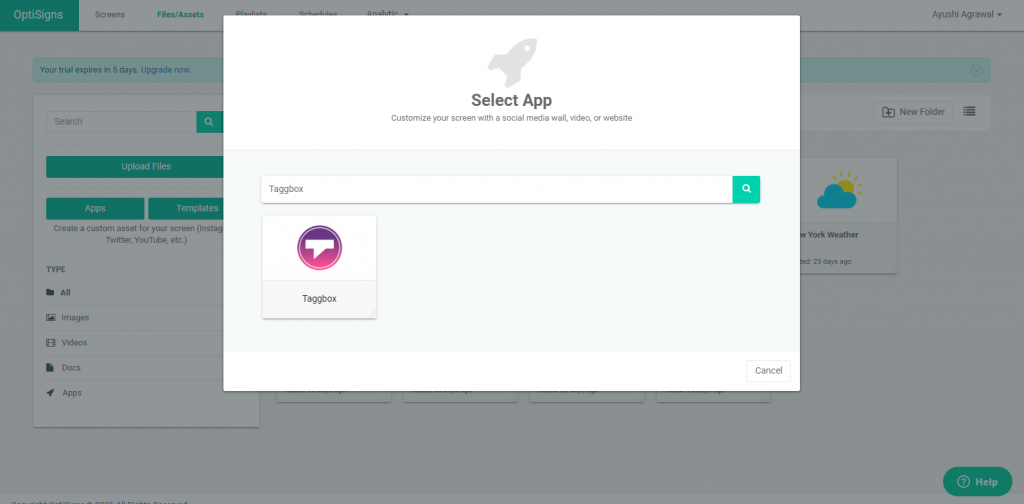
第 3 步
转到文件/资产,单击“应用”并搜索社交动态墙应用
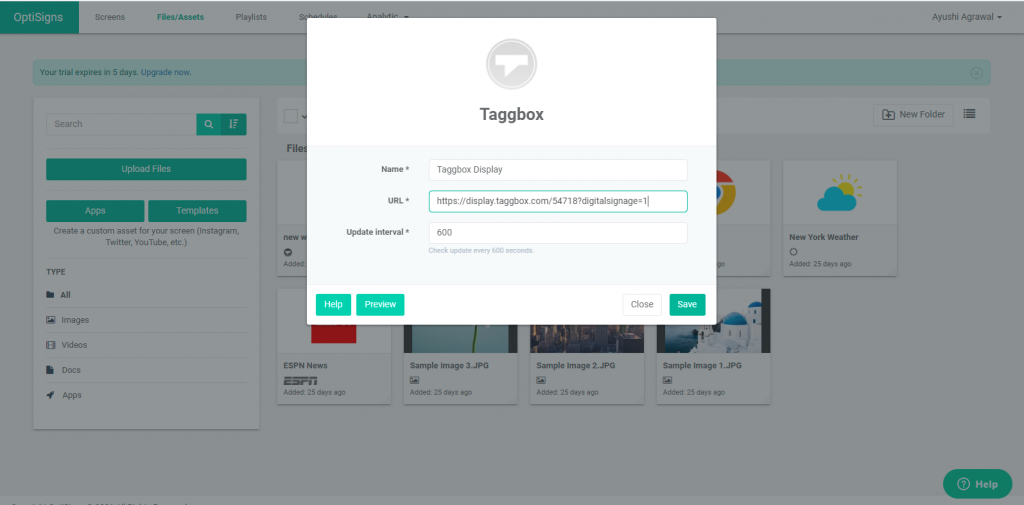
第 4 步
单击社交动态墙应用并输入所需信息
名称:输入您独特的社交动态墙名称
URL:从社交动态墙显示账户复制社交动态墙网址并粘贴到 URL 栏中
更新间隔:管理社交动态墙的更新频率
预览:检查您的社交动态墙的预览
保存:如果一切看起来正常,请单击保存
恭喜!您已成功将社交动态墙集成到 OptiSigns 数字标牌中。
在 Mvix 上显示
步骤 1
要在 Mvix 上显示,请选择 Mvix 作为您的数字标牌选项。
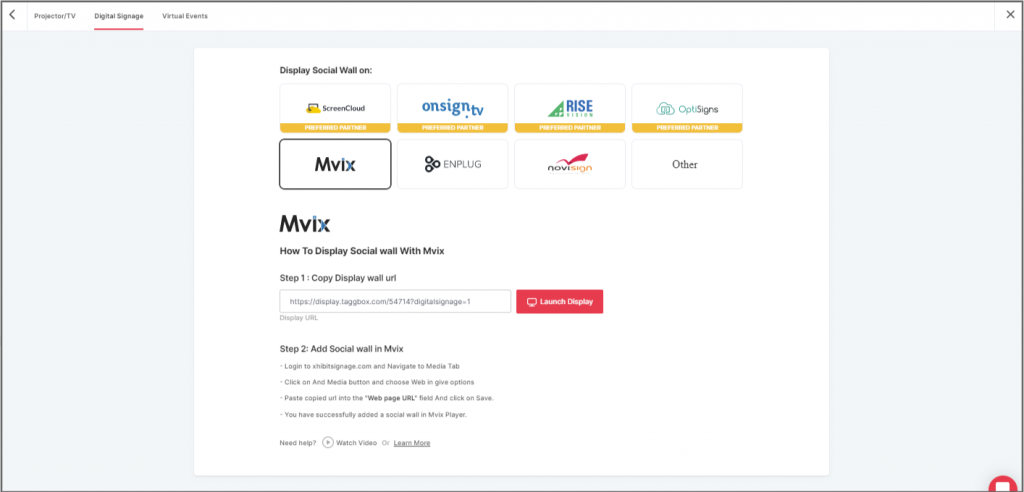
步骤 2
现在,登录到您的 xhibitsignage.com

步骤 3
导航到 媒体选项卡,然后单击 添加媒体 。
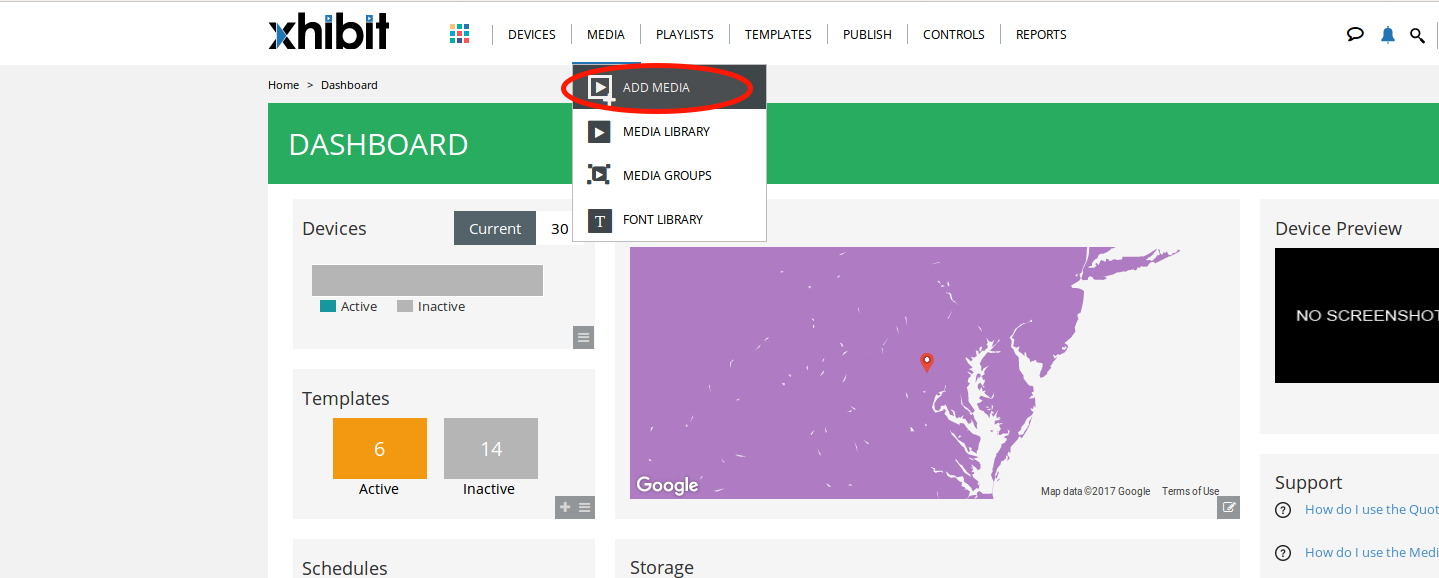
步骤 5
单击 Web 选项卡 。
步骤 6
单击 网页小部件图标。
步骤 7
在此,在 网页 URL 字段中,粘贴 复制的嵌入 URL 。
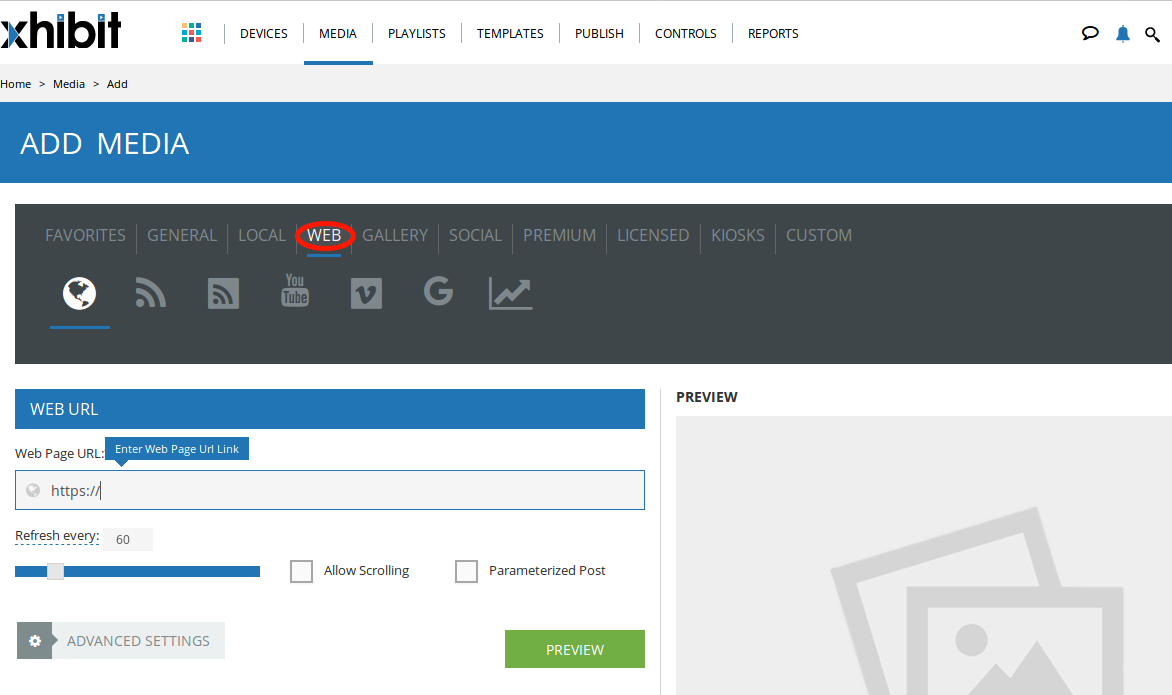
太棒了!您已成功将社交墙集成到您的 MVIX 数字标牌中。
在 Enplug 上显示
步骤 1
要在 Enplug 上显示,请选择 Enplug 作为您的数字标牌选项。
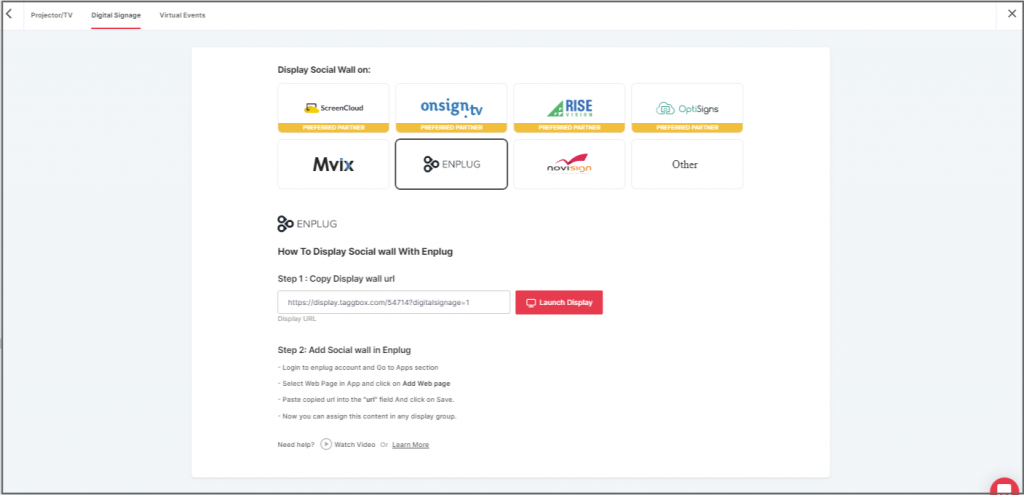
步骤 2
现在,登录到您的 Enplug 帐户。

步骤 3
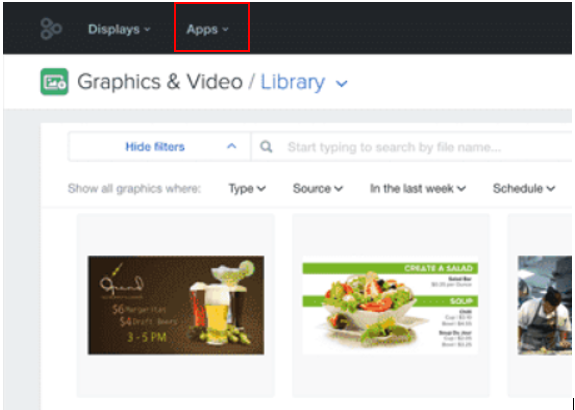
Next, click on the Apps dropdown.
Step 4
Select the Webpage App.

Step 5
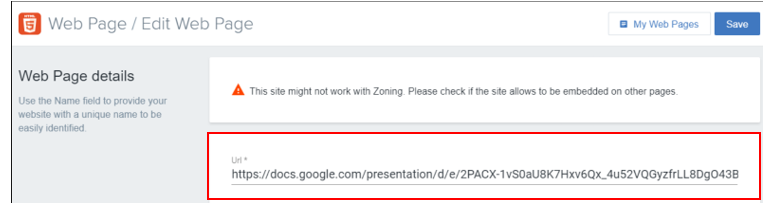
Now, click on Add Website.

Step 6
In the URL Field, paste the copied Embed URL.
Great! You have successfully integrated social wall on your Enplug digital signage.
Display on NoviSign
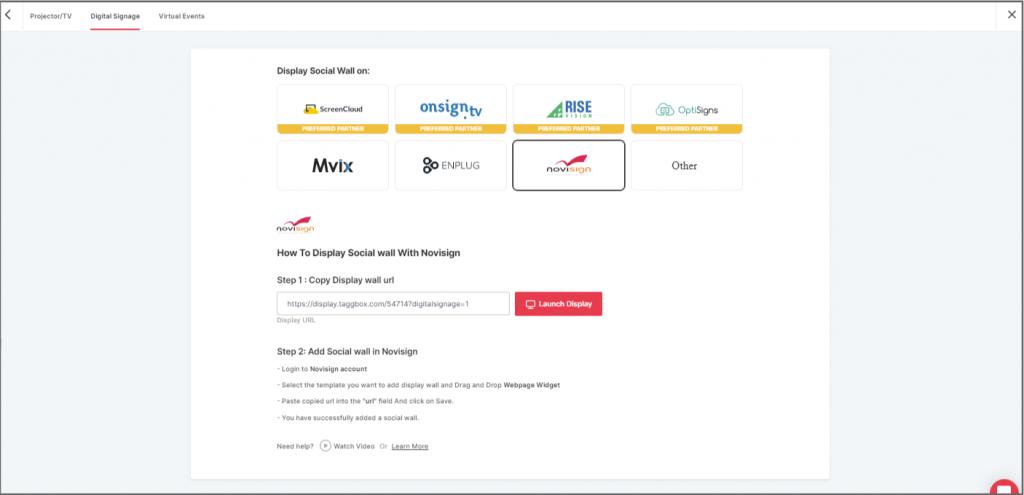
Step 1
Select Novisign as your digital signage option.
Step 2
Now, login to app.novisign.com.

Step 3
Next, click on the Compose button.

Step 4
Select Template.

Step 5
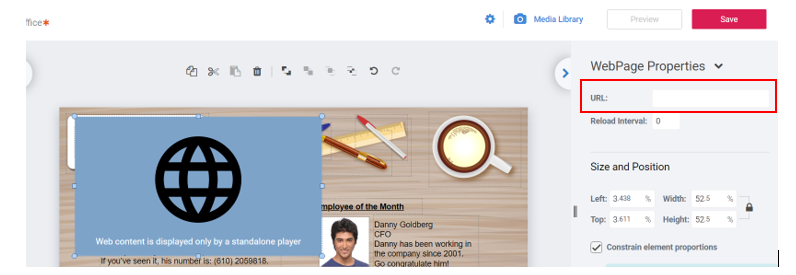
Now, drag and drop widgets: Webpage.

第 6 步
在 网页字段中,粘贴 复制的嵌入式 URL。
太棒了!您已成功在 Novisign 数字标牌上集成了社交动态墙。
结论
我们相信您会同意这是一个无缝、快速且简单的过程。
通过在数字标牌上展示您的 Tumblr 动态消息,您可以增加定位受众的可能性。
除了吸引您的受众,您还可以提高他们的参与度,建立品牌的社会认同,并增加您的转化率和销售额。
既然您现在知道如何将 Tumblr 内容无缝集成到数字标牌中,那就立即开始吧!
尝试社交动态墙 – 开始您的 14 天免费试用