



How to Display Social Wall on Raydiant Digital Signage

Follow this step-by-step guide to display a social wall on Raydiant digital signage. 

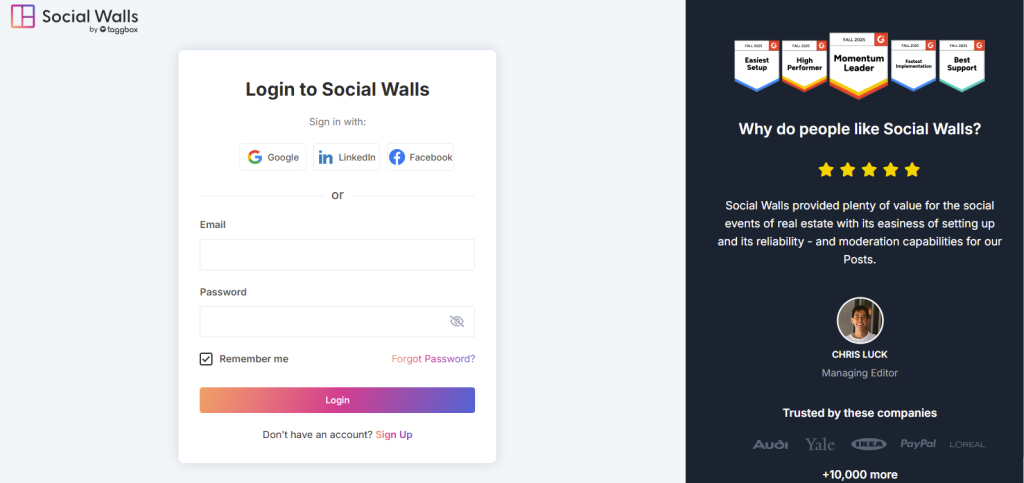
Step 1:  To begin, Signup for a new Social Walls account or simply log in if you already have one.

social wall login account

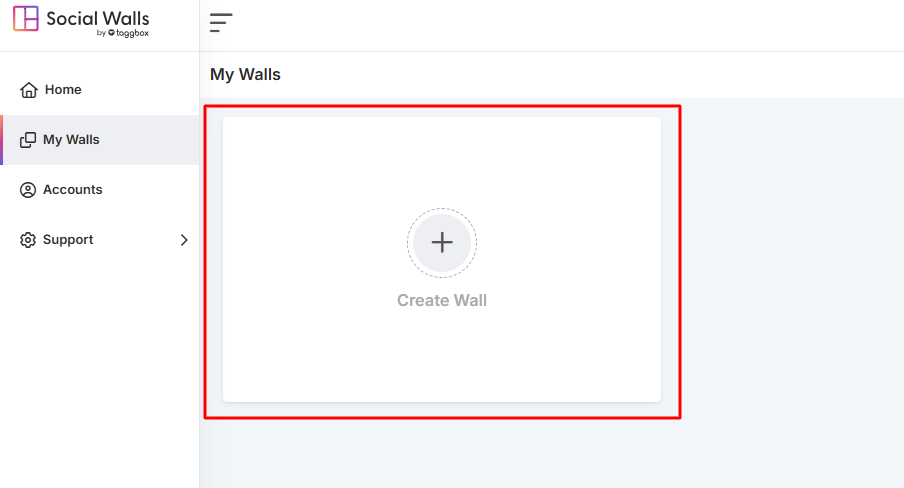
Step 2: Once you’re logged in, you’ll land on your Social Walls dashboard. From here, click on the ‘Create Wall’ button to begin creating your wall.

create a wall

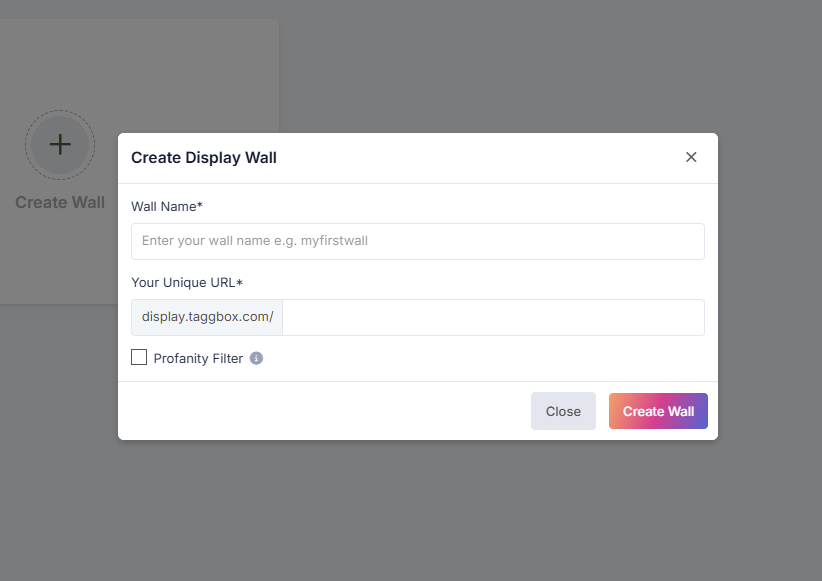
Step 3: After that, name your wall according to your event, campaign, or theme so you can easily recognize it later.

social wall display name

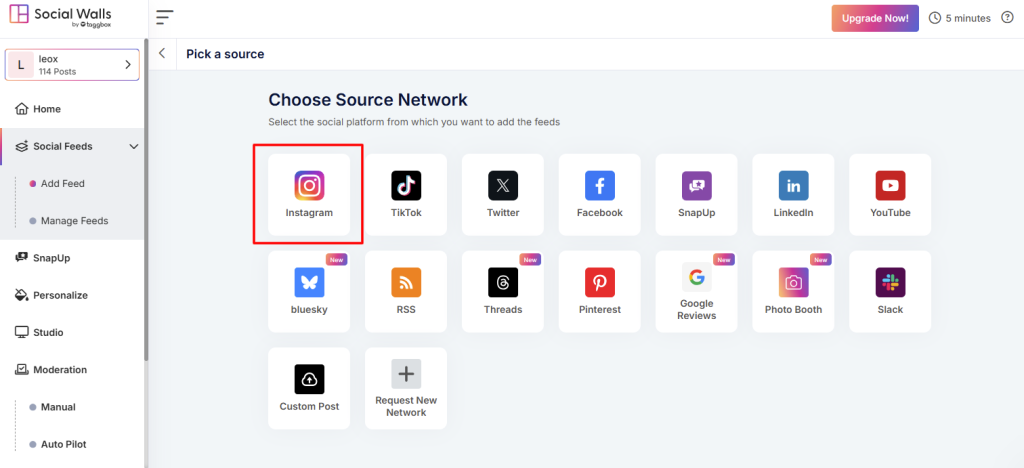
Step 4: For this example, select Instagram as your source.

instagram source network

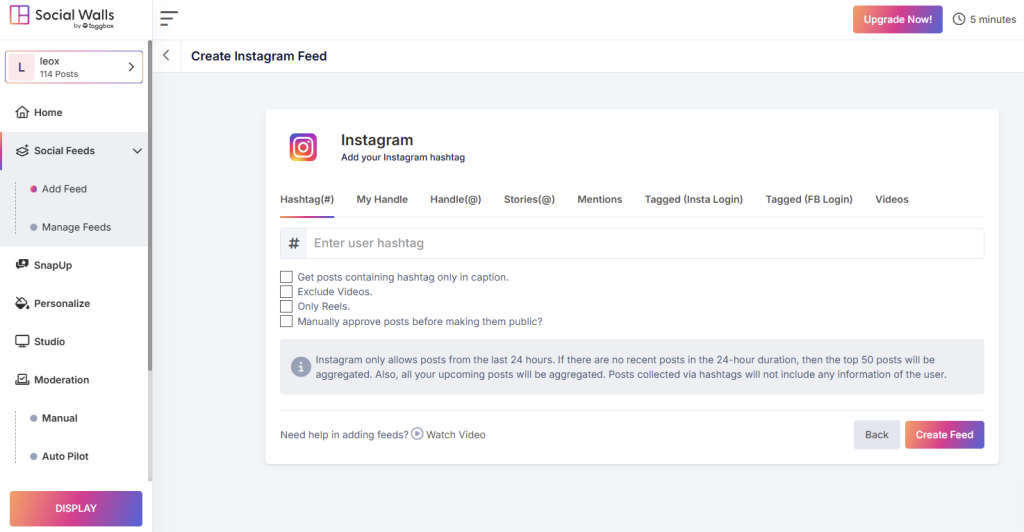
Step 5:You’ll see multiple options to curate your feed, including Hashtag (#), Handle (@), Stories, Mentions, Tagged Posts, IGTV Videos, and even your Personal Account.

social media feeds

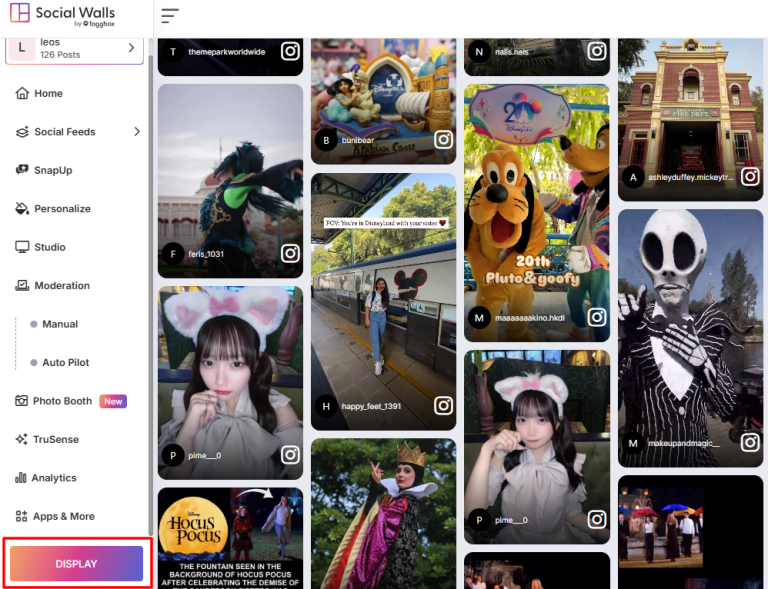
Step 6: Once selected, preview your Social Wall to ensure it looks perfect before displaying it on optisigns.

social wall display

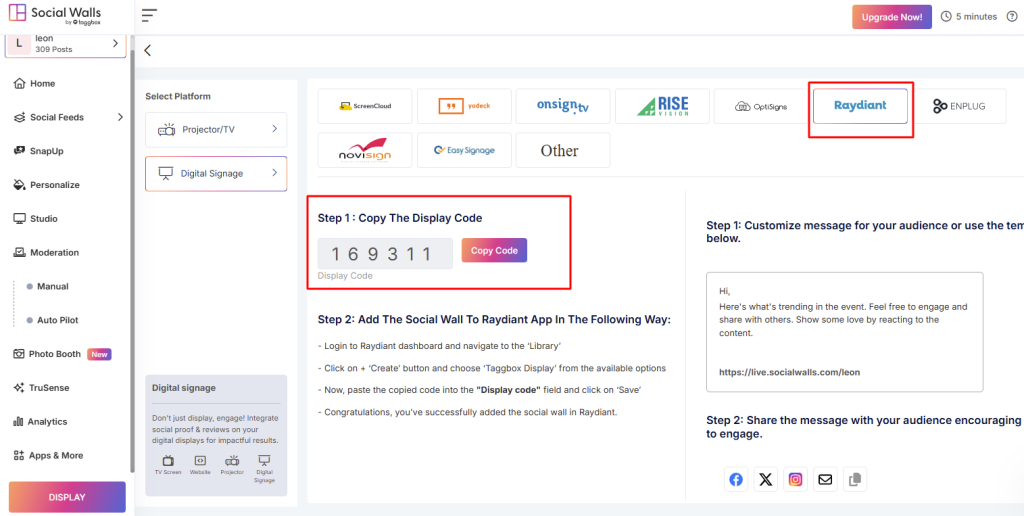
Step 7: Click the Display button, under Integrate with Digital Display → Digital Signage, there you will get social wall display url.

social display wall url

Step 8: Login or Signup to Displai(Raydiant) Digital Signage.

displai login account

Step 9: In the Library Section Click on “Create”. Then click on “taggbox display”.

Social Walls Raydiant

Step 10: Paste your copied display code and click on “done”.

Social Walls Code instance

And that’s it. You have successfully added the Social Walls to the Raydiant digital signage.

If you need any assistance, feel free to contact us reach out to our support team at support@Social Walls.com.

支持团队成员 1
支持团队成员 2
支持团队成员 3

24×7 现场活动专家随时为您服务

在您的活动之前、期间和之后获得专家支持,以确保每个社交墙都能顺利运行。

开始免费试用