



How To Edit The Card Style Of Your Social Walls?

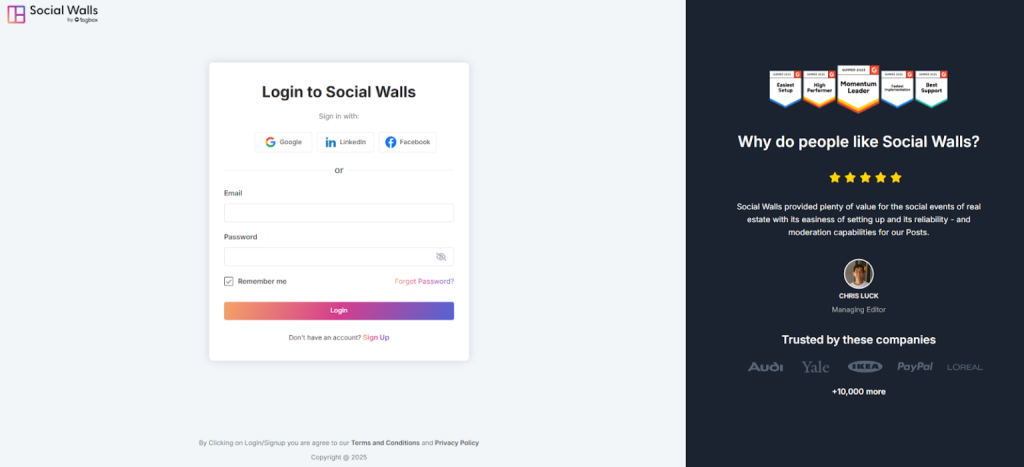
Step 1: Log In to Social Walls account or create a new one.

social wall login account

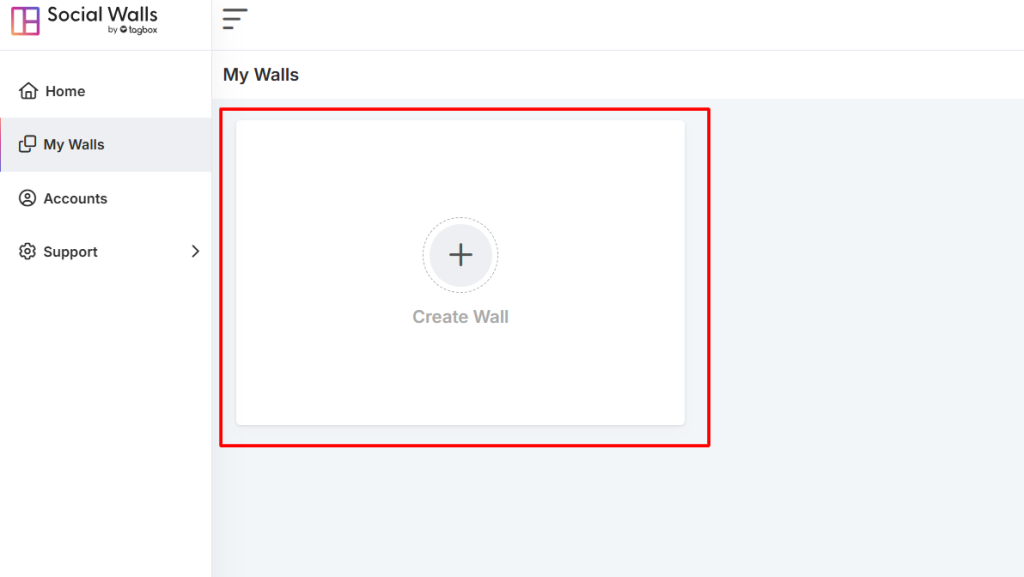
Step 2: In your dashboard, go to “My Walls” and click “Create New Wall.” Enter a name that fits your event, campaign, or office theme.

create a wall

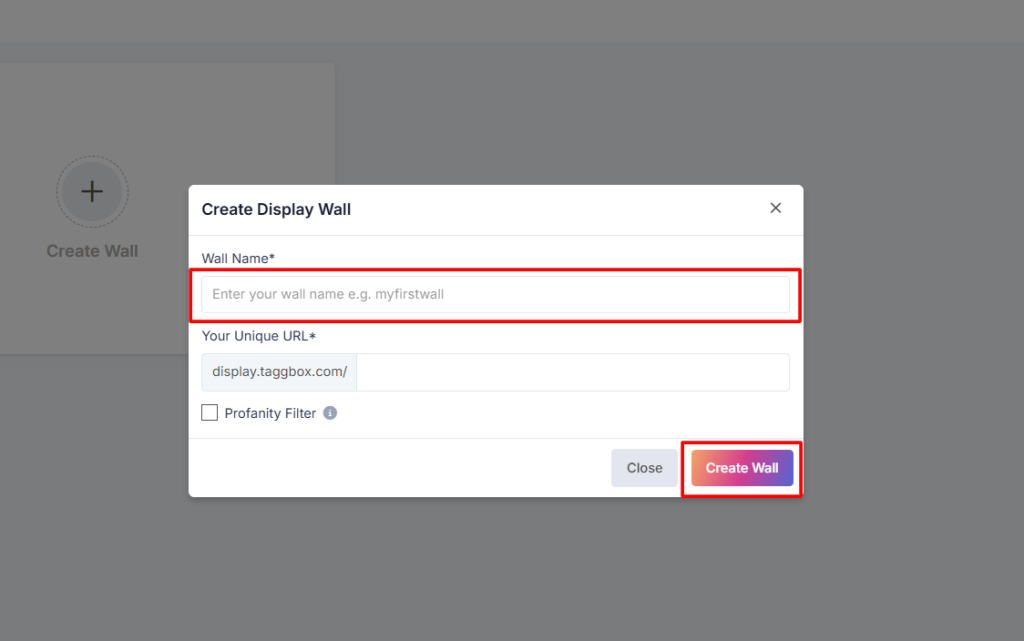
Step 3: Choose a wall name that clearly represents the purpose of your event or campaign.

wall name

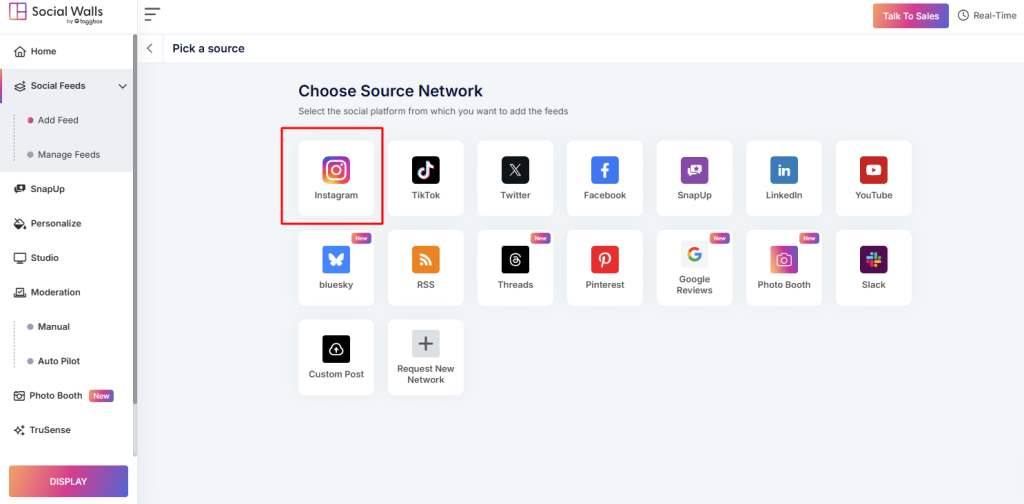
Step 4: Choose Source Network

source network

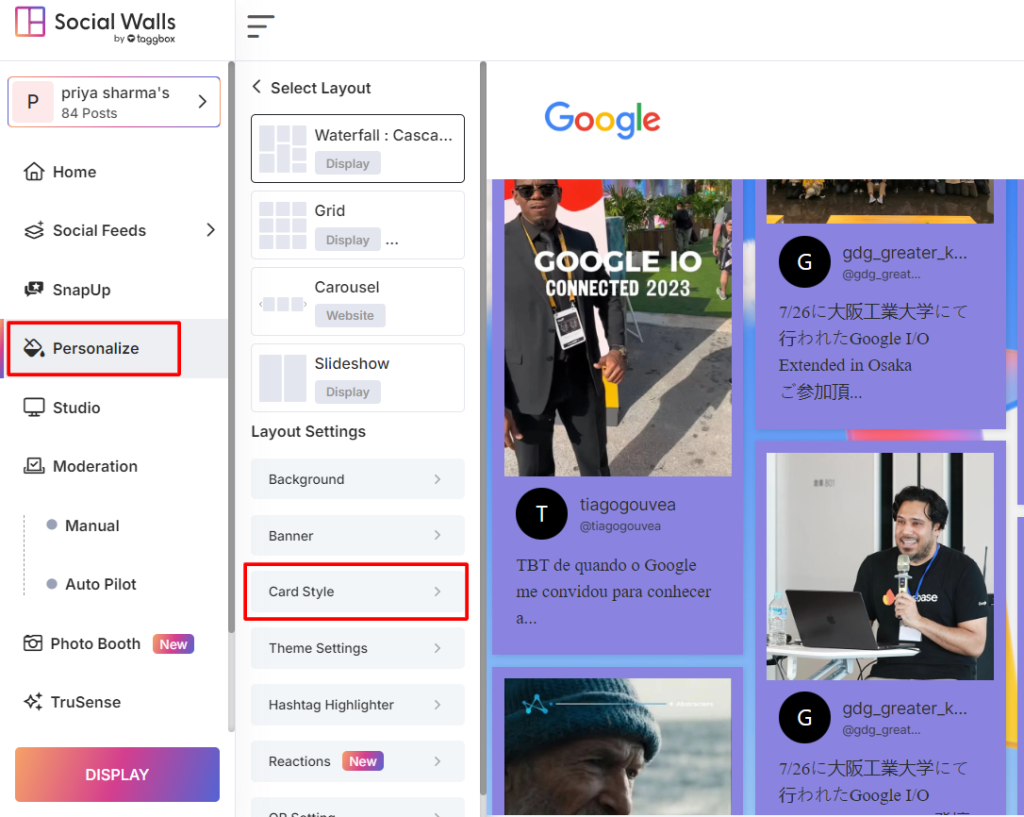
Step 5: On the sidebar, scroll to the bottom and click “Personalize”. and go to the card style.

personalize

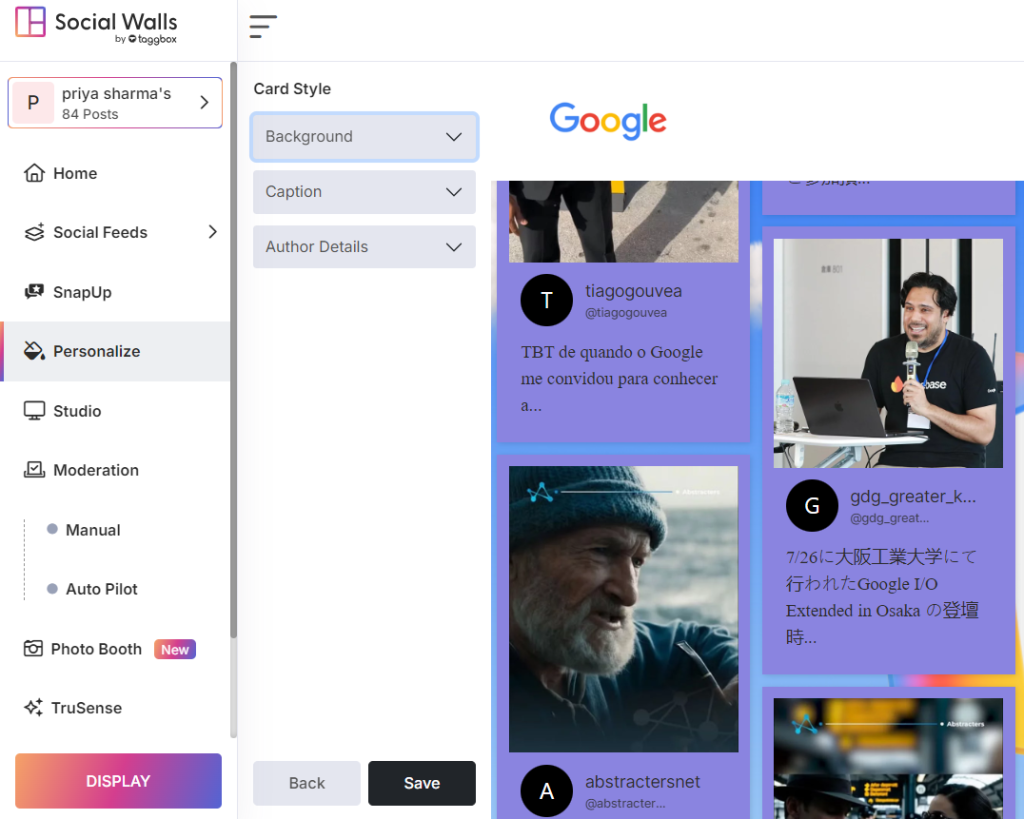
Step 6: You’ll now see three customization elements:

card style elements

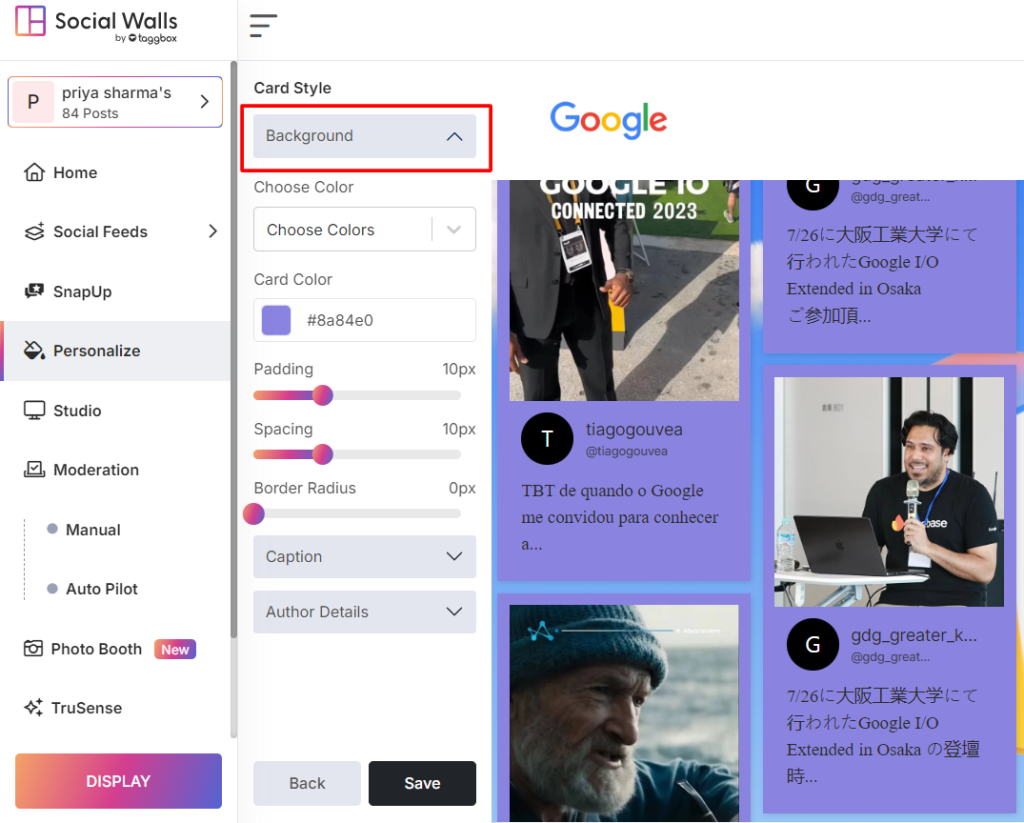
Step 7: Background

  • Adjust padding, spacing, and border radius.
  • Change the background color.
background

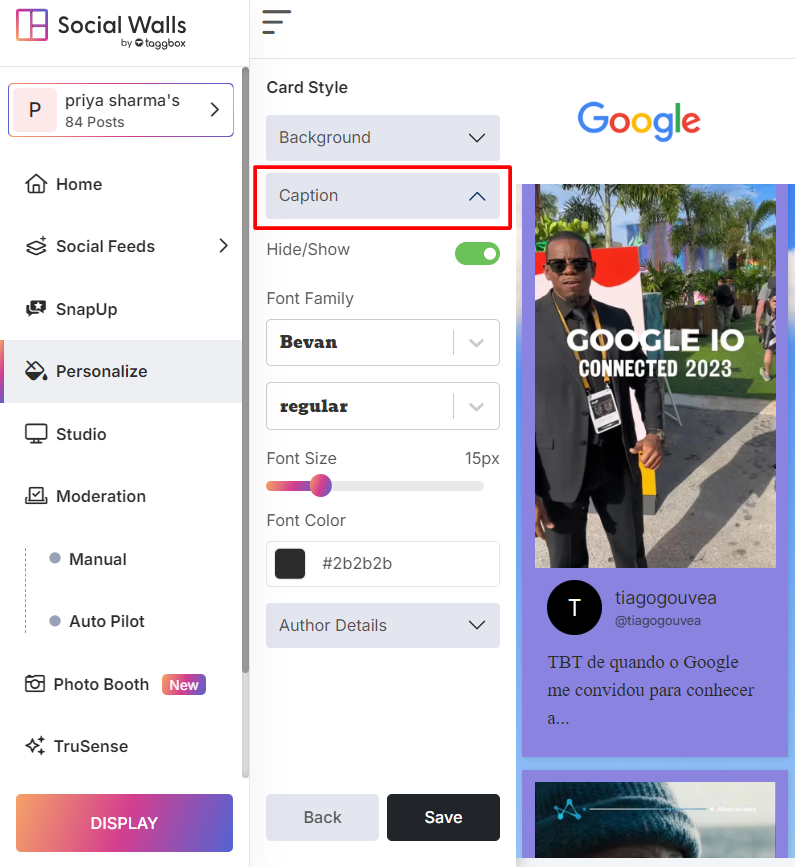
Step 8: Caption

  • Choose a Font Family (style), font size, and color.
  • Show or hide captions using the toggle option.
caption

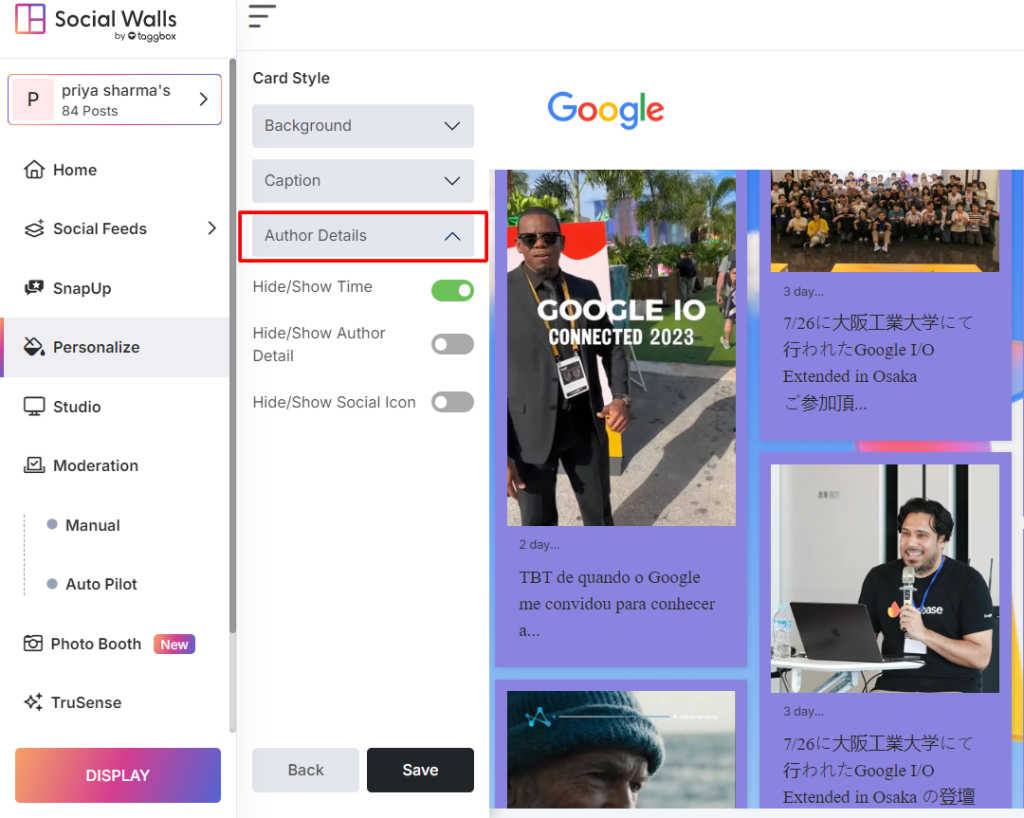
Step 9: Author Details

  • Change font family for author details.
  • Show or hide the author name, post time, and social icons.
  • Customize text color and social icon color.
Author Details

Step10: Once you’ve made all updates, click Save to apply them.

That’s it! You’ve successfully edited the Card Style of your Social Wall.

If you have any questions or need help, please contact us or write to us at support@Social Walls.com

支持团队成员 1
支持团队成员 2
支持团队成员 3

24×7 现场活动专家随时为您服务

在您的活动之前、期间和之后获得专家支持,以确保每个社交墙都能顺利运行。

开始免费试用