







Come guardare e trasmettere Instagram in TV 2026
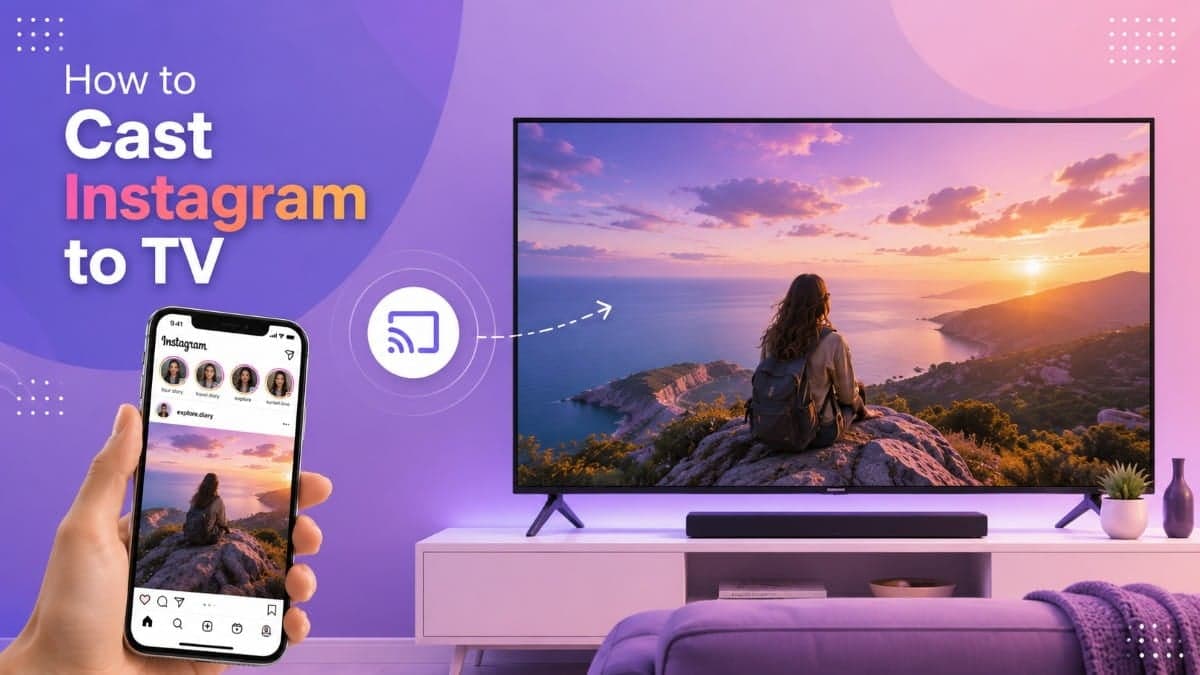
Want to watch Instagram on a bigger screen? You can cast Instagram to TV, mirror your phone, or use a web browser depending on your device and TV setup. Whether you’re using a Samsung TV, Firestick, or another smart TV, there are several ways to get Instagram content on your screen.
- Watching casually? Mirror your screen from your phone, or open instagram.com in your TV’s browser.
- Watching on a bigger screen at home? Connect a laptop to the TV with HDMI and use instagram.com on the TV.
- Displaying an Instagram feed at an event, store, or office? Screen mirroring will not hold up for hours. Use a social wall tool that runs unattended and auto-refreshes.
In this guide, you’ll learn how to watch Instagram on TV, how to cast Instagram from your phone, and how to display an Instagram feed on a TV for longer periods.
Cast, Mirror, or Stream Instagram on TV: Difference
One thing worth clearing up first. People search for this in three different ways, and the words are not interchangeable:
- Casting normally means sending one app’s content to a TV while your phone stays free. Instagram does not support this. There is no cast button in the app.
- Mirroring means copying your entire phone screen to the TV. This is what actually happens when you “cast Instagram,” and it is why your notifications show up on the TV too.
- Streaming an Instagram feed means running posts on a screen continuously without a phone attached at all. That needs a separate tool, covered in Method 6.
Most guides use all three words to mean the same thing. They do not, and the difference decides which method you need.
Turn Instagram content into a live display designed for events, businesses, and public spaces.
No Credit Card Required6 Methods to Watch Instagram on a TV
1: Open Instagram on a laptop, then cast it on TV screen
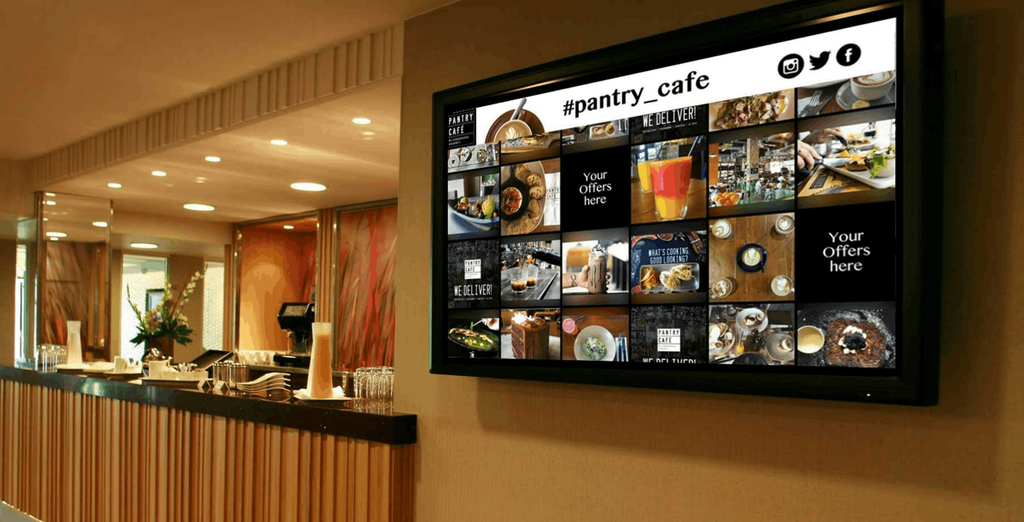
This is the most reliable method and the one with the best picture quality, because nothing is being compressed and re-transmitted over Wi-Fi.
- Connect your laptop to the TV with an HDMI cable. Most modern laptops need a USB-C to HDMI adapter.
- Switch the TV to that HDMI input.
- Go to instagram.com and sign in.
- Set the browser to full screen (F11 on Windows, Control + Command + F on Mac).
The web version shows your feed, Reels, Stories, and profiles. It is a cleaner viewing experience on a large screen than the mobile app, which is built for a vertical phone display.
Wireless alternative: If you have a Chromecast or Google TV device, open Chrome on the laptop, click the three-dot menu, choose Cast, and select your TV. Pick “Cast tab” for a browser tab or “Cast screen” for the whole desktop.
2: How to AirPlay Instagram to TV from an iPhone or iPad
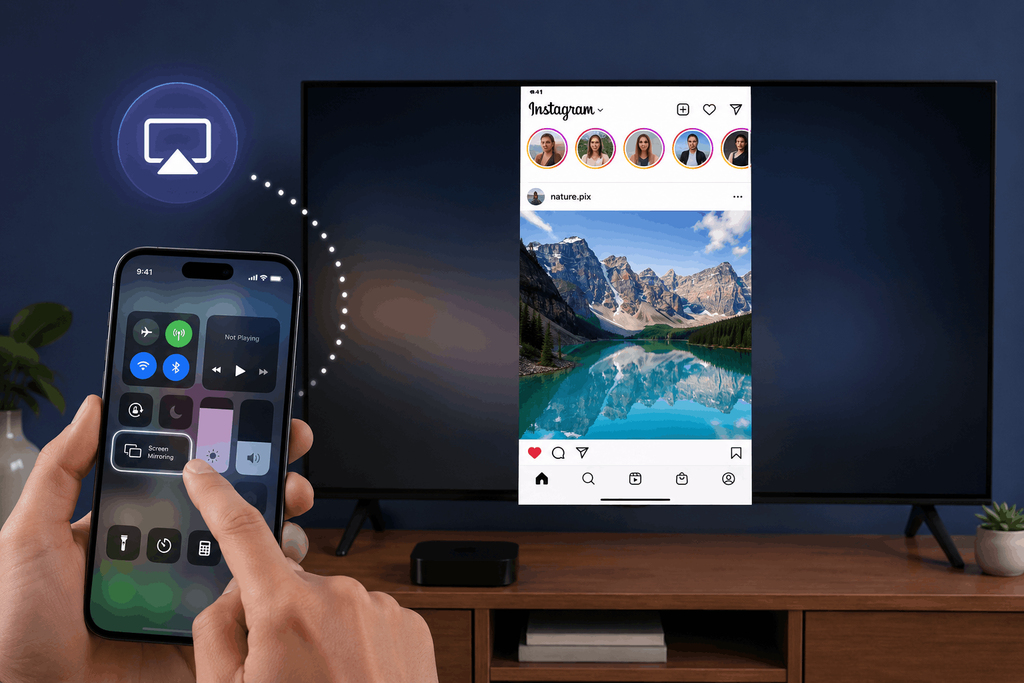
Important: There’s no AirPlay or Cast button. Instead, mirror your entire phone screen, then open Instagram.
Works with: Apple TV, AirPlay 2-compatible TVs (most recent Samsung, LG, Sony, Vizio, and Roku TV models), and Roku streaming players running Roku OS 9.4 or later.
- Put your iPhone and the TV or streaming device on the same Wi-Fi network.
- Open Control Center. Swipe down from the top-right corner on Face ID iPhones, or up from the bottom on older models.
- Tap Screen Mirroring.
- Select your TV or Apple TV from the list.
- Enter the four-digit code if the TV shows one.
- Open Instagram. Everything on your phone screen now appears on the TV.
Because this mirrors the phone, it works with Live, Reels, Stories, and DMs. It also means anything else on your screen shows up too, including notifications. Turn on Do Not Disturb first if you are showing this to a room.
Rotate the phone to landscape for Reels and Live if you want a wider image, though Instagram’s vertical format will still leave black bars on either side.
3: How to Cast Instagram to TV from an Android Phone (Google Cast)
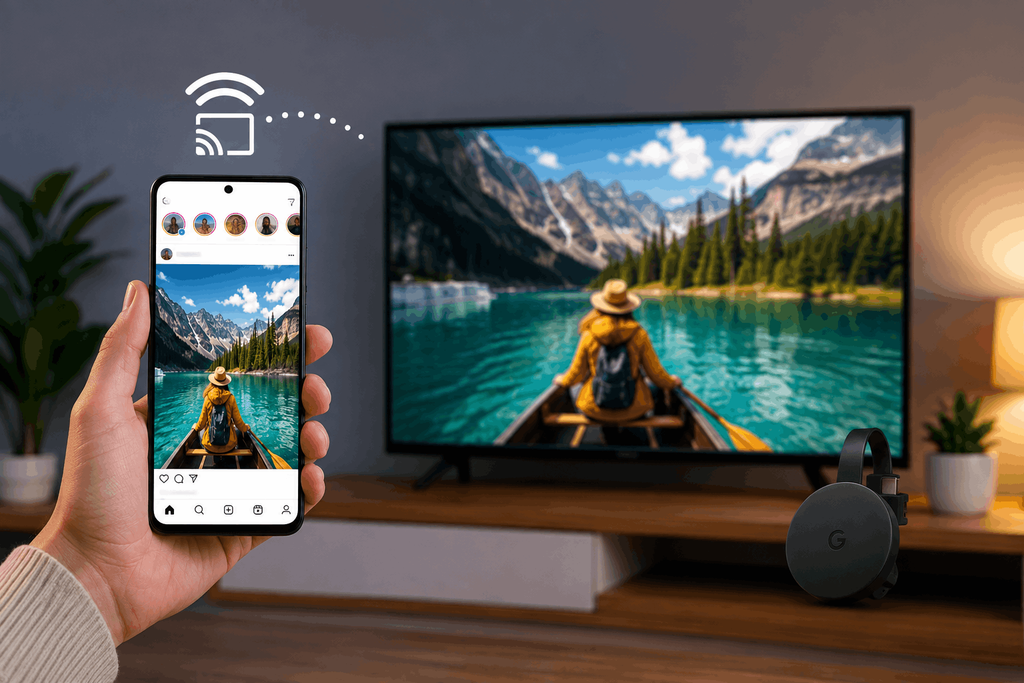
Same principle. You are mirroring the phone, not casting from inside Instagram.
To a Chromecast or Google TV device:
- Connect the phone and the Chromecast to the same Wi-Fi network.
- Open the Google Home app.
- Tap your Chromecast device.
- Tap Cast my screen, then Cast screen.
- Open Instagram.
Shortcut on many Android phones: swipe down twice from the top of the screen and look for a Screen Cast, Smart View (Samsung), or Cast tile in Quick Settings.
Samsung phones can also use Smart View to connect directly to Samsung TVs without a Chromecast.
4: Mirror to a Fire TV Stick or Roku TV
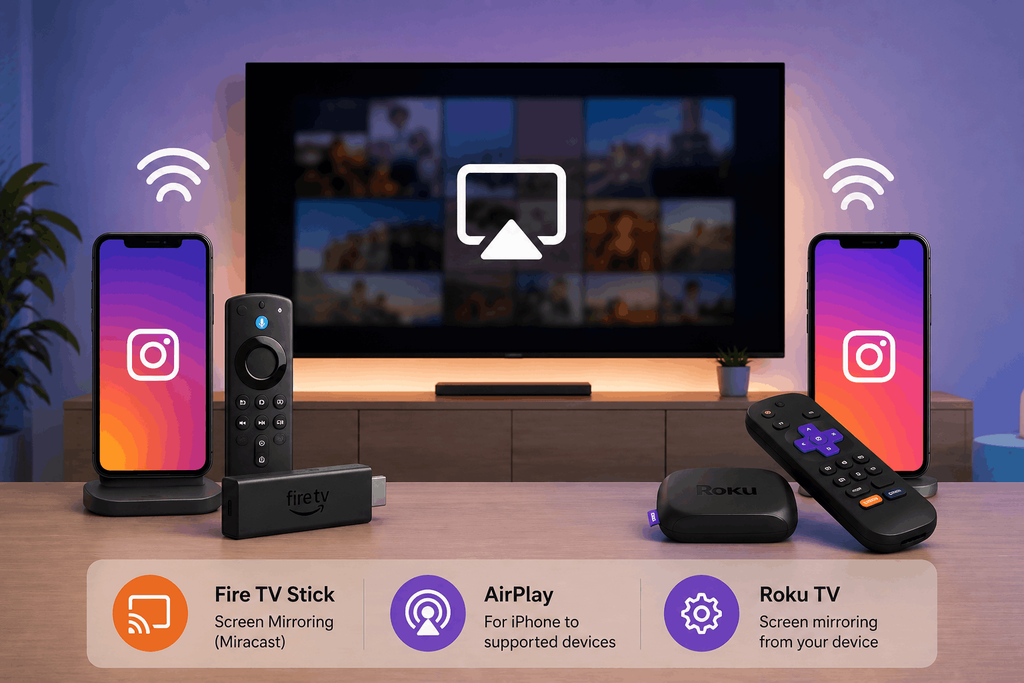
Fire TV Stick
- Press and hold the Home button on your Fire TV remote.
- Select Mirroring.
- On your Android phone or Windows PC, open the Cast/Screen Mirroring menu.
- Select your Fire TV.
- Fire TV uses Miracast, which iPhones don’t support.
- If you’re using an iPhone, check whether your Fire TV model supports AirPlay. Some Fire TV Omni and 4-Series televisions do.
Fire TV browser route
- Open the Silk browser on your Fire TV.
- Go to instagram.com.
- Sign in using the remote.
- Typing with the remote is slow, but this method works without a phone.
Roku TV
- Go to Settings → System → Screen mirroring.
- Set it to Prompt or Always allow.
- Cast from your Android phone or Windows PC.
- If you’re using an iPhone, use AirPlay instead if your Roku model supports it.
5: Use your Smart TV’s built-in browser
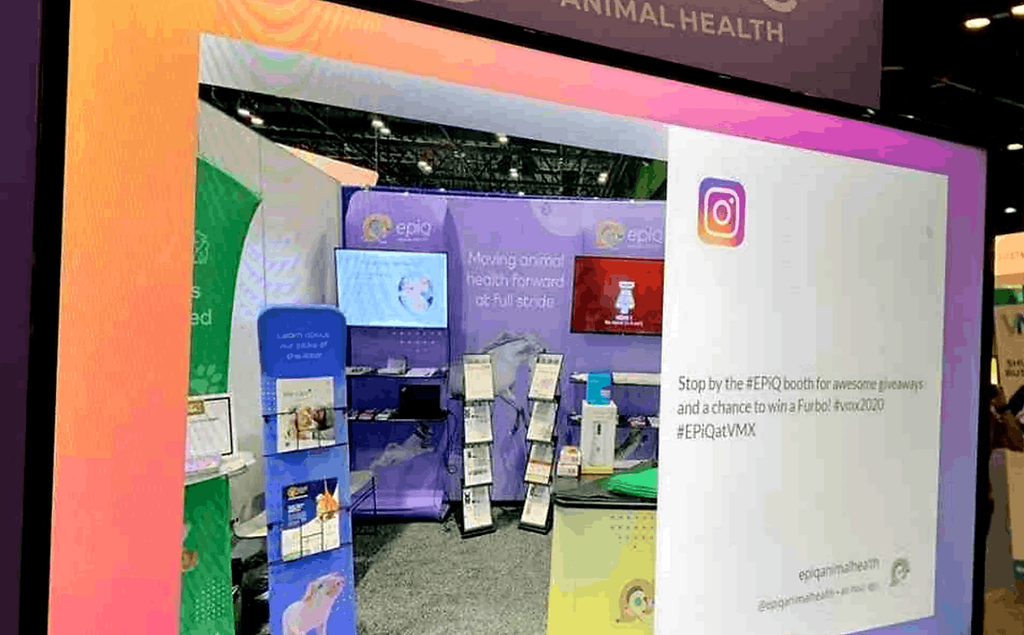
Since there is no Instagram TV app, the closest native option is the TV’s own web browser.
- Fire TV: Silk browser, free to install from the app store.
- Samsung (Tizen): Internet browser, preinstalled on most models.
- LG (webOS): Web Browser, preinstalled.
- Google TV / Android TV: no browser by default. Install one from the Play Store.
Sign in at instagram.com. Expect a compromised experience: remote-control typing is painful, some interactions do not translate well to a D-pad, and a Bluetooth keyboard helps a lot. Use this as a fallback, not a first choice.
A note on sideloading: you may see guides suggesting you sideload the Instagram Android APK onto a Google TV or Fire TV. We do not recommend it. The app is built for touch and vertical screens; navigation with a remote is unreliable, and sideloaded apps do not receive updates through the normal channel.
Use a browser-based social wall built for large screens, events, businesses, and public spaces.
No Credit Card Required6: How to Stream Instagram to TV Continuously (Social Walls)
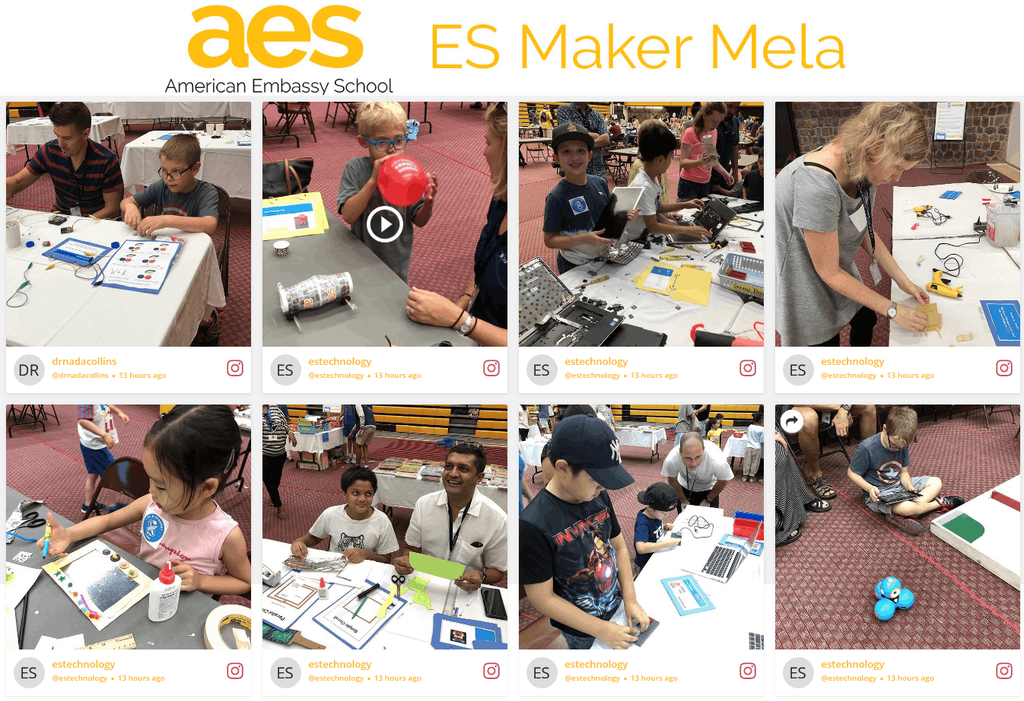
Every method above requires a phone or laptop to stay connected, awake, and dedicated to the task. That is fine for twenty minutes on the couch. It falls apart when you need to stream Instagram to TV continuously, with an Instagram feed running on a screen for eight hours at a conference, in a store window, or in an office lobby.
That is a different job, and it needs a different tool.
A social media wall tool pulls posts from Instagram into a hosted display you open in any browser or media player. The screen refreshes on its own, the phone goes back in your pocket, and nobody sees a notification banner or a low-battery warning on the big screen.
What you can pull in
- Hashtag feeds, for campaigns and event tags
- Your own profile’s posts and Reels
- Mentions and tagged posts
- Stories support
How to set it up
- Create an account on socialwalls.com and start creating your wall.
- Add an Instagram source: connect the account, or enter a hashtag or handle.
- Moderate. Approve posts manually, or set rules to filter by keyword, account, or media type. This step matters more than people expect on a public hashtag.
- Pick a theme and layout. Choose portrait or landscape to match how the screen is mounted.
- Open the display URL on the screen, whether that is a TV browser, a media player, an Amazon Fire TV Stick with Silk, or a digital signage player.
Where this is used
Events, Trade show booths, brand activations, wedding and conference venues, retail store windows, restaurant waiting areas, office lobbies, and campus events. Anywhere the audience is in the room rather than on the couch.
Real example: NEXT Hotel by Savoy Signature
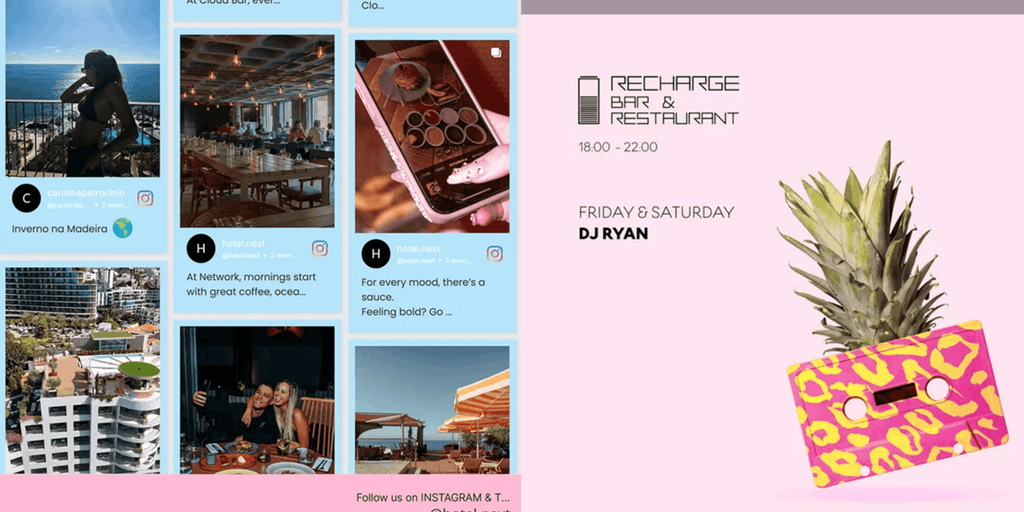
NEXT Hotel by Savoy Signature wanted to connect with its social-media-driven guests while keeping its bold hotel identity at the center. Guest content was already being shared through #Hotelnext, #Nexthotel, and @hotel.next, but the hotel needed a way to bring those social moments into the property.
Using Social Walls, NEXT displayed real guest photos and videos alongside promotions for parties, events, and other hotel activities.
The results, according to the published case study:
- Increased guest engagement and social sharing
- More authentic social proof through guest-generated content
- Greater visibility for hotel events and experiences
The mechanism is the part worth understanding: guests could see their own posts become part of the hotel experience, encouraging others to share while keeping guests informed and connected.
Read the full Next Hotel case study
Display Instagram posts, Reels, and UGC in real time on any screen, wherever your audience is.
No Credit Card RequiredTroubleshooting: Why casting Instagram fails
The TV shows a black screen, but I can hear audio. Usually a Miracast or HDCP handshake issue. Stop mirroring, restart both devices, and reconnect. On Android, try a different cast method (Google Home instead of the Quick Settings tile, or vice versa).
There is a delay between my phone and the TV. Screen mirroring runs over Wi-Fi, and lag of one to three seconds is normal. A 5 GHz network helps. So does moving the router closer, or switching to a wired HDMI connection.
My TV is not showing up in the list. Both devices must be on the same Wi-Fi network, and on the same band on some routers. Guest networks and networks with client isolation enabled will block this entirely, which is why mirroring so often fails at venues and hotels.
The mirror keeps dropping. Your phone is probably sleeping or being throttled by battery saver. Plug it in and set the screen timeout to Never.
My notifications are showing on the TV. Turn on Do Not Disturb or Focus mode before you mirror.
It works, but the image is small with black bars. Instagram is vertical. On a horizontal TV, bars on either side are unavoidable when mirroring. A social wall layout designed for landscape screens is the only way around this.
Reasons to Display Instagram on a Bigger Screen
- Following along with instructional content. Workout routines, recipes, and tutorials are much easier to follow when you are not squinting at a phone propped against a mug.
- Detail you lose on a phone. Product photography, design work, and travel content reward a larger canvas.
- Group viewing. Watching a Live or a highlight reel with a room full of people only works on a shared screen.
- Social proof in a physical space. For businesses, a live hashtag feed on a screen turns customer posts into visible endorsement at the exact moment someone is deciding whether to buy or post themselves.
- Encouraging more posts at events. When attendees see their own post appear on a big screen, more of them post. This is the entire reason event social walls exist.
- Filling screen time you already own. Retailers and venues with existing displays get fresh content without a content calendar.
Conclusion
Whether you want to cast Instagram to TV for casual viewing or stream Instagram to TV continuously at an event, the right method depends on how you plan to use it. Screen mirroring works well for short sessions, while a social wall is a better option when you need an Instagram feed to run on a screen for hours without keeping your phone connected.
With the right setup, you can watch Instagram on TV, display Instagram posts and Reels, and turn any compatible screen into a live social display. For events, offices, stores, and other public spaces, run your Instagram wall on any screen and keep fresh UGC visible without the hassle of continuous screen mirroring.
Choose the right setup for casual viewing, screen mirroring, or continuous Instagram displays.
No Credit Card RequiredDomande frequenti
No. Instagram non ha mai rilasciato un'app per Samsung, LG, Sony, Roku, Fire TV o Google TV. Usa invece lo screen mirroring, il browser web della TV o uno strumento di social wall.
Sì, tramite lo screen mirroring. Non c'è un pulsante cast all'interno dell'app Instagram, quindi esegui il mirroring dell'intero schermo del tuo telefono e poi apri la Live.
Molto spesso un problema di handshake di mirroring piuttosto che una restrizione di Instagram. Riavvia entrambi i dispositivi e riconnetti. Se l'audio viene riprodotto ma il video no, prova un metodo di mirroring diverso o una connessione HDMI cablata.
Non con lo screen mirroring, che richiede che il telefono rimanga attivo e connesso. Utilizza uno strumento di social wall che si carica in un browser e si aggiorna da solo.
Sì. Usa il browser integrato della TV per accedere a instagram.com, oppure collega un laptop tramite HDMI.