



¿Cómo crear un feed de fotos en un evento?
Create a live photo feed for your event with Social Walls. Collect photos from attendees using SnapUp, moderate submissions, and display approved photos on event screens.
Step 1: Create a Social Wall
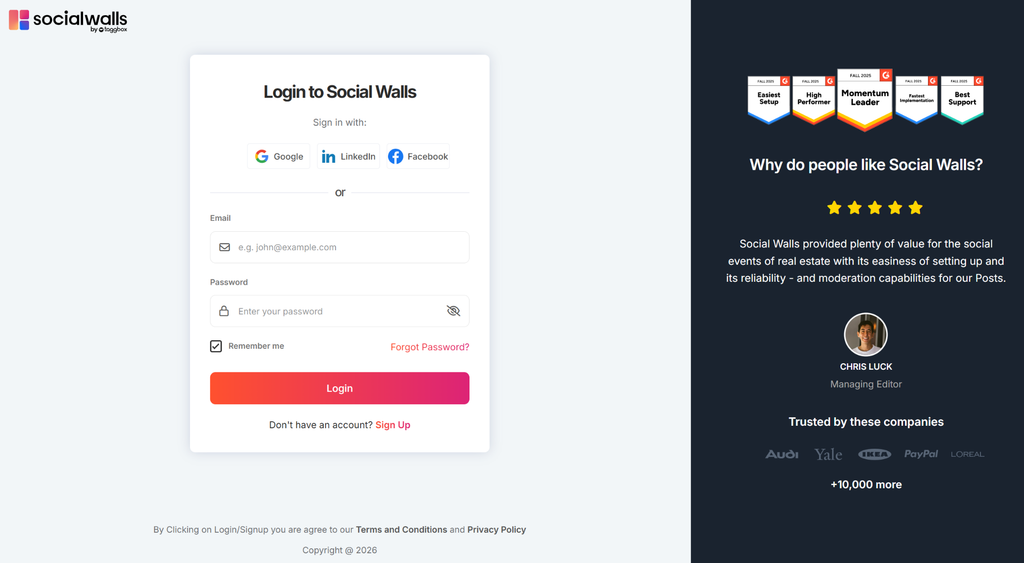
Log in to Social Walls and create a new wall for your event.
Step 2: Set Up SnapUp
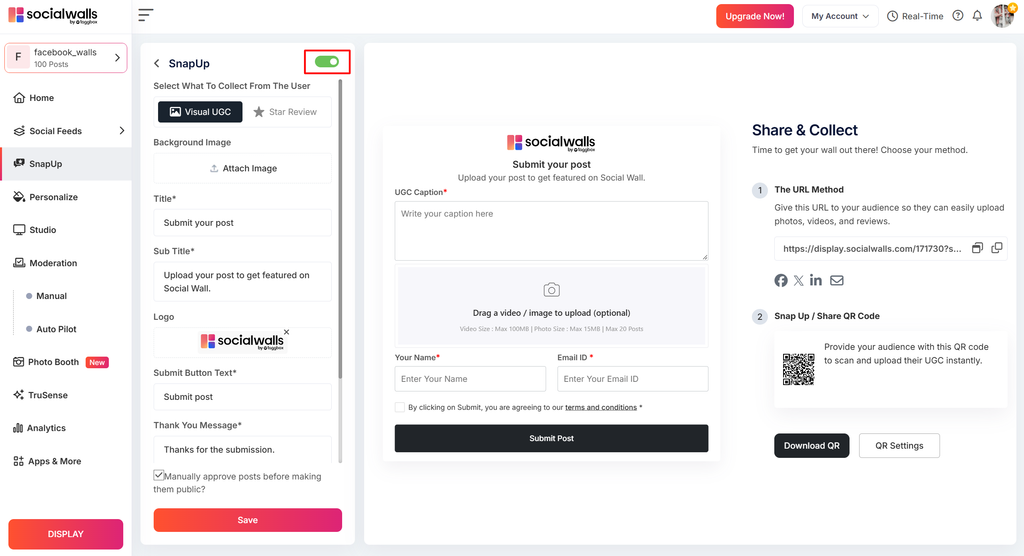
Open the Apps section, select SnapUp, and configure your photo upload experience.
Step 3: Generate Your QR Code
Generate the SnapUp QR code and share it with attendees so they can upload photos directly from their phones.
Step 4: Moderate Submitted Photos
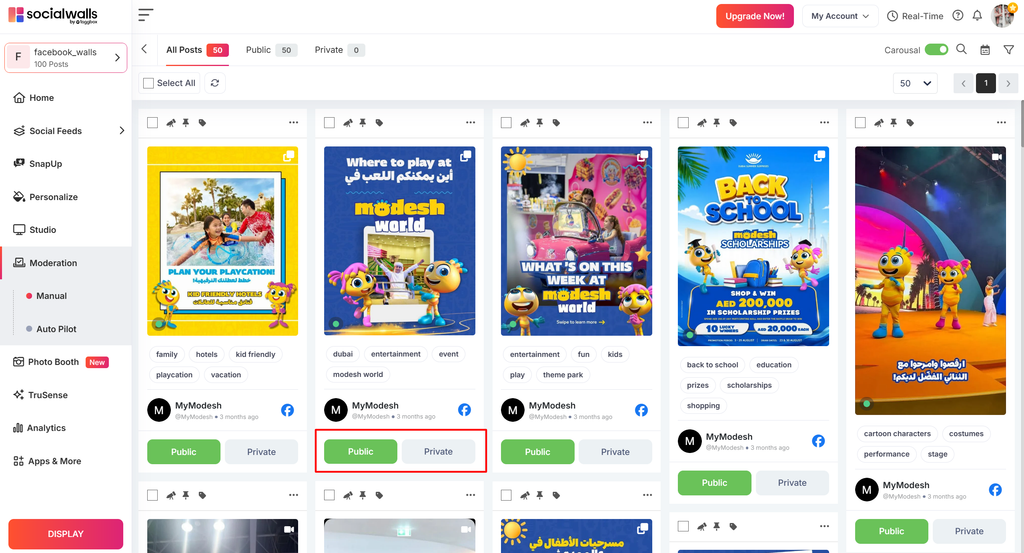
Review attendee submissions and approve the photos you want to display on your event screen.
Step 5: Customize Your Photo Feed
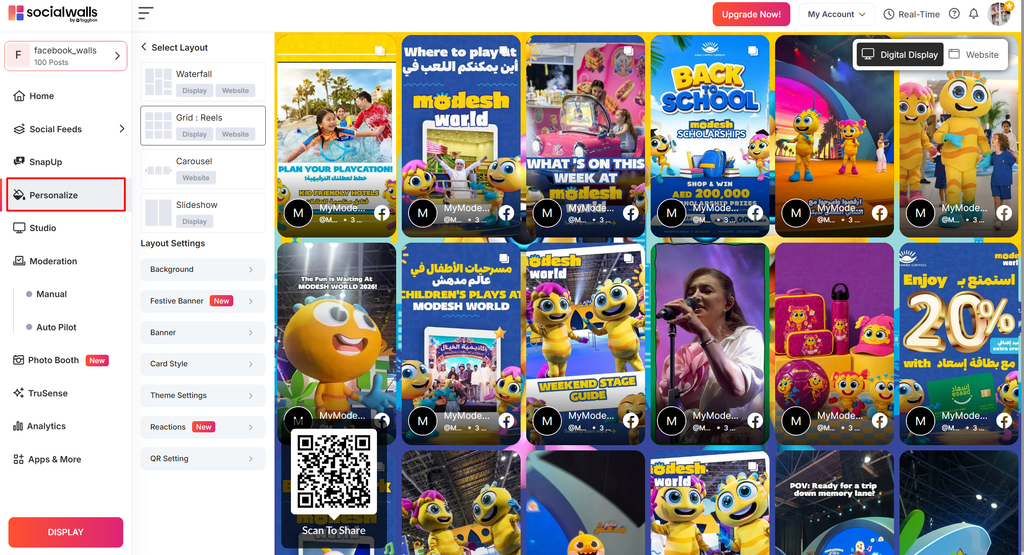
Choose a layout and customize the available design settings to match your event theme and branding.
Step 6: Display Your Photo Feed
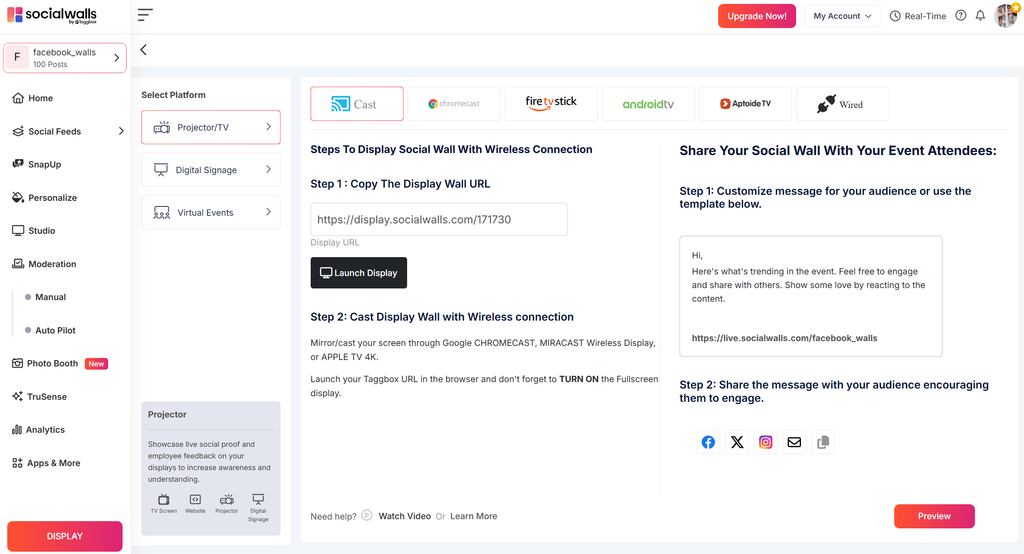
Open the display options and launch your photo feed on your event TV, projector, LED wall, or compatible digital signage screen.
Step 7: Go Live at Your Event
Check that your approved photos appear correctly on the screen. Keep collecting and moderating submissions throughout your event to keep the photo feed updated.
Need help?
Contact the Social Walls support team if you need assistance setting up SnapUp, managing submissions, or displaying your photo feed during an event.