
How to Project a Live Social Media Feed on Screen?
Want to display live social media posts on a big screen during your event? With Social Walls, you can collect content from supported social media platforms, moderate posts, and display your social feed on TVs, projectors, LED walls, and digital signage. Whether you’re hosting a conference, concert, trade show, or corporate event, a live social media feed helps showcase audience contributions and encourage participation.
Follow these simple steps to create your social media feed and project it on a screen using Social Walls.
Step 1: Log In to Social Walls
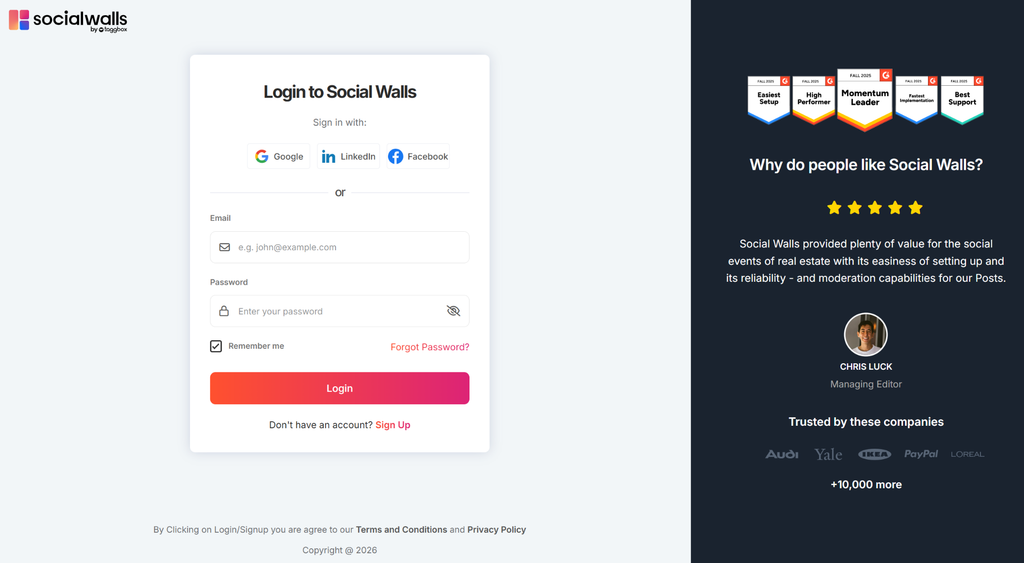
Visit app.socialwalls.com and log in to your account. Open an existing social wall or create a new one for your event.
Step 2: Add a Social Media Feed
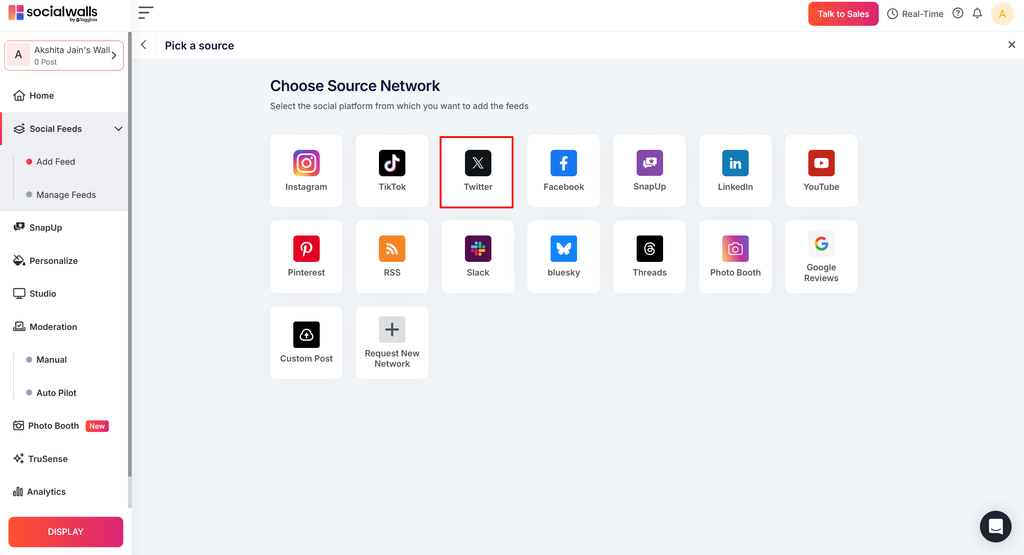
Select a supported social media platform, such as Instagram, Facebook, TikTok, LinkedIn, or X, from the available content sources. Choose a feed type and enter the required details to collect relevant posts.
Step 3: Moderate Your Content
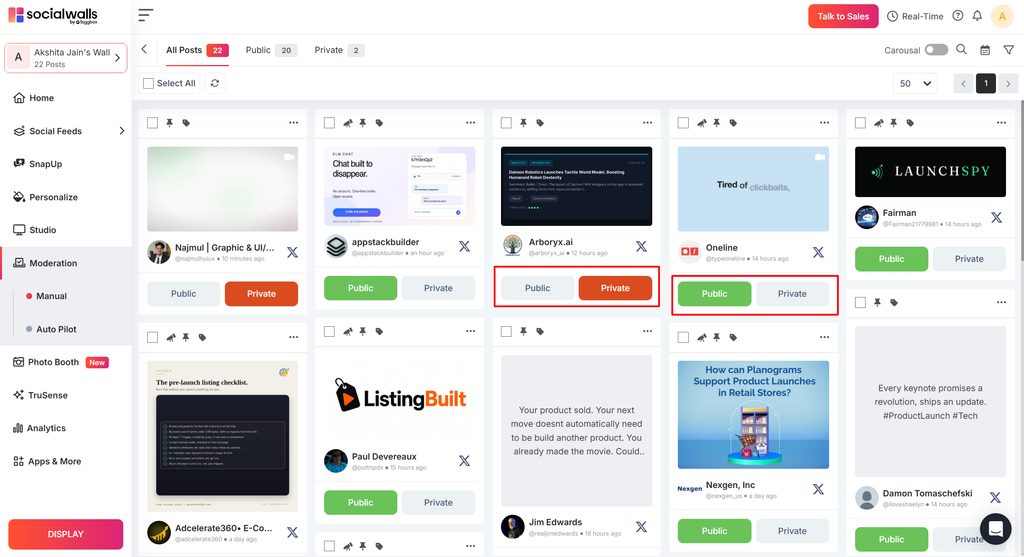
Open the moderation section and review the collected posts. Approve the content you want to display and hide irrelevant or unsuitable posts before projecting your feed.
Step 4: Customize Your Social Wall
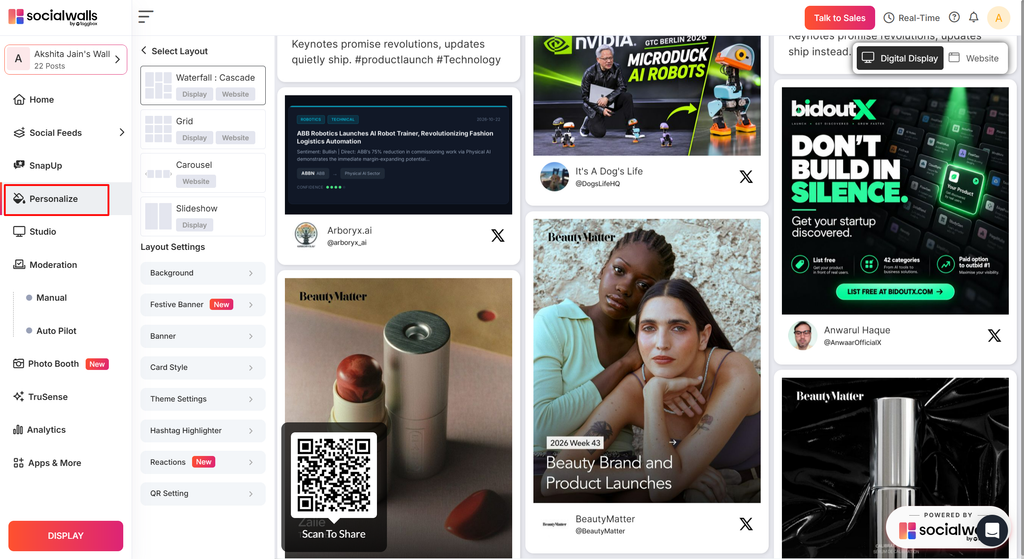
Open the personalization settings and choose a layout that suits your screen. Customize the available colors, backgrounds, and branding elements to match your event theme.
Step 5: Connect Your Screen or Projector
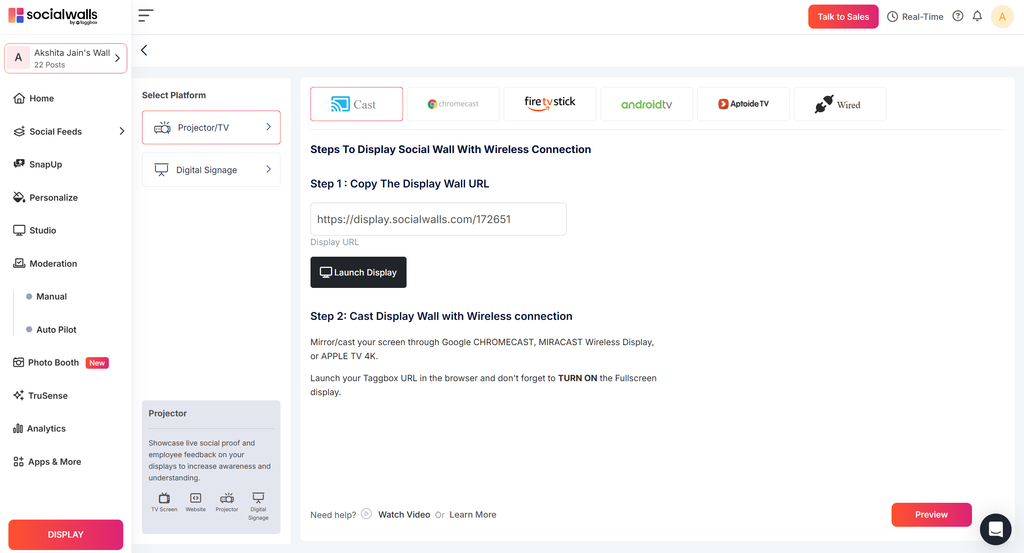
Connect your laptop or supported device to the projector, TV, or LED display using HDMI, screen casting, or another compatible connection method. Make sure the display is selected as the correct output.
Step 6: Open Your Social Wall
Return to your Social Walls dashboard and open the display options for your wall. Follow the available instructions to launch your social media wall in the browser or supported display application.
Step 7: Project Your Live Social Media Feed
Open the wall in full-screen mode on the connected device. Check that the posts are readable, the layout fits the screen, and approved content appears correctly. Your live social media feed is now ready to display during your event.
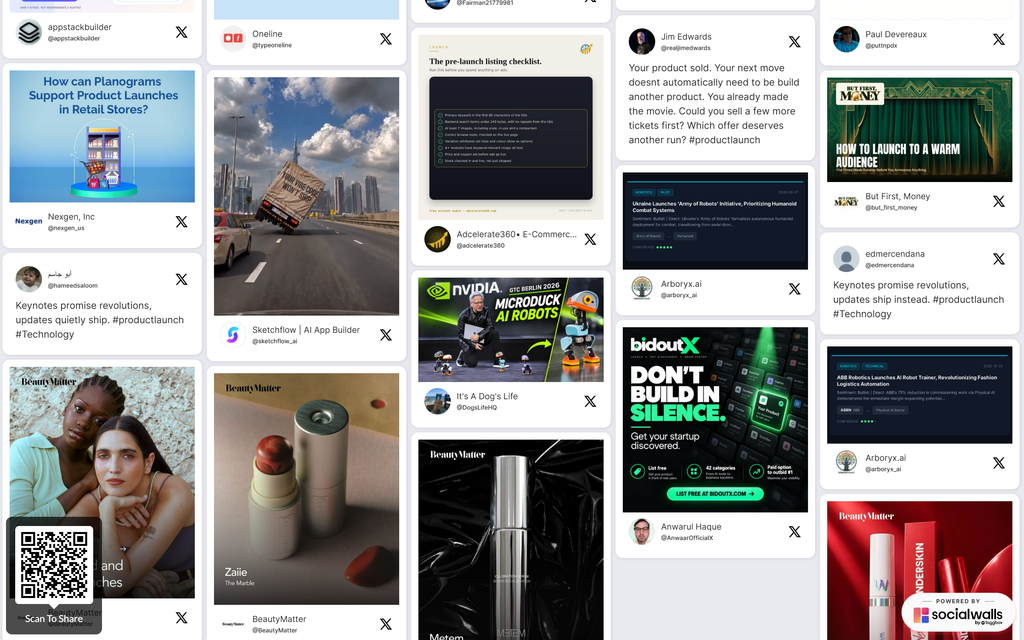
Your live social media feed is ready to bring audience posts and event conversations to the big screen. For additional help, contact the Social Walls support team.