



How To Display A Social Wall On SignageLive Digital Signage?

Display Social Wall on SignageLive

To display a Social Wall on SignageLive Digital Signage, you need to follow the given steps-

Step 1

First Login or Signup to your Social Walls account

Step 2

After Login you will be land on the Social Walls Home, Click on Start Now and on Next Screen, you will ask to choose a network to create a social wall

choose start now

Step 3

Select the source from where you want to fetch the feed

Choose Platform

Step 4

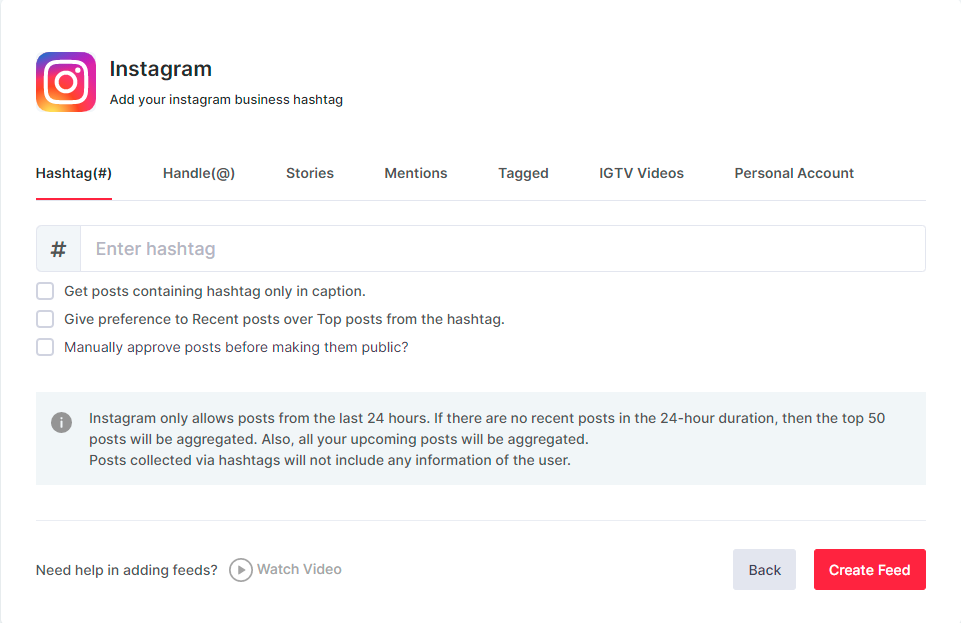
Just take Instagram as a source to add the feed. Here you will find multiple options to create the feed like Hashtag, Handle, Stories, Mentions, Tagged, IGTV Videos & Personal Account.

Step 5

You will see the preview of the social wall.

Feed Preview

Step 6

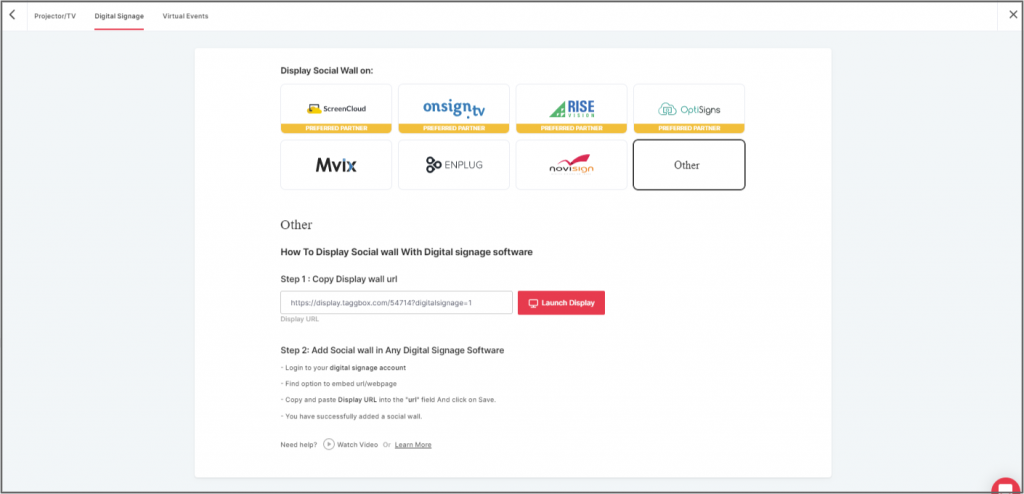
Click on the Display button at the bottom of the left column. On the left bottom side, you will notice an Integrate with DIGITAL SIGNAGE option. Select SignageLive as your digital signage option.

Step 7

Now, login to your SignageLive account.

Step 8

Next, click on Content.

Step 9

Select Assets and click on Add Assets.

Step 10

Now, click on the Add URL button.

Step 11

Now click on Add Webpage button and paste the copied Embed URL in the Add New Webpage field.

Great! You have successfully integrated the social wall on your Novisign digital signage. 

If you have any questions or need help, please contact us or write to us at support@Social Walls.com

支持团队成员 1
支持团队成员 2
支持团队成员 3

24×7 现场活动专家随时为您服务

在您的活动之前、期间和之后获得专家支持,以确保每个社交墙都能顺利运行。

开始免费试用