





How to Add a Facebook Hashtag to a Social Wall?
Want to showcase Facebook content related to your event, brand, or marketing campaign on a big screen? With Social Walls, you can bring relevant Facebook content into your event social wall and display it on TVs, LED walls, projectors, and digital signage. Follow the steps below to set up your Facebook feed, moderate posts, customize your display, and create a more engaging experience for your audience.
Step 1: Log In to Social Walls
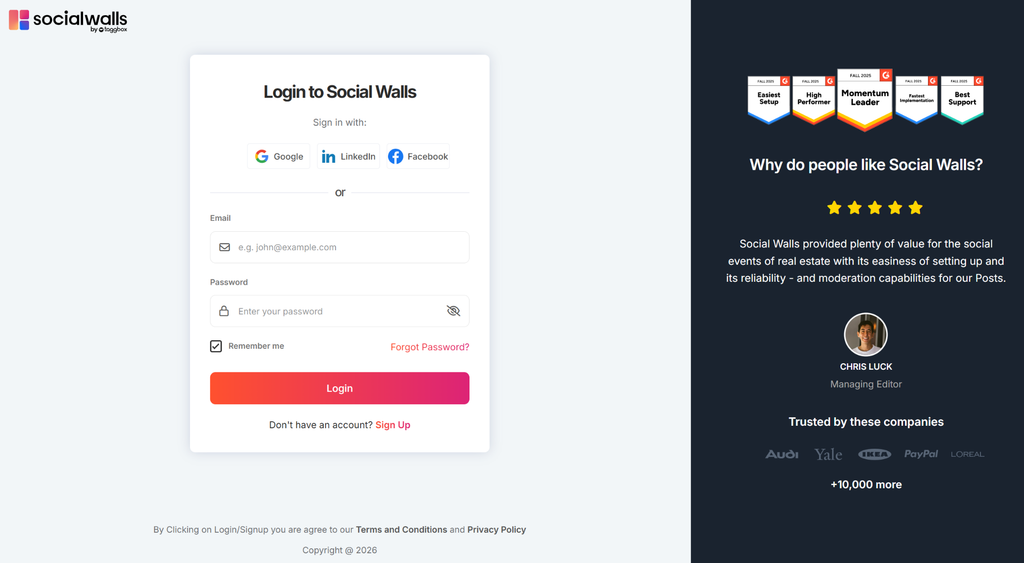
Visit app.socialwalls.com and log in to your account. Open an existing social wall or create a new one for your event or campaign.
Step 2: Select Facebook
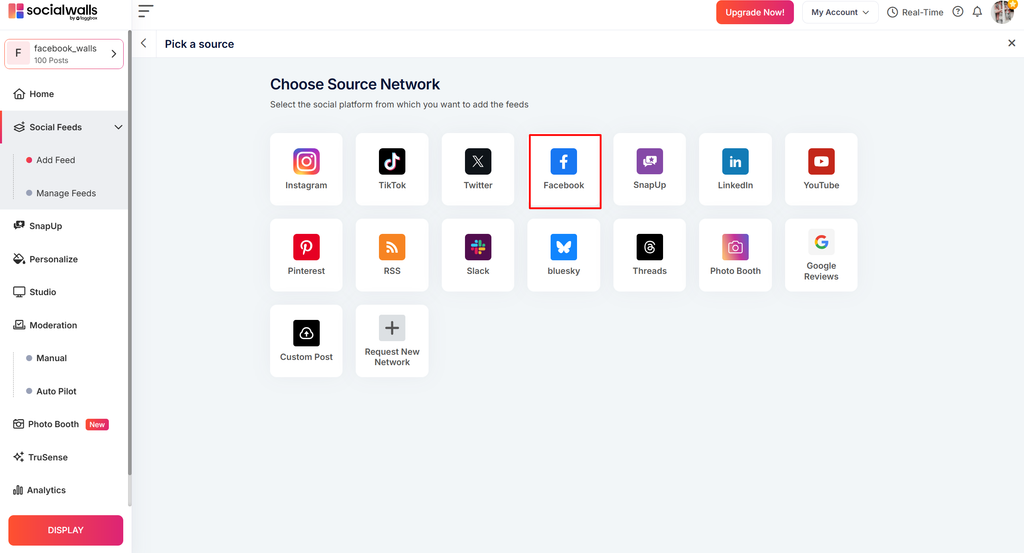
Open the content source section and select Facebook to explore the available feed options.
Step 3: Connect Your Facebook Account
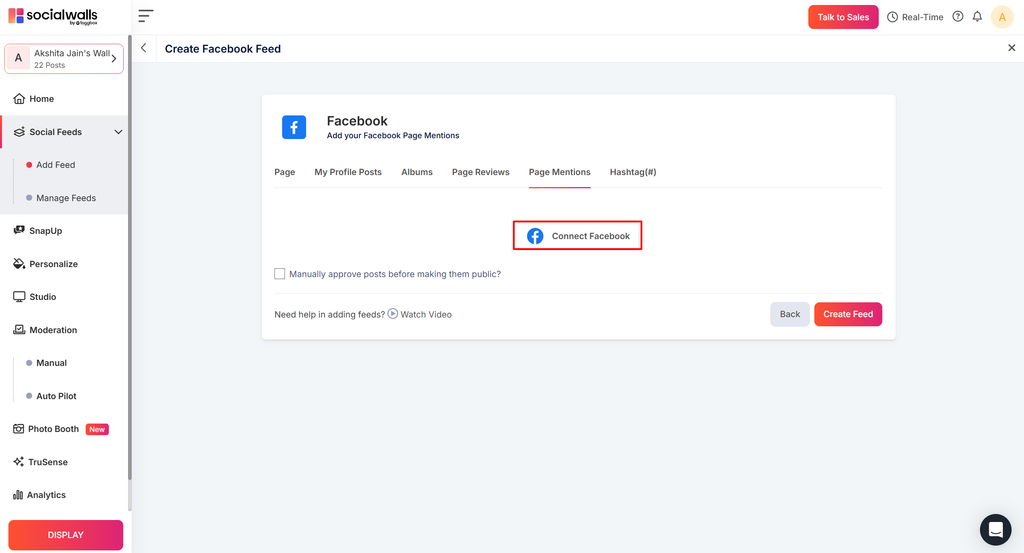
Follow the on-screen instructions to connect your Facebook account and grant the required permissions.
Step 4: Set Up Your Facebook Feed
Choose an available Facebook feed type and enter the required details to collect relevant posts. Select the option that best matches your content needs.
Step 5: Moderate Your Posts
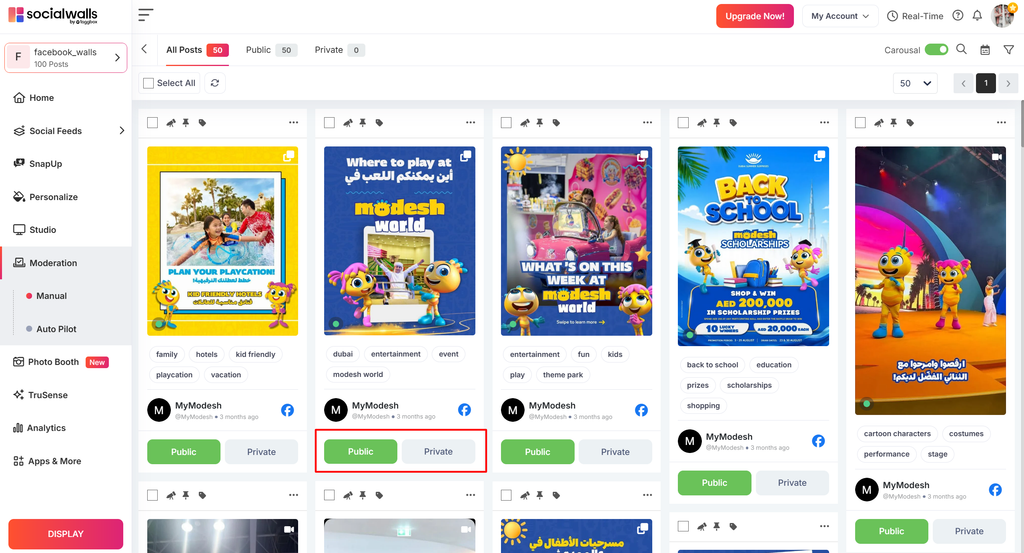
Review the collected Facebook posts and approve the content you want to display on your social wall. Keep irrelevant or unsuitable posts hidden to maintain a relevant feed.
Step 6: Customize Your Social Wall
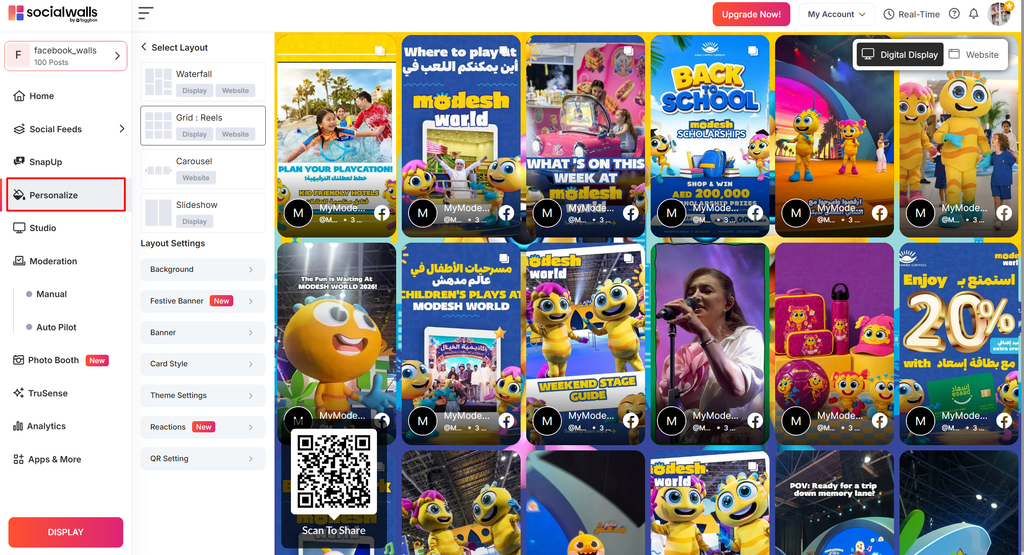
Choose a suitable layout and customize the available colors, background, and design settings to match your event or campaign branding.
Step 7: Display Your Social Wall
Open the display options and launch your facebook social wall on a compatible TV, projector, LED wall, or digital signage screen. Preview the wall to ensure everything looks right before your audience sees it.
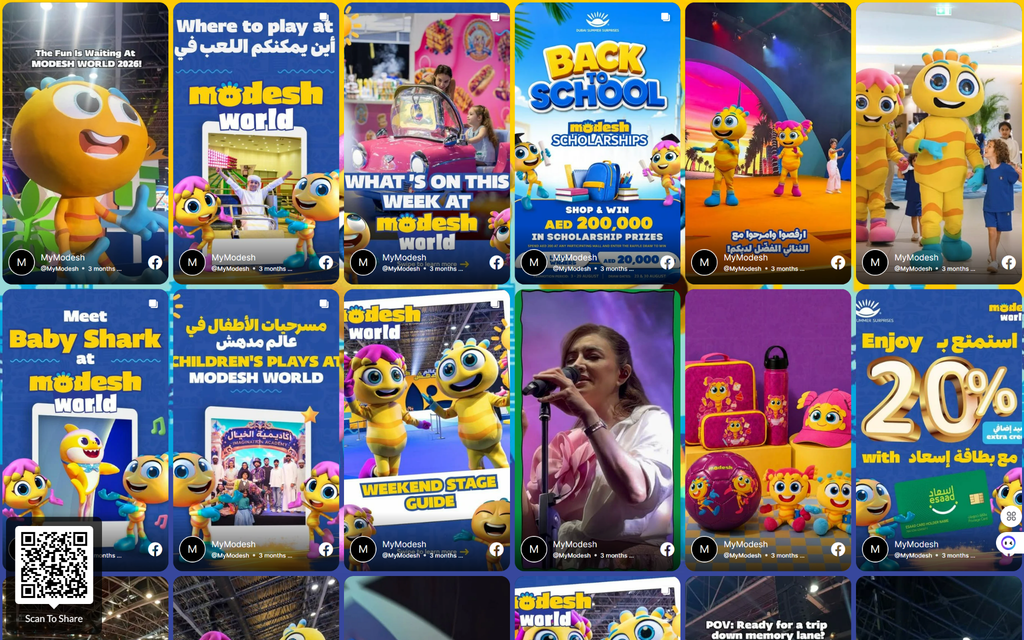
Your Facebook social wall is ready to showcase relevant content and make your event or campaign more engaging. For additional help, contact the Social Walls support team.